Data Table View
A data table view is a form of data presentation that provides features like pagination and search. By selecting the appropriate data view, the usability of the system can be enhanced. The Zhixin platform includes multiple built-in view types, including but not limited to the following
| View Type | Description | PC Display | Mobile Display |
|---|---|---|---|
| Table View | Displays data in table format | ✓ | ✓ |
| Card View | Displays data in card format | ✓ | ✓ |
| Calendar View | Displays data in calendar format | ✓ | ✓ |
| Gantt Chart View | Displays data in Gantt chart format | ✓ | – |
| Kanban View | Displays data in Kanban board format | ✓ | – |
| Tree View | Displays data in hierarchical tree format | ✓ | – |
| Resource Calendar | Displays data in resource calendar format | ✓ | – |
| Timeline View | Displays data in timeline format | ✓ | – |
| Map View | Displays data on a map | ✓ | – |
| Folder View | Tree-structured folder-style display | ✓ | – |
| Custom View | Displays data via custom web page | ✓ | ✓ |
TIP
Each data table will have a default table view associated with it.
View Page Structure
A view page is mainly composed of a common area (which includes the combined filter conditions, toolbar, and filter conditions) and a view display area. The common area is shared across all views; the difference between views lies in the view display area.
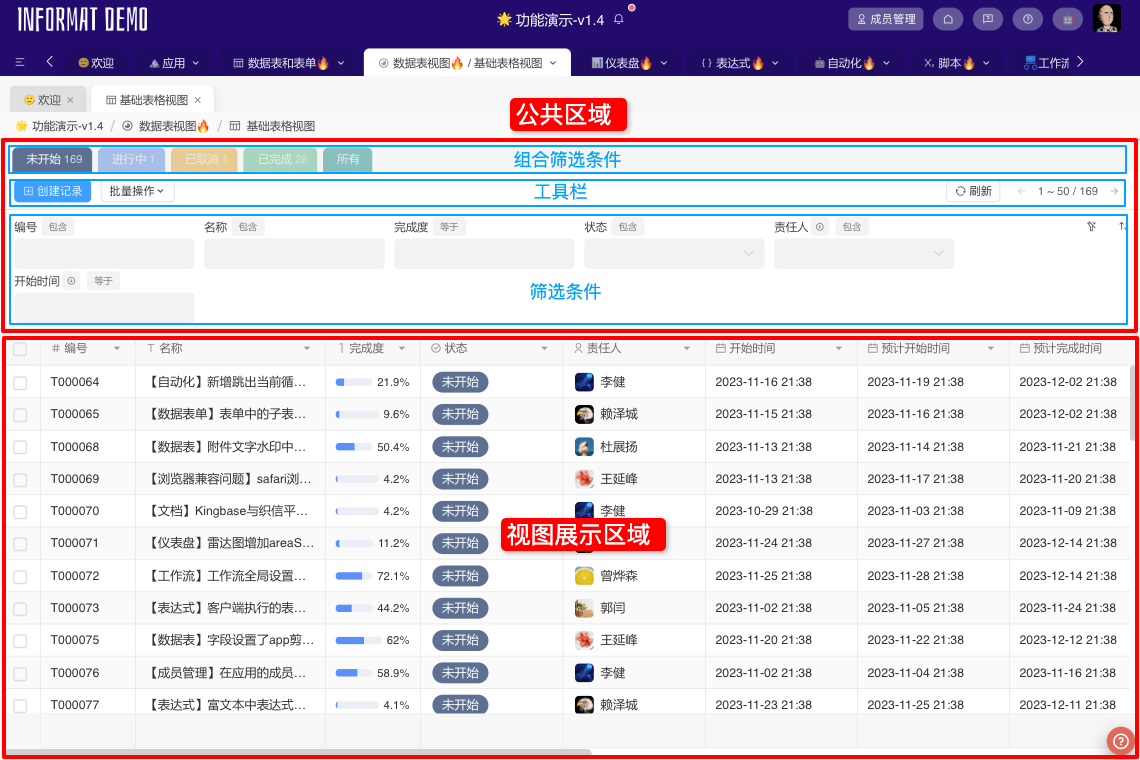
- Combined Filter Conditions:Displays the combined filter conditions label
- View Toolbar:Sets multiple controls, such as create button, delete button, etc.
- Filter Conditions:Filters data based on fields. Multiple filter conditions are connected with
ANDlogic. - View Display Area:Displays different content based on the view type.
Filter Conditions
View filters support three main types: Field Filter, Combined Filter, and URL (address-bar) Filter, and also allow pagination style settings.
Pagination Style
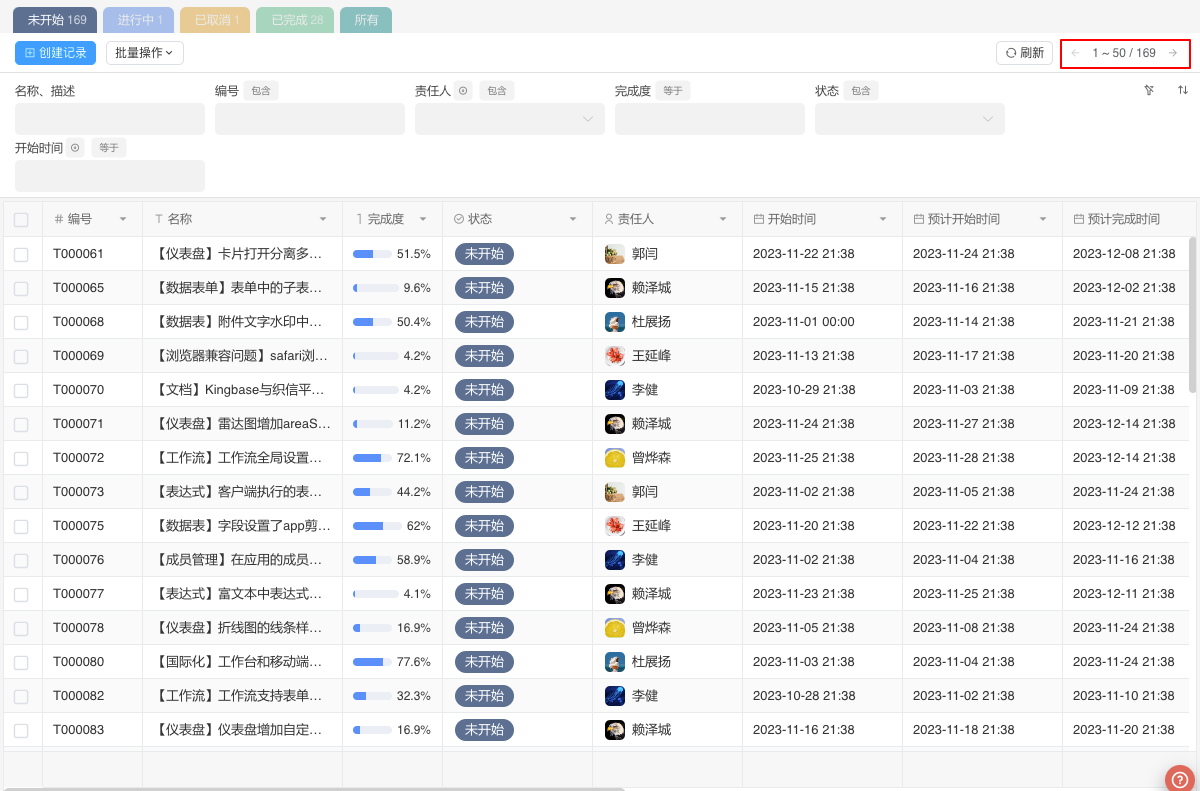
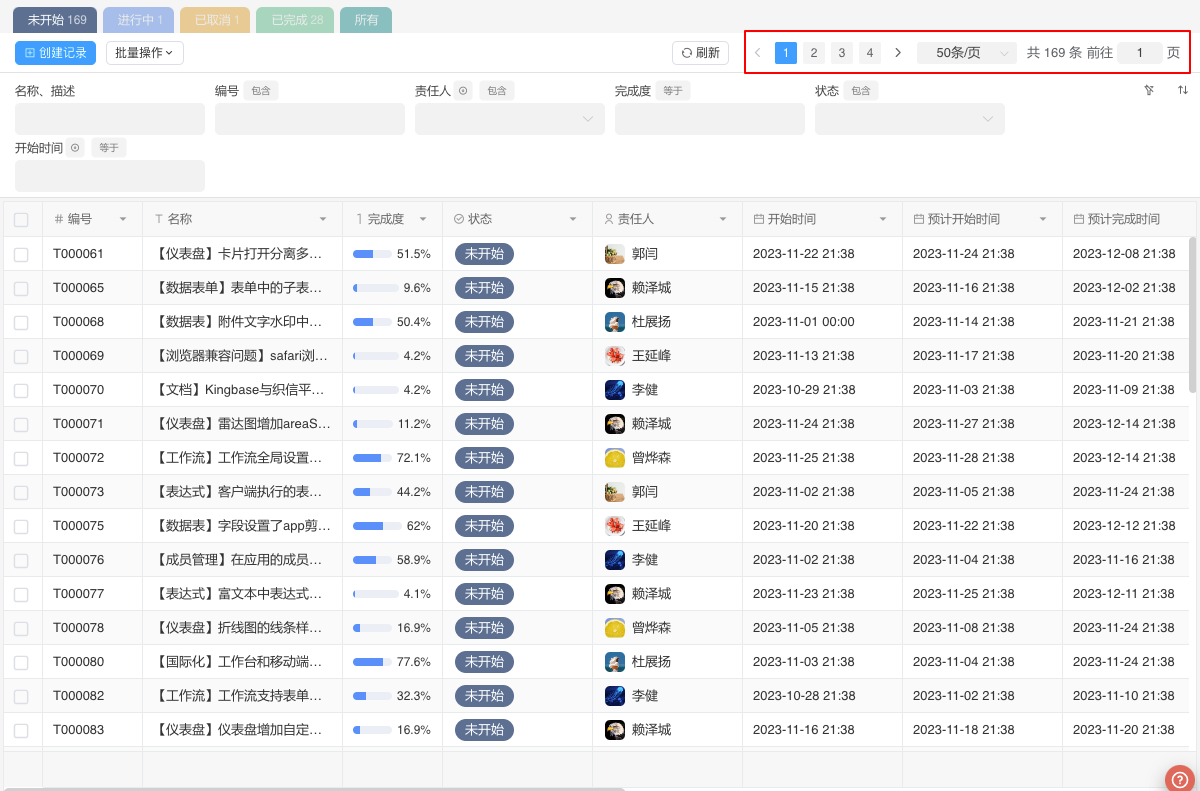
Pagination style supports simple and classic modes.
Field Filters
Field filters are mainly used for self-filtering of data.
Disable Filter Condition Caching
By default, the system records the last filter conditions for each view, allowing users to preserve the last filter conditions when revisiting the module. Enabling this setting will initialize the filter conditions every time the module is accessed.
Use the Following Fields as Filters
Set multiple field-based filters or combined "fuzzy search" filters for text-type fields. The configured fields will appear in the view's Filter Conditions area after the app is published.
Filter Condition Logic
Multiple filter conditions are connected with AND logic.
If you set name and gender as filter fields, and the user inputs zhangsan in the name filter box and sex in the gender filter box, the actual filtered data will be name is zhangsan and gender is man. :::
Dynamic Filter Values
The list of candidate values for filter conditions can be configured by invoking an automation, enabling fine-grained control over the visible data permissions for field filters in personalized scenarios. Within the automation, simply use the “Set Automation Return Value” step to return the list data that will serve as the dynamic candidate values.
The data structure for dynamic candidate values of each field type is as follows:
Filter Condition Display Position
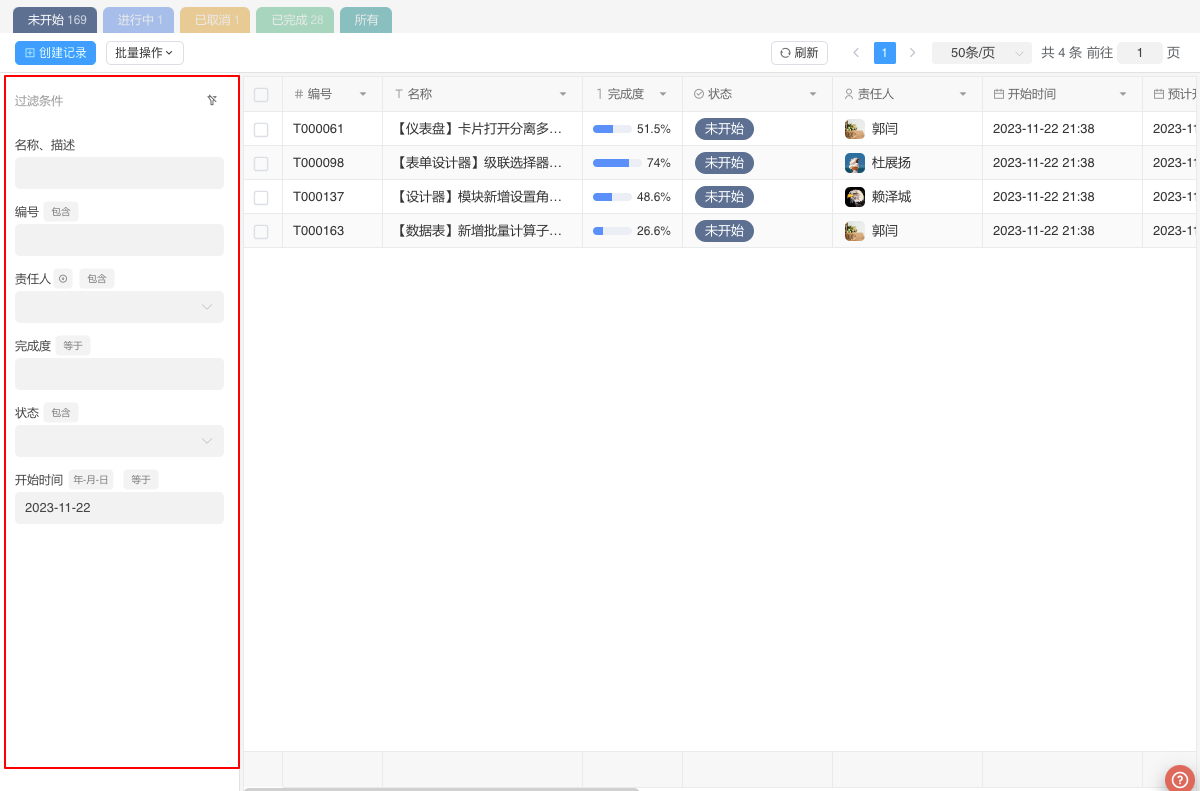
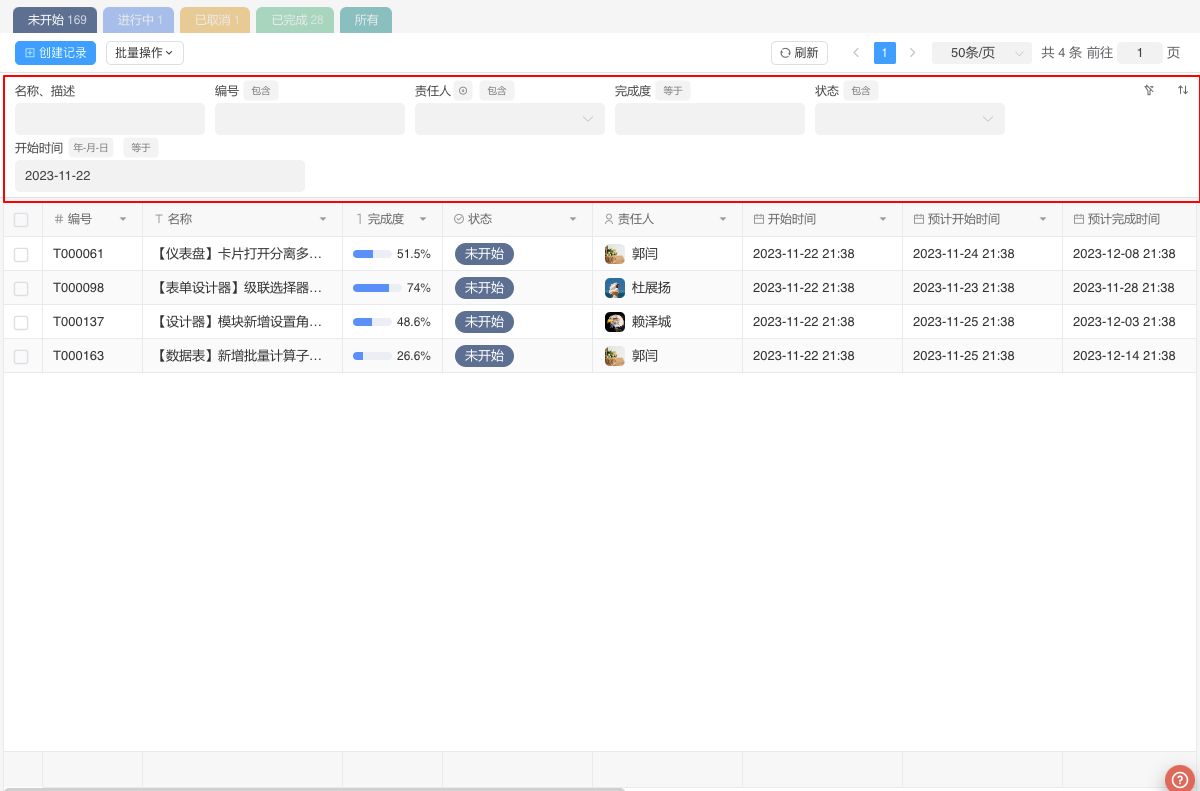
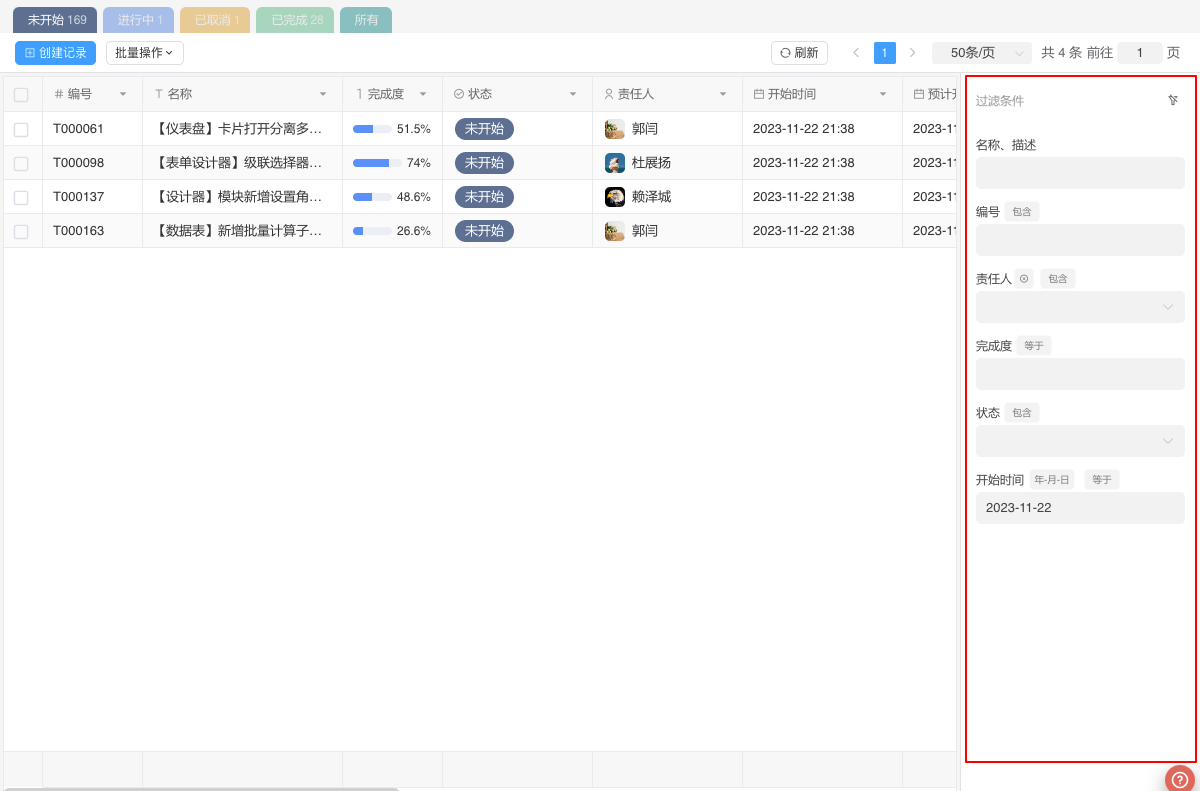
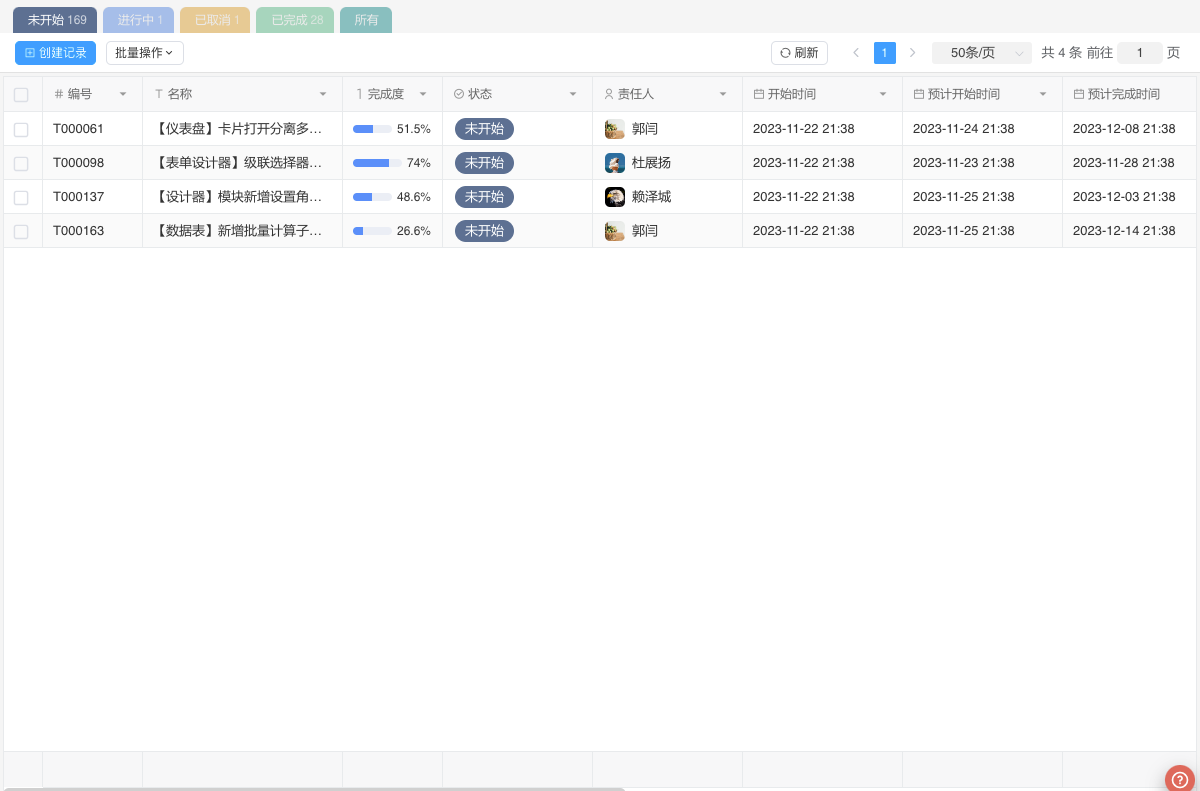
Combined Filter Conditions
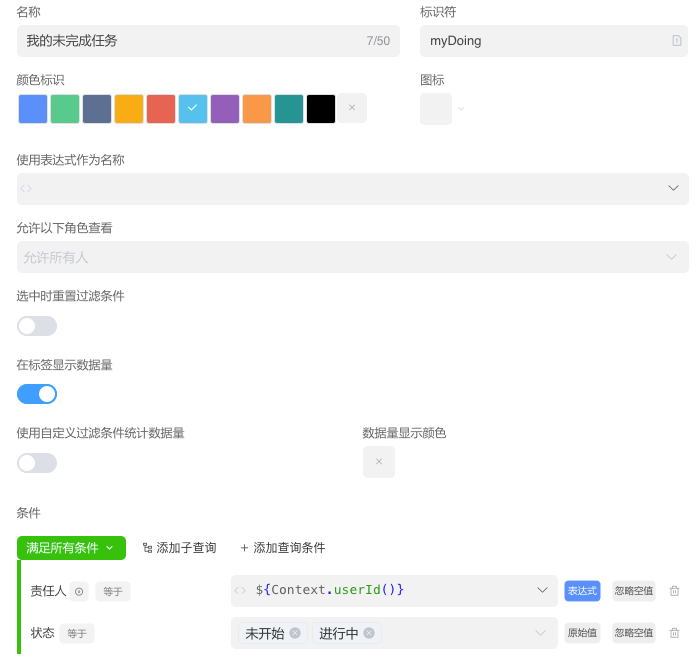
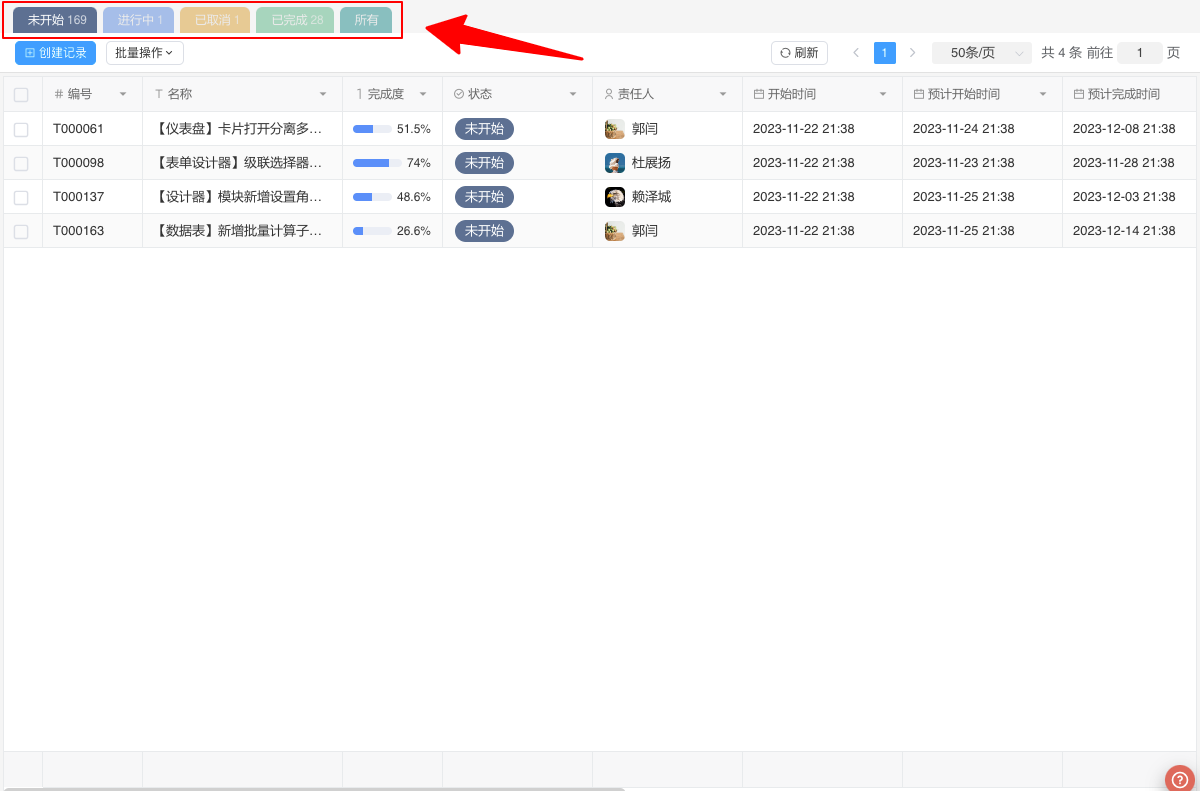
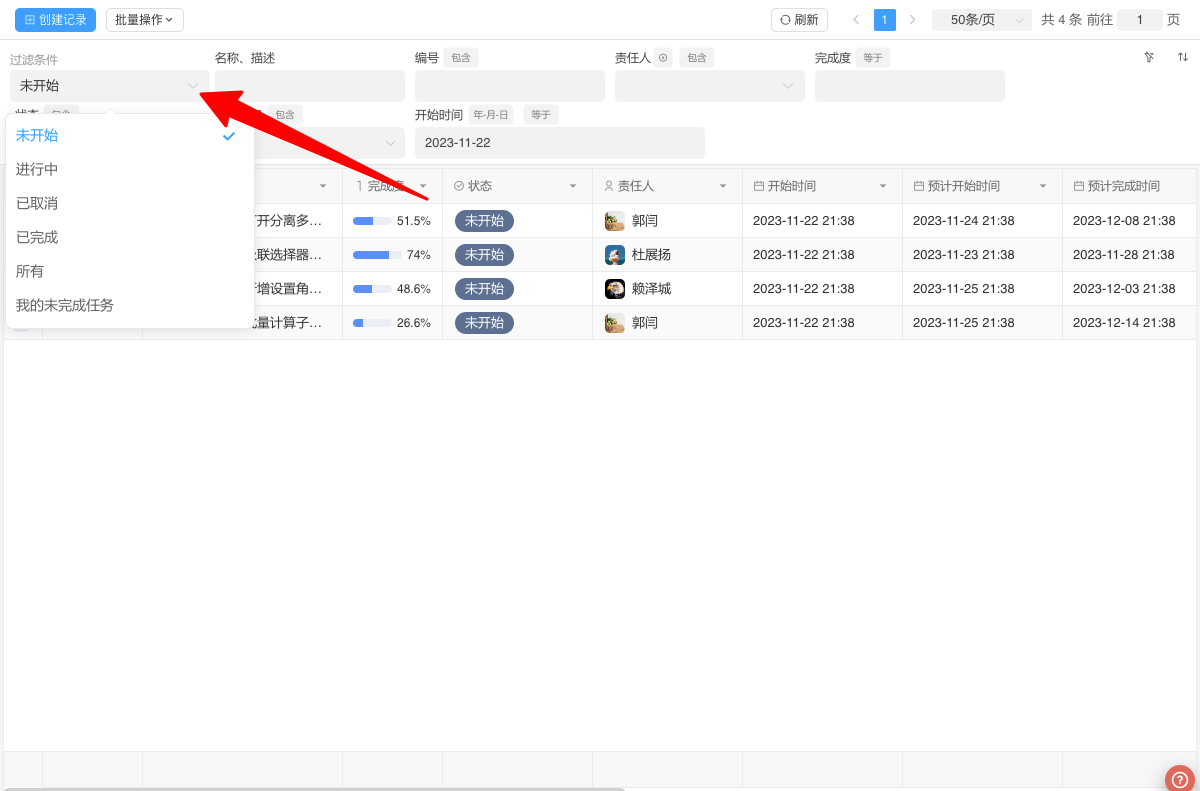
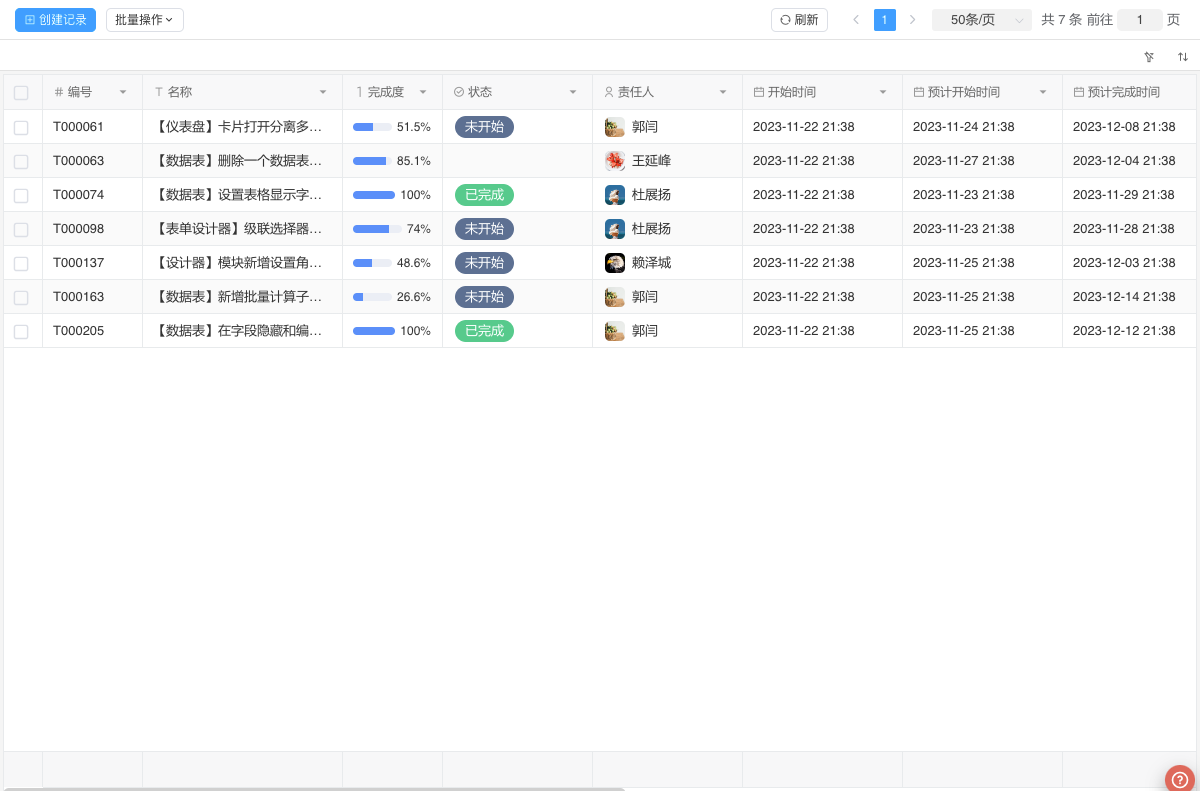
Combine filtering rules from one or more fields into a single filter condition. For example, in a task-management scenario the filter “My Unfinished Tasks” is created by combining: Task Status equals “Not Started” or “In Progress” Assignee equals current user Settings for configuring such combined filter conditions:
Combined Filter Condition Display Position
URL Filter Conditions
If you want to control the page filter through the page URL, you need to set up URL filter conditions. The process of URL filtering is as follows:
- Pass it in the address-bar parameters
filter={filterId}&c1=1&c2=abc - The returned data will be filtered by the address-bar combined condition whose identifier is filterId; the parameter is converted into a JSON object and passed to the filter of the filtering condition, and its value can be retrieved in the filter expression via ${query.c1}.
const query = {
  c1: "1",
  c2: "abc",
};WARNING
All values in the passed parameter object are of String type; if they do not match the type of the field to be filtered, perform the necessary type conversion yourself.
Example
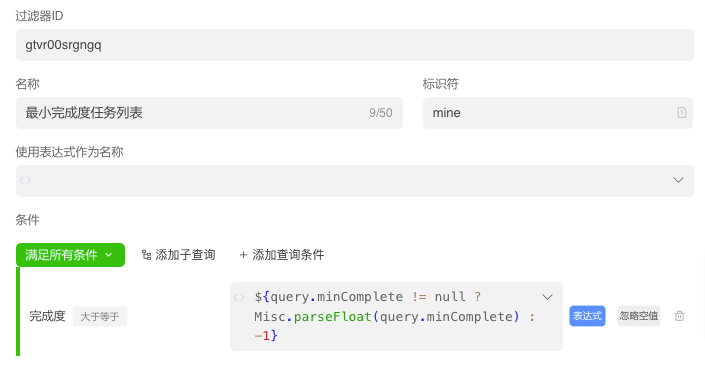
To filter tasks whose "Progress" is greater than or equal to the address-bar parameter minComplete, this example requires type conversion because the "Progress" field is of decimal type. When the user enters filter=min&minComplete=20 in the address bar, tasks with "Progress >= 20" will be filtered.
Relationship between Multiple Filter Conditions
If you set Address-bar Filter Conditions, Combined Filter Conditions, and Field Filter Conditions on the page, the relationship between these conditions is all conditions must be met. For example, in a task-management scenario:
Address-bar Filter ConditionssetProgress >= 20Combined Filter ConditionssetStatus = Not Started or In ProgressandAssignee = Current UserField Filter ConditionssetStart Date > Today
Return resultProgress >= 20 and Assignee = Current User and Status = Not Started or In Progress and Start Date > Today tasks.
Tree Structure
For data tables with a hierarchical structure, the relationship between records can be described through a Children field. After enabling tree display, the view will query data in tree form and pagination will be disabled. You can configure both the default load level and the default expand level for the tree.
Allow Search Results to Include Parent Nodes
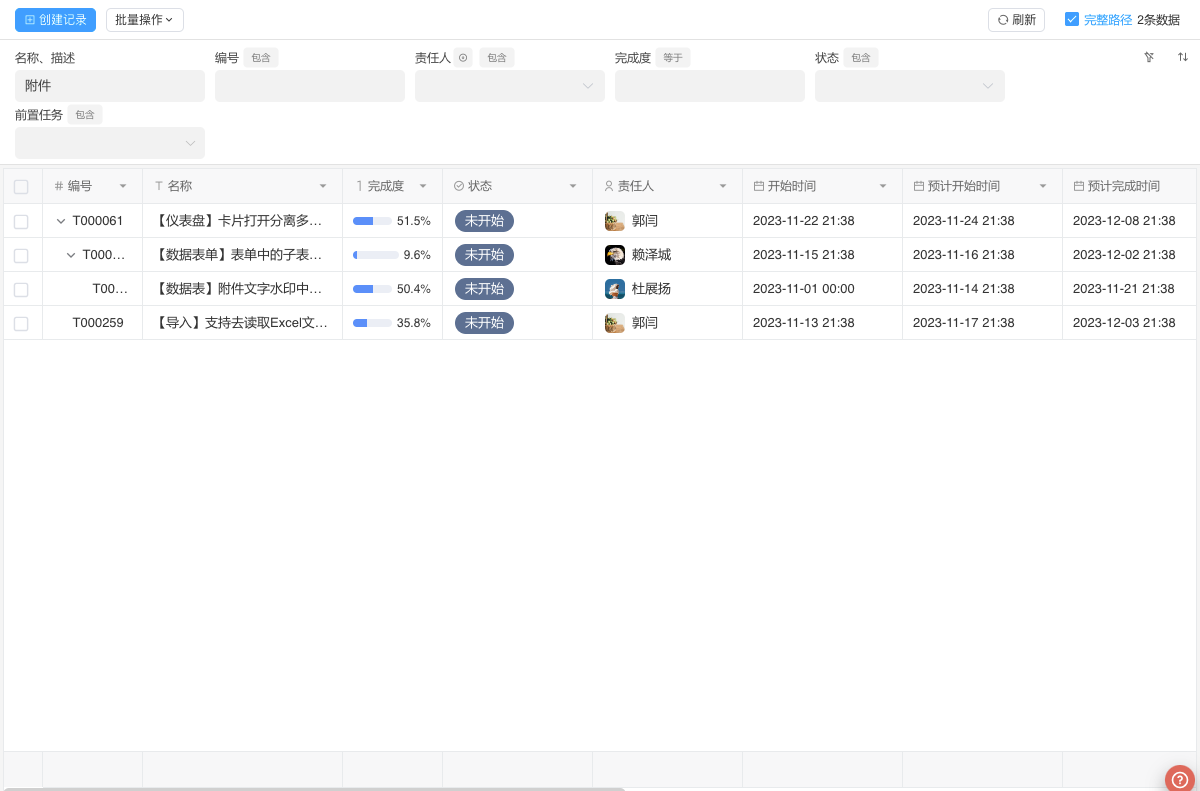
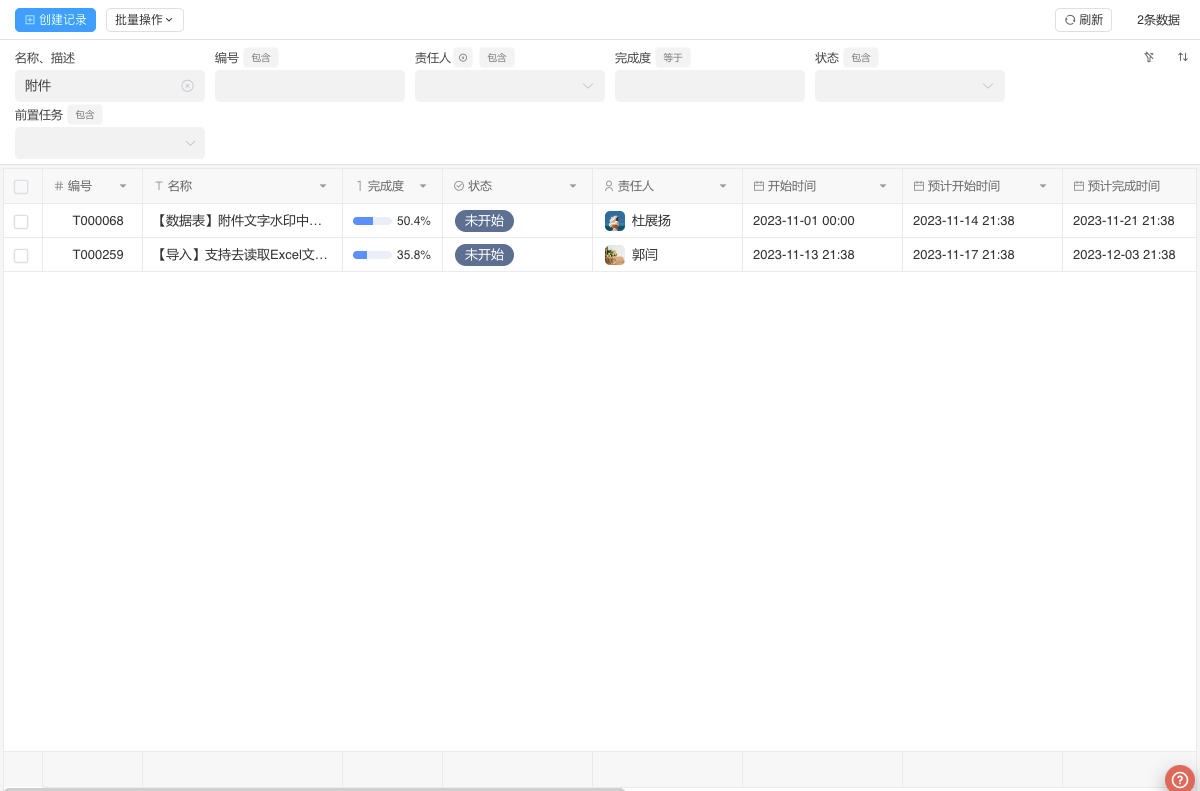
After enabling the tree structure, if you want the query results to always show the parent nodes—i.e., the results will contain the complete tree starting from the root node—turn on this option. Once enabled, users can control whether the full structure is displayed via a checkbox in the view toolbar.
Example
The example below illustrates the difference between including and excluding parent nodes after a user performs a search.
Show Current Path Toolbar
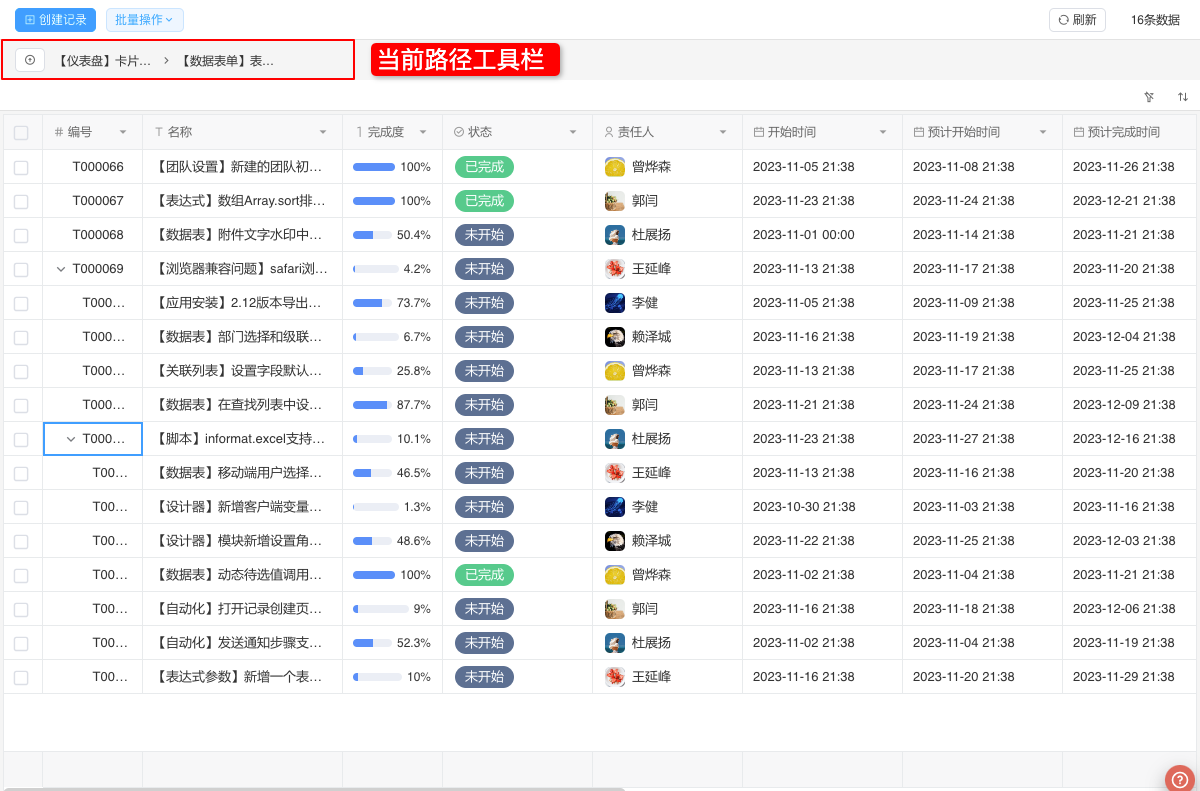
After enabling the tree structure, turn on this option if you want breadcrumb navigation to appear when you descend into a child node. Once enabled, a breadcrumb bar is generated below the view toolbar using the configured “path-toolbar display name field,” letting users jump quickly to any parent node.
Show Subordinate Button When Conditions Met
By default, the system displays a subordinate button for each record. Users can click this button to view the subordinate data of the current record. You can use an expression to control whether this button is shown or hidden. The example below demonstrates the effect when the user clicks the subordinate button.
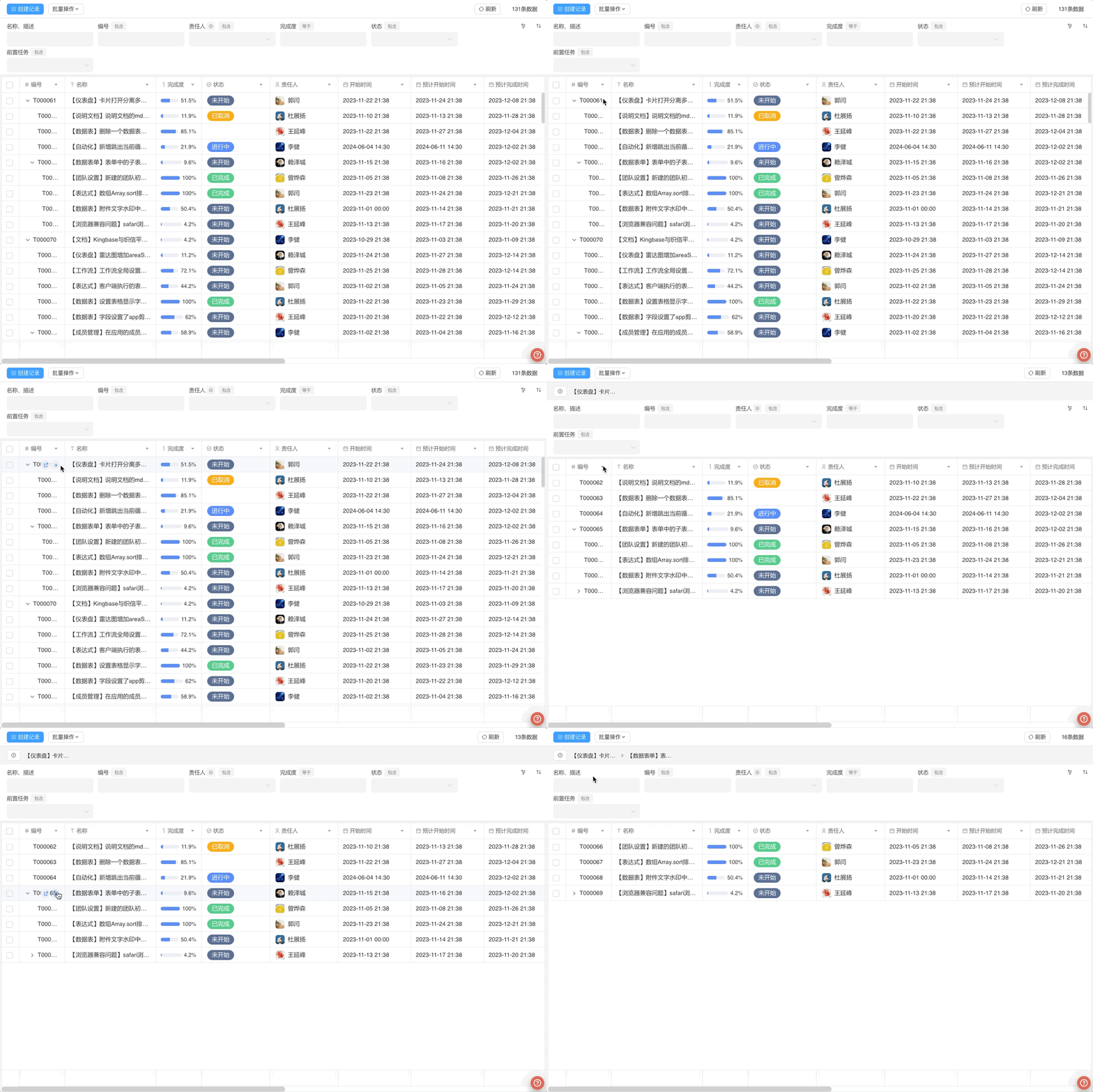
Enable Asynchronous Loading of Subordinate Data
After enabling this option, the system will load the subordinate data of the current node asynchronously. The level of loading is determined by the Default Load Level setting.
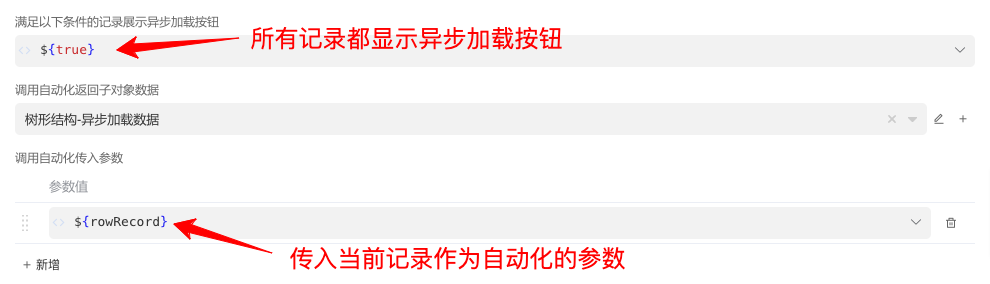
Show Async Load Button When Conditions Met
You can use a context expression to determine whether the current node should display the async load button. Only when the condition is met will the button be shown.
Call Automation to Return Subordinate Data
After calling the automation, you can use the Set Automation Return Value step in the automation to return the subordinate data list. The data type is Array<Object>.
TIP
For automations whose runtime environment is set to Client, you can use the Interactive Output step within the automation to drive user-interaction behaviors.
Attention When Returning Subordinate Data
- The sub-item attributes of the returned subordinate data must match the field identifiers of the columns in the current view's data table.
- The returned subordinate data will be automatically appended to the current node, even if the parent of the returned records is not the current record. Therefore, when building a tree structure, you need to pay special attention.
- The returned subordinate data does not support
tree structureinternally. If the returned data is in tree structure format, the system will not render the subordinate data of the child nodes.
Example
We will demonstrate how to configure a tree-table that loads child objects asynchronously.
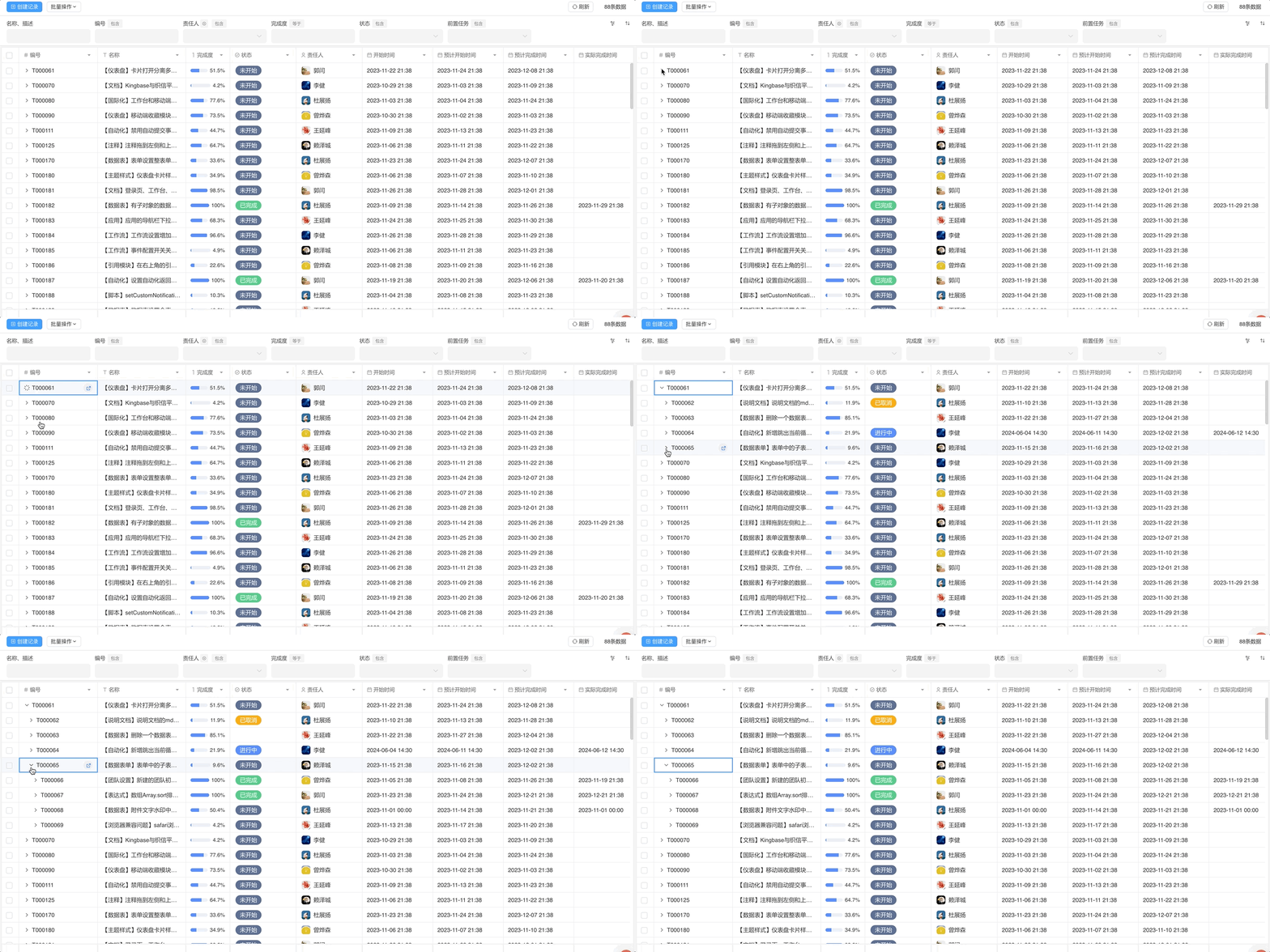
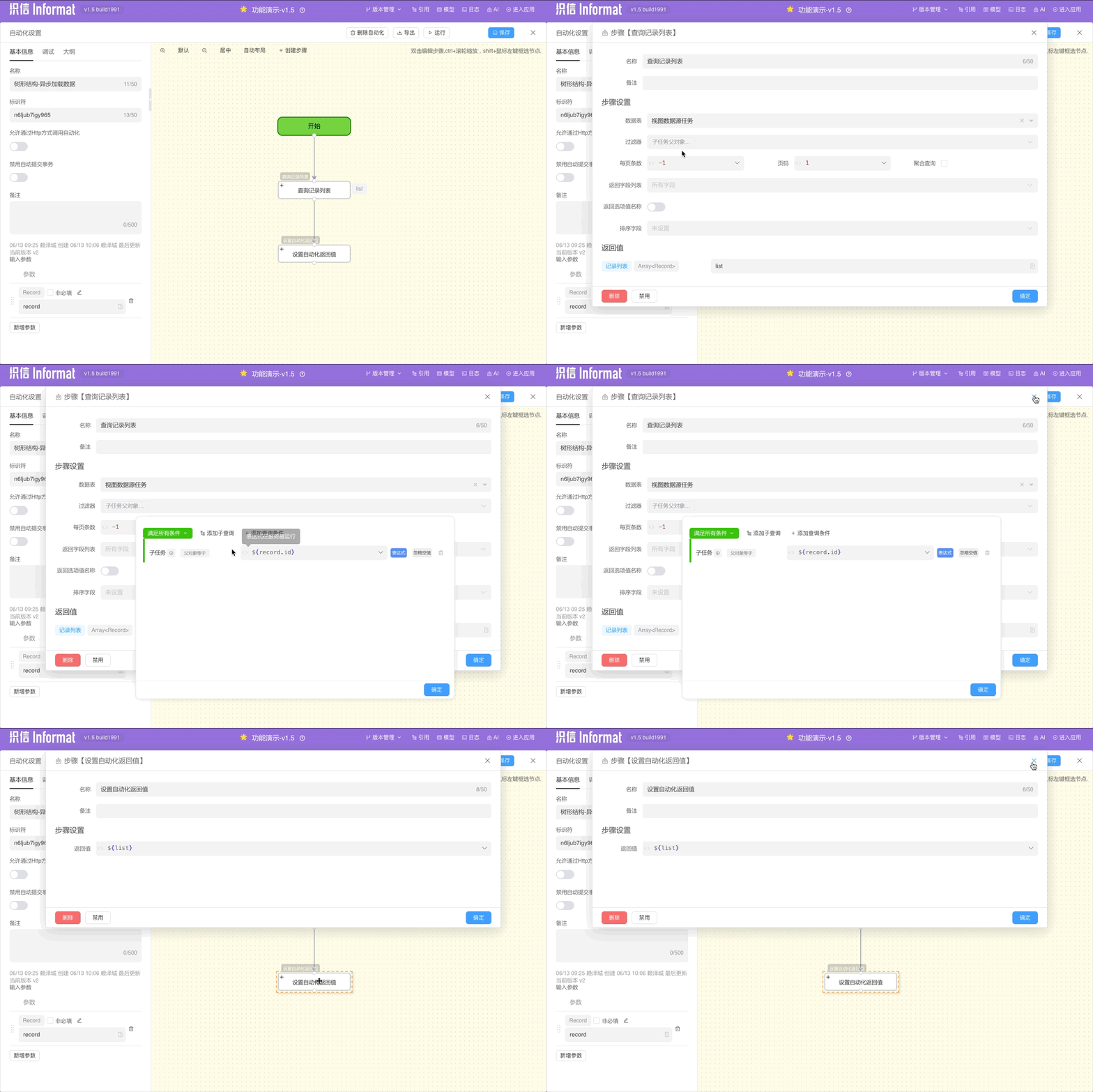
Data Filtering and Sorting
By default, a view loads all records. You can restrict the data shown in the view by setting a filter under “Only display data that meets the following conditions.” For example, to show only unfinished tasks in task management, add a filter condition where Task Status equals “Unfinished.”
TIP
Only display data that meets the following conditions is a logical AND operation. All filter conditions must be met for a record to be included in the view.
Return the Following Fields
For systems with high data-security requirements, you can define a field-return list to restrict exactly which columns the server sends back to the client. This prevents data leakage at the API level and also optimizes query performance.
By default, the system returns only the data fields specified in the Return Field List. You can also enable Use Expression to Set Return Field List to determine that list dynamically at runtime.
Use Expression to Set Return Field List
This expression runs in the Server environment. The form-style result must be a list of field identifiers. You can either: keep it simple and return the list directly from the expression, or make the expression invoke a script or automation for more flexible control of the returned data. Below is a concrete example.
staffSalaryStructure
| Identifier | Type | Description | Field ID |
|---|---|---|---|
| name | Single Line Text | Name | tzyjhya8xv32j |
| mobileNo | Single Line Text | Contact Phone | m0e2wkyo2cklu |
| salary | Decimal | Salary | qo43drhw00fmr |
According to the settings, the salary field must not be returned.
${['name', 'mobileNo']}${
Array.containsAny(user.roleList, ['hr'])
?
['name', 'mobileNo', 'salary']
:
['name', 'mobileNo']
}${Misc.invokeAutomatic('getStaffSalaryFieldListByUser', user)}Example
By using the “Use expression to set return field list” option and setting the returned fields to ${['name', 'mobileNo']}, if the salary column is still shown on the front-end, the result will look like this:
TIP
All data-table data returned by system APIs is keyed by field ID, as illustrated in this example with the “query data-table record list” endpoint.(TableAction.queryModuleRecordList) API

Only display data that meets the following conditions
This field controls which records are shown in the current data-table view and is typically used for data segregation. For example, when “My Tasks” exists as a view in task management, you can set Assignee equals ${Context.userId()} here to achieve view-level data isolation.
TIP
Only display data that meets the following conditions with other filter conditions has a logical relationship of satisfy all conditions.
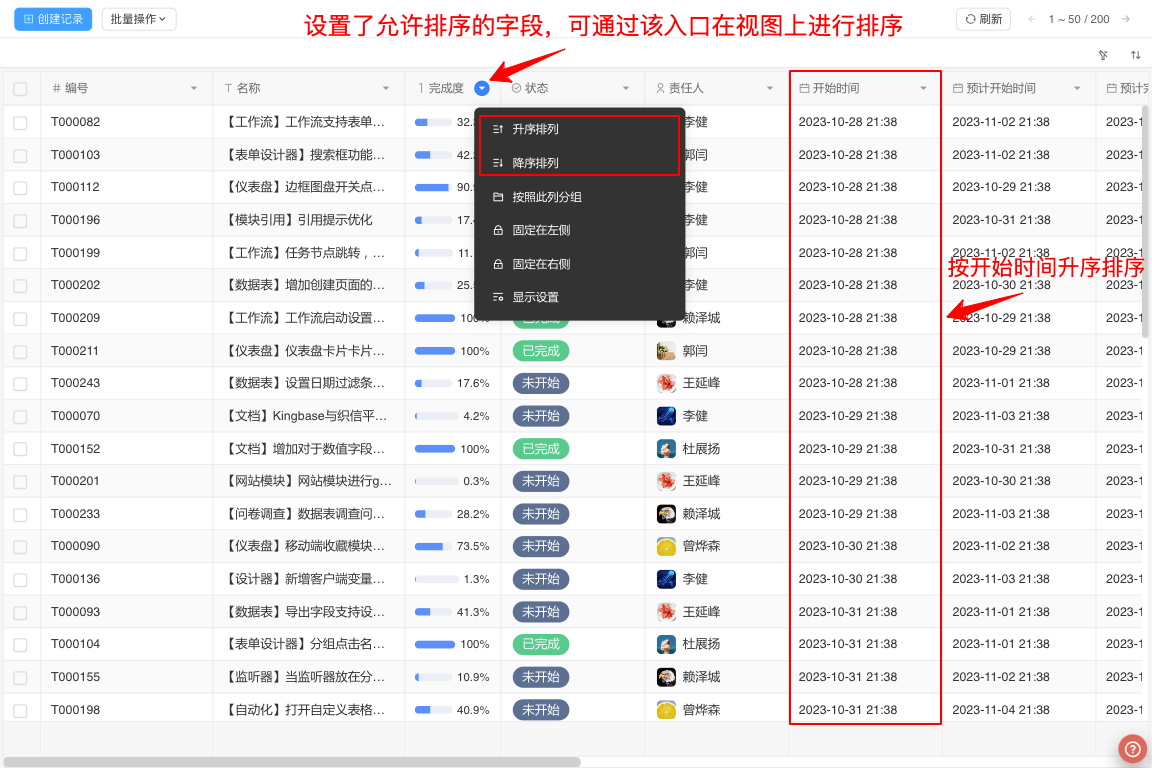
Default Sorting Order
By default, the system sorts data by the record creation time in ascending order. You can change this behavior by setting Default Sorting Order.
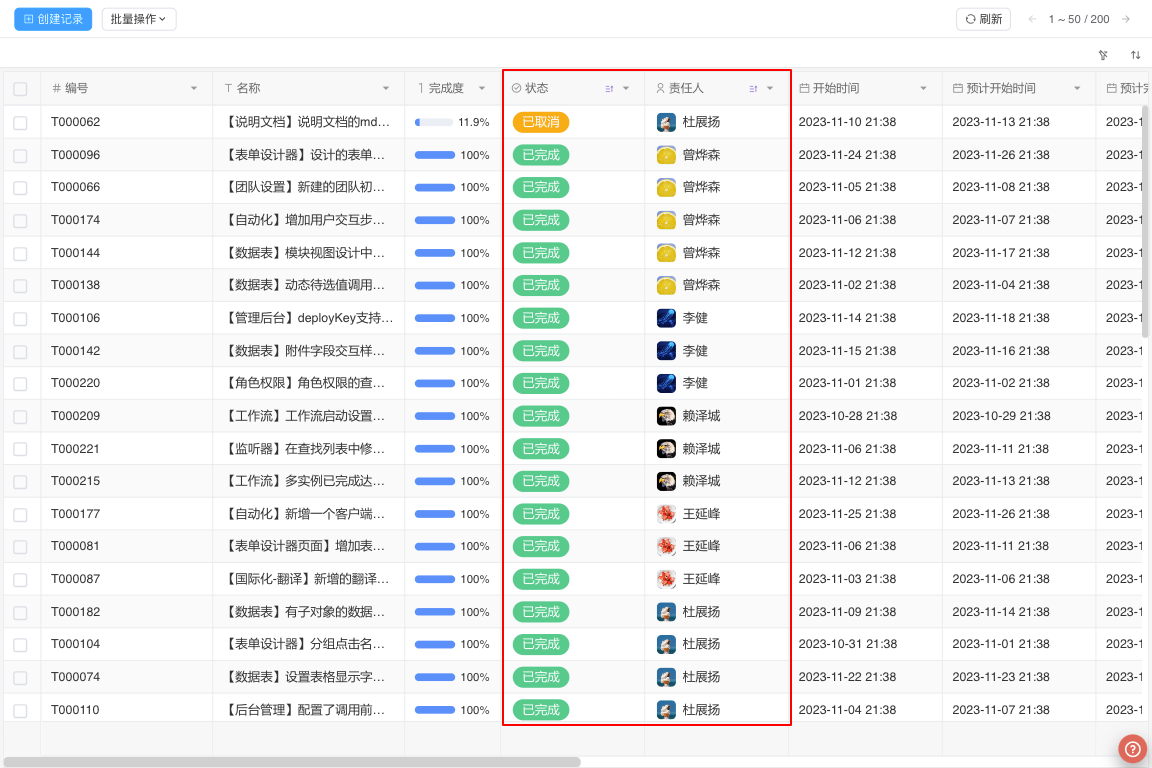
Allow Sorting by the Following Fields controls which columns users can sort the data by. If users set multiple sorting fields in the view, the system sorts the data by the fields in the order they are displayed in the view.
Sorting Relationship
If both Default Sorting Order and Allow Sorting by the Following Fields are set, users can sort the data by the fields specified in Allow Sorting by the Following Fields.
If users set multiple sorting fields in the view, the system sorts the data by the fields in the order they are displayed in the view.
Example
In the example, “Start Time Ascending” is set as the default sort order, and sorting is also allowed by Status, Progress, Assignee, etc. We’ll use this example to explain the sorting logic within the system.
Query Data Pre-Processing
If we need to perform unified data permission control before querying data, we can use Query Data Pre-Processing to dynamically set the data table's filter conditions based on the context.
In the process of querying view data, the system will first call the set automation and pass a parameter of type TableQueryEvent to the automation. If the automation or script throws an exception, the query action will be terminated.
If a TableQueryBeforeResult type automation returns a value, the system will append or replace the original filter conditions based on the return value.
TableQueryBeforeResult structure:
| Name | Description |
|---|---|
| mode | Filter-condition merge modeappend – add to existing filtersreplace – overwrite existing filters |
| filter | Filter condition, type InformatFilter |
mode Options
| Mode | Description |
|---|---|
| append | Adds the new filter conditions (default). |
| replace | Replaces the original filter conditions with the new ones. |
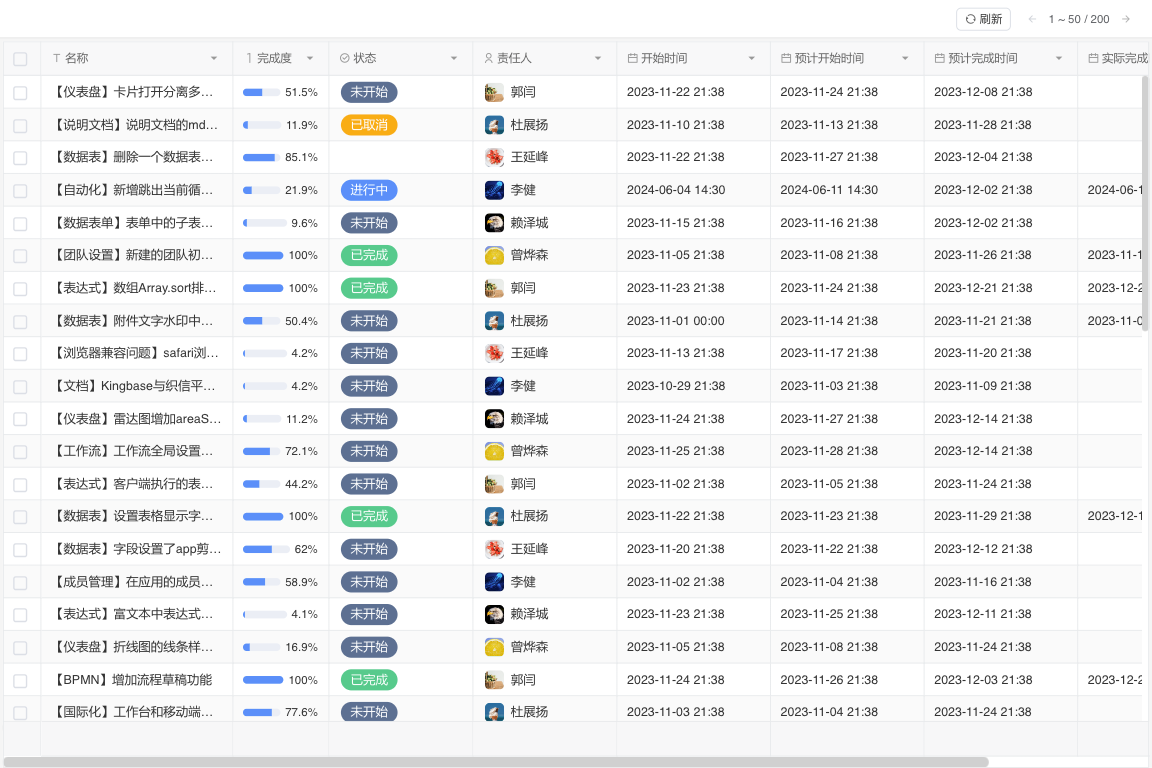
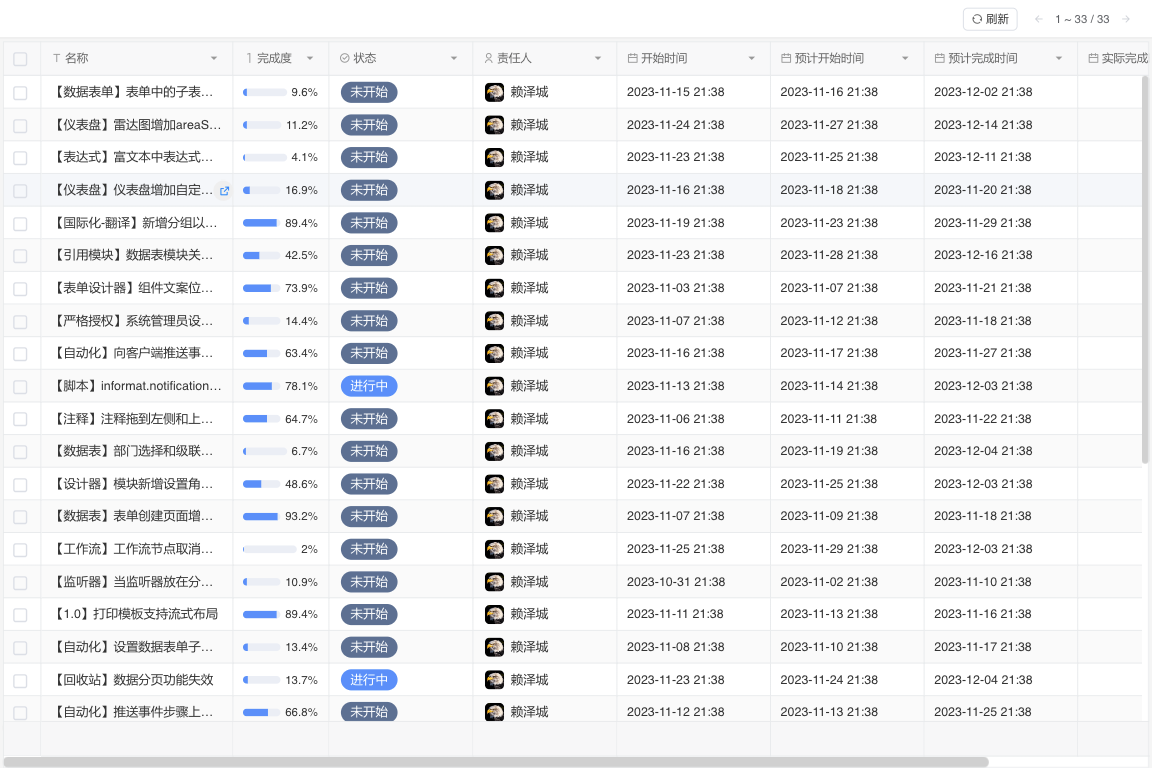
Below, we use task management as an example: users with the roles Admin / Supervisor / General Manager can query all tasks, while any other role can only query their own tasks.
Query Data Post-Processing
Sometimes we need to process the returned list data—for example, data masking. This feature lets you return the processed data instead of the raw records.
After the data query succeeds, the configured automation or script will be invoked.,A parameter of type TableQueryEvent is passed to the automation. The automation may return an object of type TableQueryAfterResult to modify the query results. If the return value is null or not of type TableQueryAfterResult, the system will display the original query results.
TableQueryAfterResult:
| Name | Description |
|---|---|
| list | New list of records to be displayed in the view. |
| count | New total record count for pagination purposes. |
Example:
automatic.setReturnValue({
  list: [{ id: "1", name: "zhang", mobile: "*******1234" }],
  count: 10,
});Returned list data
The properties of the items in the returned list data must match the field identifiers in the current view's data table, and the items must include the id property.
Below, we use salary management as an example: the admin role has no restrictions, while other roles see the salary column as empty and the mobile number is masked.


Form Settings
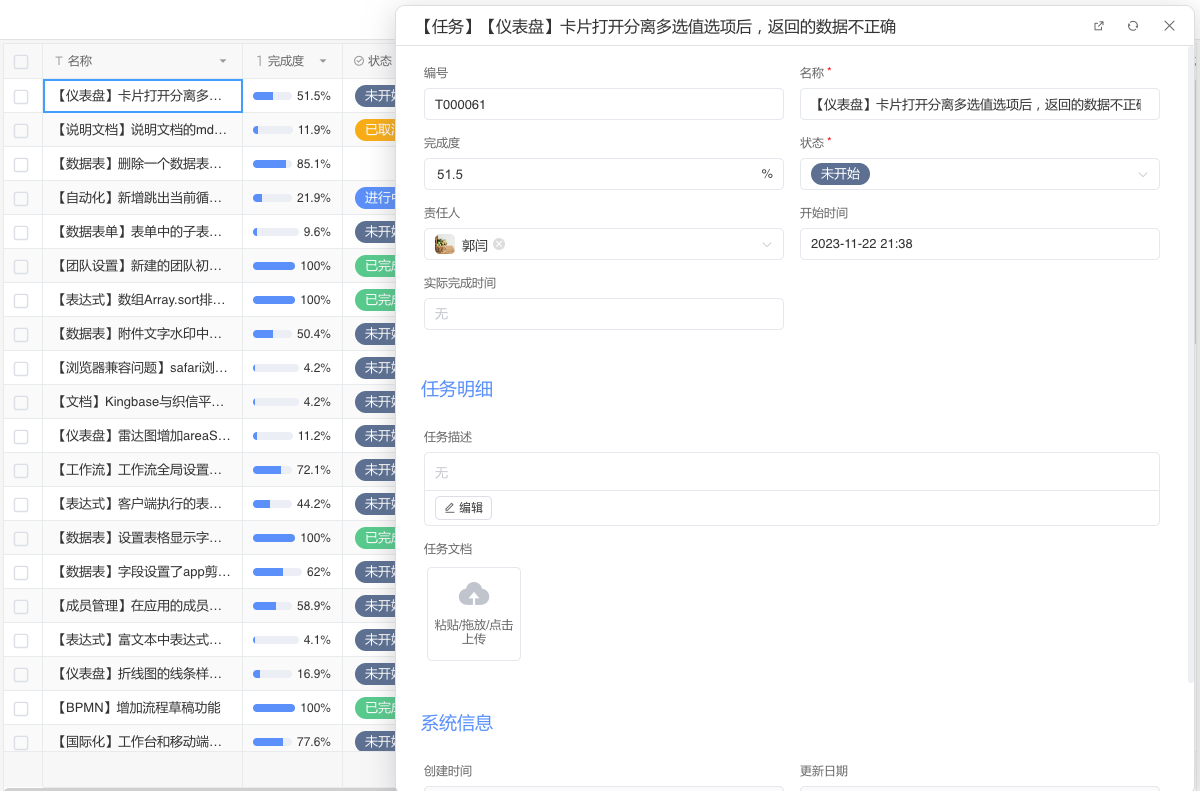
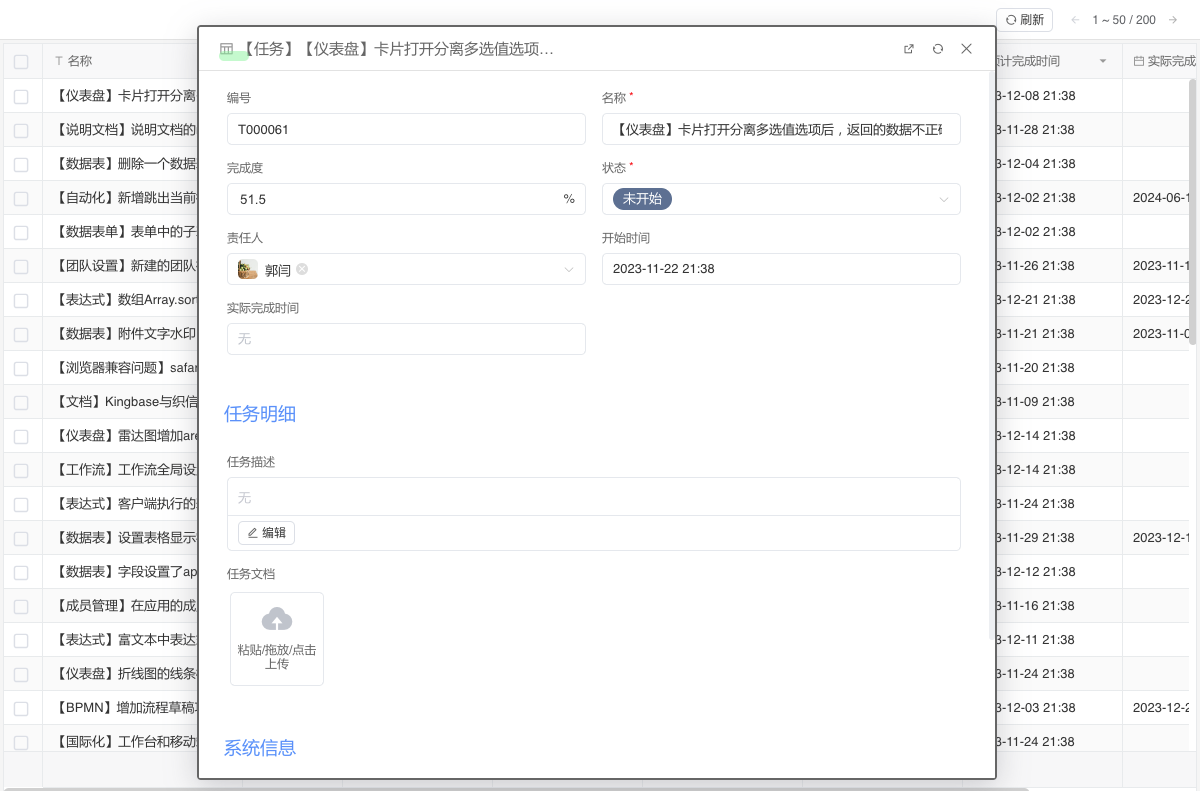
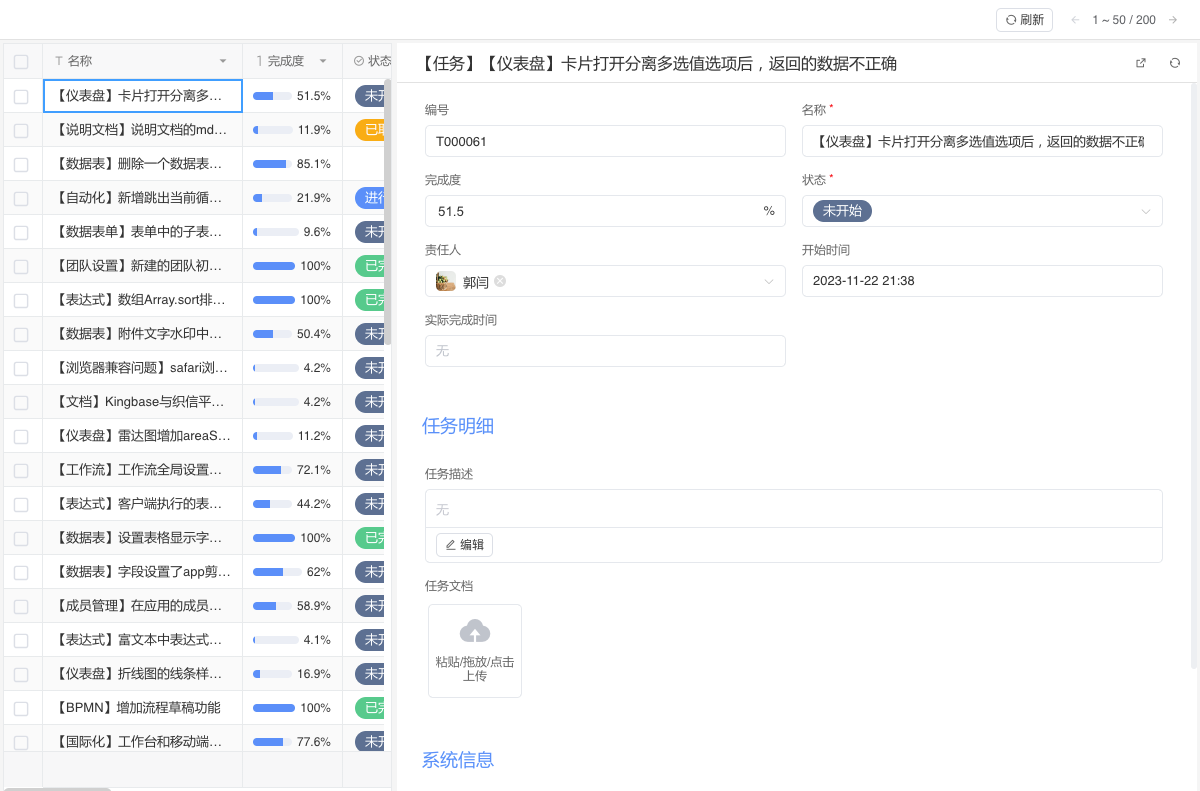
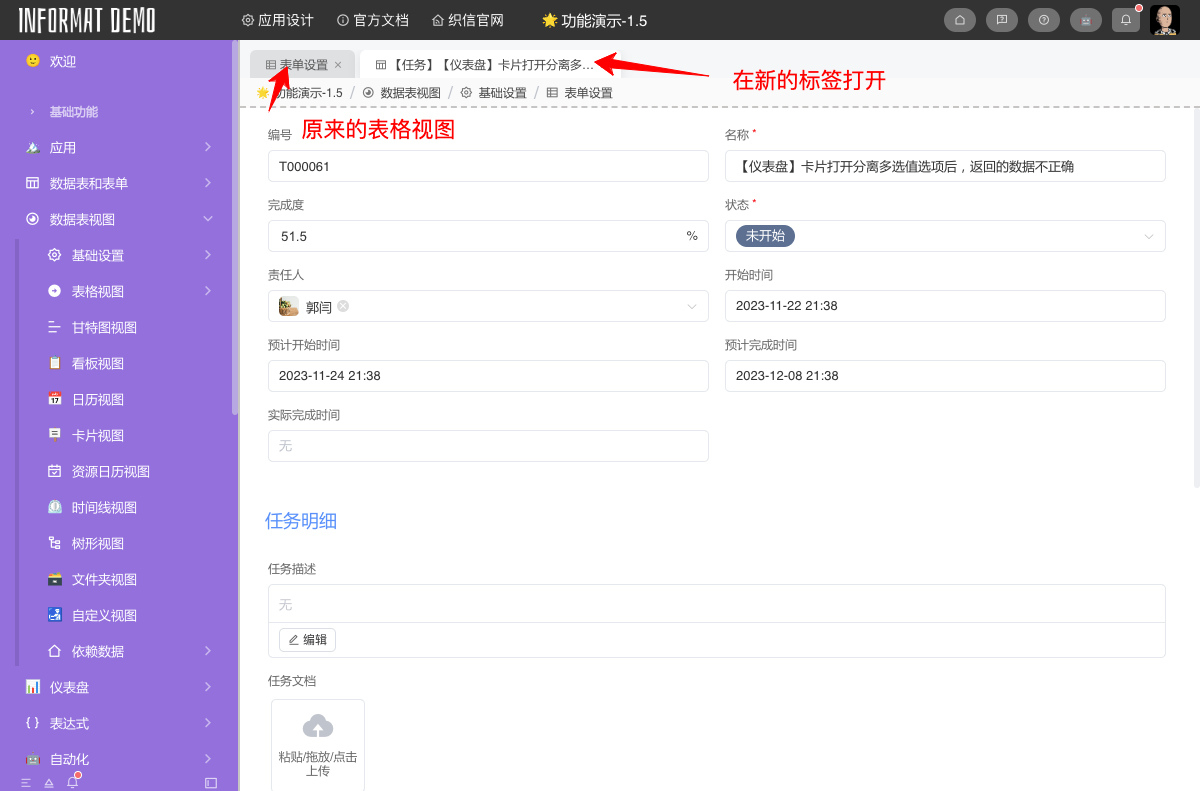
Configure the behavior of the form in the current view. You can override the form settings defined in the data table. Includes how the form opens records, the form data save mode, and the form field settings. If not configured, the default settings from the data table are used.
How to Display a Record in the Form
Event Listening
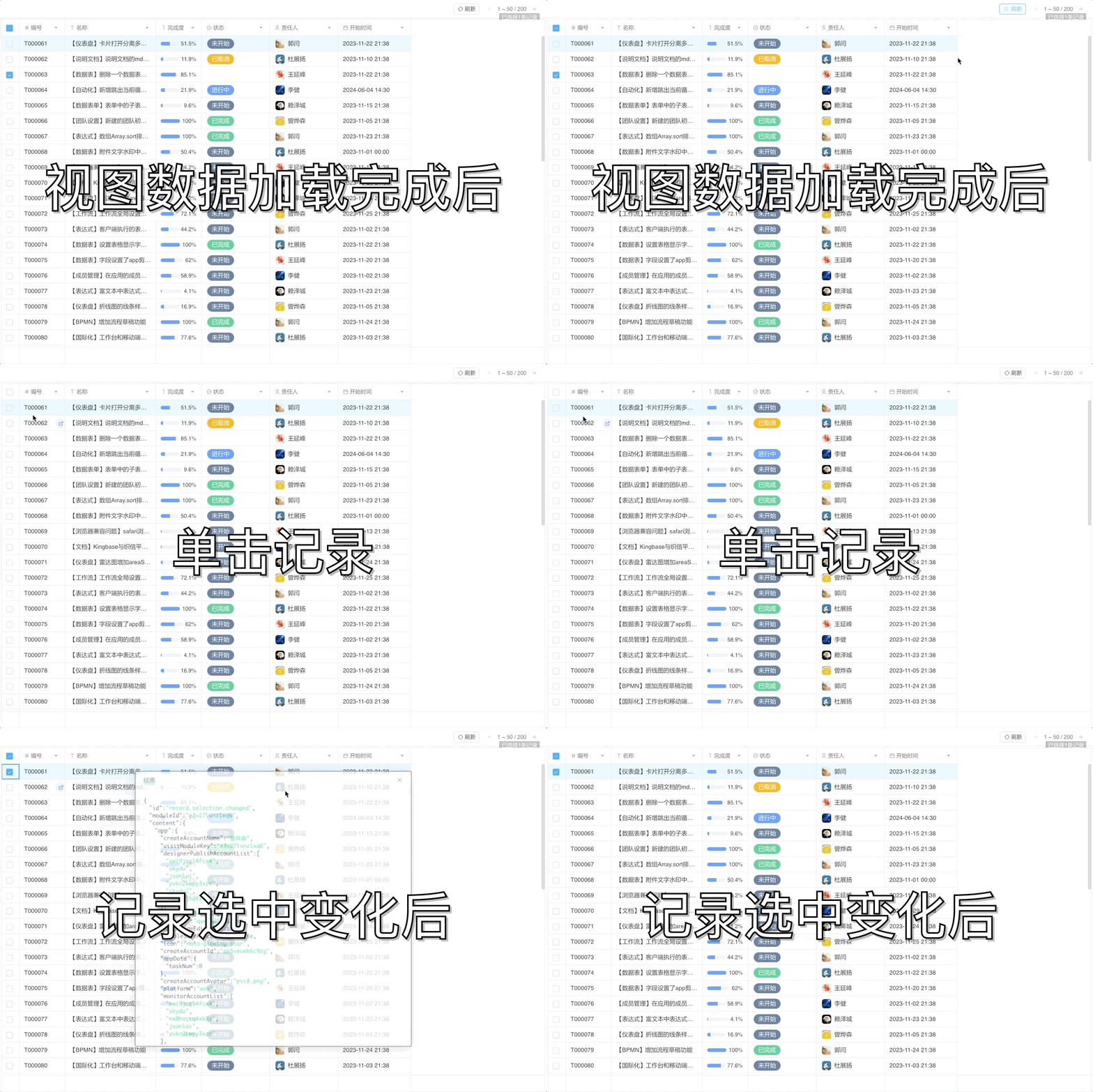
The events that can be listened to on the view are:
- Double-click record – fired when the user double-clicks a record
- Single-click record – fired when the user single-clicks a record
- After record selection changes – fired when the set of selected records changes
- Double-click empty date in calendar view – fired when the user double-clicks an empty date cell in calendar view
- After view data finishes loading – fired once the view data has loaded
By creating an event listener you can execute an automation after the event fires, enabling complex interactions. When the event triggers, an argument of type ViewEvent is passed to the automation. From the content property of ViewEvent you can obtain the row and column the user clicked in the table view, or the empty date clicked in the calendar view.
Example
Below we’ll demonstrate how the event is triggered and a dialog pops up showing the correspondingViewEvent。