Folder View
Overview
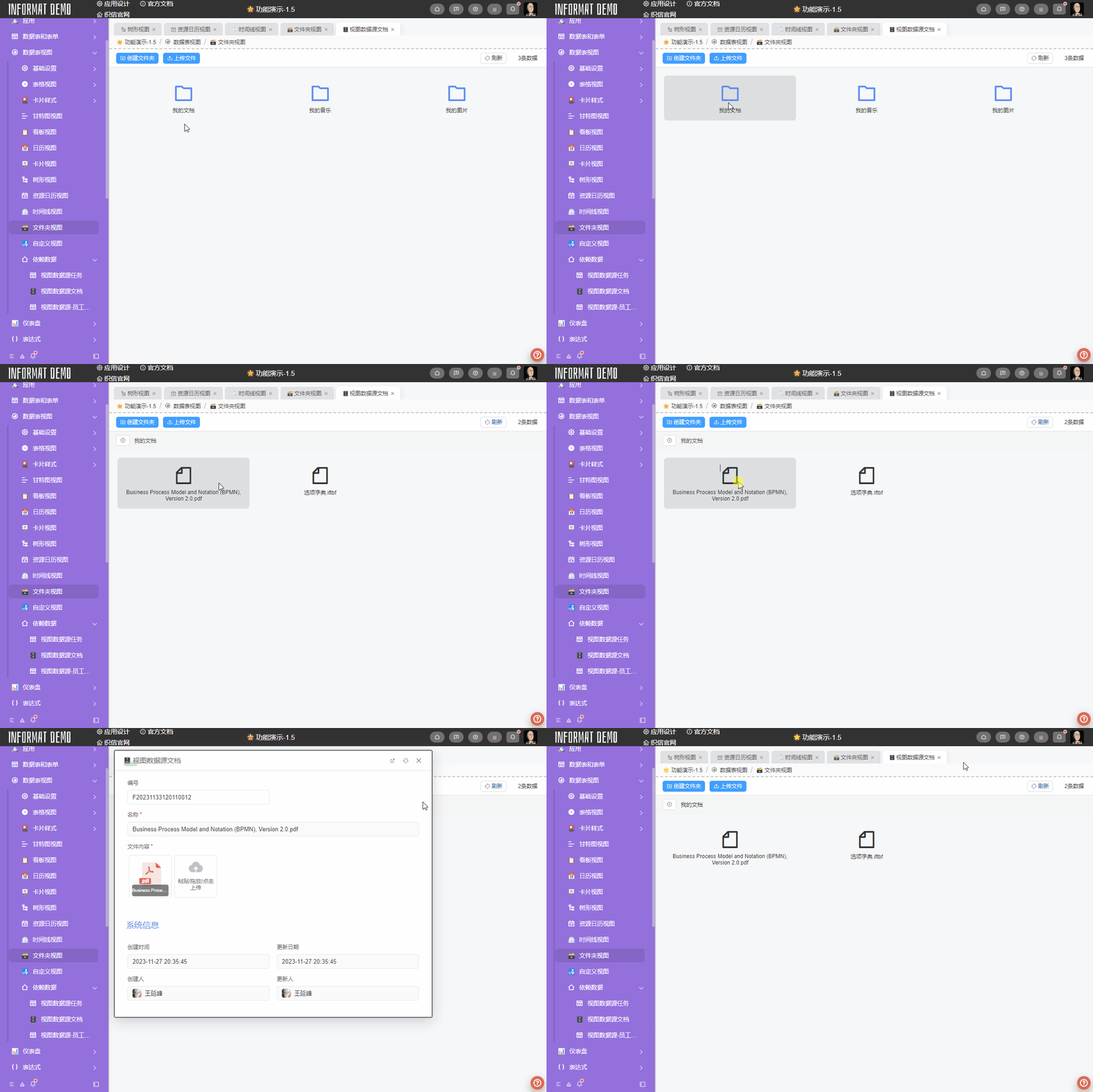
The Folder View converts data into file or folder cards and displays them in a folder form, supporting setting card titles and icons.
Settings
| Setting | Description |
|---|---|
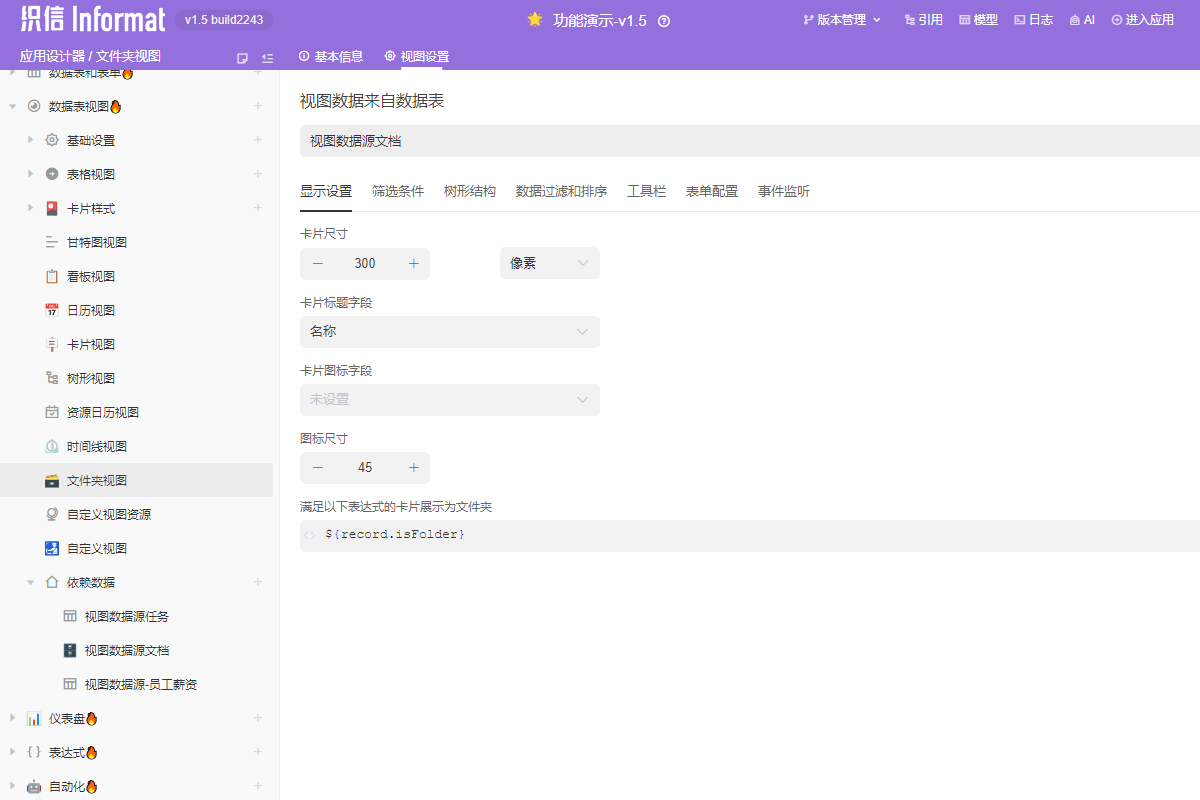
| Card Size | Sets the width of the card. |
| Card Title Field | Sets the title of the card. The data table must contain text type fields such as Single Line Text or Function. |
| Card Icon Field | Sets the icon of the card. The data table must contain text type fields such as Single Line Text or Function, with content being System Icon identifiers. Uses default icon if not set. |
| Icon Size | The size of the font icon, in pixels(px). |
| Cards that meet the following expression display as folders | Sets data that meets the conditions as folders through expressions. |
TIP
When a folder is clicked, it will drill down according to the tree structure to display the list of the folder's child objects. If you want to view the folder's record, you can use the right-click menu control to display the corresponding form record.
Example
Let's demonstrate how to build a multi-level folder view through an example. Here we need to complete the following operations:
- We need to build a
File Tableto store our file data. - Provide Create Folder and Upload File controls to complete the basic folder and file creation actions.
- Add a form event listener for
After Form Field Value Changes, monitor changes in theFile Contentfield, and automatically assign the file name and file size.