

informat.word Word Operations
Overview
Use the informat.word object to generate a new Word file using a Docx format Word document and data. This is very useful in scenarios such as generating contracts, reports, certificates, etc.
The file path must be in the local sandbox path. For more information about file paths, refer to informat.file
All tags start with {{ and end with }}. Tags can appear anywhere, including headers, footers, inside tables, text boxes, etc. Table layouts can design many excellent professional documents, and table layouts are recommended. Templates follow the "What You See Is What You Get" design, and the styles of templates and tags will be completely preserved.
Tags consist of two curly braces before and after. {{title}} is a tag, and {{?title}} is also a tag. title is the name of this tag, and the question mark identifies the tag type.
Text Tag
The format of a text tag is {{text}}, and the rendered content is the content of the text variable
Image Tag
The format of an image tag is {{@pic}}, and the rendered content is the image described in pic. The pic object needs to be generated using the informat.word.createPicture() method
Example Data
{
  pic: informat.word.createPicture({
    path: "logo.png",
  });
}Template
{{@pic}}List Tag
The format of a list tag is {{*var}}, and the rendered content is a list
Block Pair
A block pair consists of two tags, a start tag identified with ?, and an end tag identified with /: {{?sections}}{{/sections}}
The start and end tags of a block pair can contain multiple images, tables, paragraphs, lists, charts, etc. The start and end tags can span multiple paragraphs or be in the same paragraph. However, if a block pair is used in a table, the start and end tags must be in the same cell because the rendering behavior across multiple cells is unknown.
Block pairs are very useful when processing a series of document elements. Document elements located within a block pair can be rendered zero, one, or N times, depending on the value of the block pair.
- False or empty collection: Hide all document elements in the block
- Non-False and not a collection: Show document elements in the block, render once
- Non-empty collection: Loop render document elements in the block according to the size of the collection
If the value of the block pair is null, false, or an empty collection, all document elements in the block will not be displayed, which is equivalent to the condition of an if statement being false.
Incoming Data
{
  "value": false
}Template
Test{{?value}}Will not appear{{/value}}Rendered Result
Test;If the value of the block pair is not null, false, and not a collection, all document elements in the block will be rendered once, which is equivalent to the condition of an if statement being true.
Incoming Data
{
  "person": { "name": "Zhang San" }
}Template
{{?person}}
Hi {{name}}!
{{/person}}Rendered Result
Hi Zhang San!If the value of the block pair is a non-empty collection, document elements in the block will be iteratively rendered once or N times, depending on the size of the collection, similar to foreach syntax.
Incoming Data
{
  "users": [{ "name": "Zhang San" }, { "name": "Li Si" }, { "name": "Wang Wu" }]
}Template
{{?users}}
{{name}}
{{/users}}Rendered Result
Zhang San;
Li Si;
Wang Wu;Built-in Variables in Block Pair Loops
| Variable | Type | Description |
|---|---|---|
| _index | Integer | Returns the current iteration index starting from 0 |
| _is_first | Boolean | Determines if the loop item is the first item of the current iteration |
| _is_last | Boolean | Determines if the loop item is the last item of the current iteration |
| _has_next | Boolean | Determines if the loop item has a next item |
| _is_even_item | Boolean | Determines if the loop item is an odd item with an interval of 1 in the current iteration |
| _is_odd_item | Boolean | Determines if the loop item is an even item with an interval of 1 in the current iteration |
| #this | Object | References the current object. Due to conflict between # and existing table tag identifiers, the = sign must be used in text tags to output text |
Example Data
{
  "users": ["Zhang San", "Li Si"]
}Template
{{?users}}
{{_index + 1}}. {{=#this}}
{{/users}}Result
1. Zhang San
2. Li SiTable Row Loop
When declaring a variable, add a - symbol before the variable to enable the table row loop function. Place on the same line as the loop row. The loop row sets the tags and content to loop. Note that [] should be used for tags at this time to achieve row looping in tables. Here is an example
Example Data
{
  "-users": [
    { "id": 1, "name": "Zhang San", "age": 18 },
    { "id": 2, "name": "Li Si", "age": 20 },
    { "id": 3, "name": "Wang Wu", "age": 30 }
  ]
}Template
| Serial Number | Name | Age |
|---|---|---|
{{users}}[_index+1] | [name] | [age] |
Result
| Serial Number | Name | Age |
|---|---|---|
| 1 | Zhang San | 18 |
| 2 | Li Si | 20 |
| 3 | Wang Wu | 30 |
Table Column Loop
When declaring a variable, add a | symbol before the variable to enable the table column loop function. Place in the loop column. Other aspects are similar to row loops. Here is an example
Example Data
{
  "|users": [
    { "id": 1, "name": "Zhang San", "age": 18 },
    { "id": 2, "name": "Li Si", "age": 20 },
    { "id": 3, "name": "Wang Wu", "age": 30 }
  ]
}| User |
|---|
{{users}}[_index+1] |
| [name] |
| [age] |
Result
| User | User | User |
|---|---|---|
| 1 | 2 | 3 |
| Zhang San | Li Si | Wang Wu |
| 18 | 20 | 30 |
createWithTemplate
Generate a Word file from a template and data
informat.word.createWithTemplate(template, file, data);| Parameter | Type | Description |
|---|---|---|
| template | String | Template file path in the local sandbox |
| file | String | Generated file path in the local sandbox |
| data | Object | Data passed to the template |
createPicture
Generate image data to be inserted in Word
informat.word.createPicture(pic);| Parameter | Type | Description |
|---|---|---|
| pic | WordPicture | Image configuration |
Return Value Returns template data for inserting images
The structure of WordPicture is as follows
{
    url:String,//Image URL address
    path:String,//Image path in the local sandbox
    storagePath:String,//Image path in shared storage
    width:Integer,//Image width (original size if not set)
    height:Integer,//Image height (original size if not set)
}When setting image size, both
widthandheightmust be set simultaneously
Example
The following is an example of generating a Word file using a Word template and data
const data = {
  text: "Text data",
  list: [
    { id: 1, name: "Zhang San" },
    { id: 2, name: "Li Si" },
    { id: 3, name: "Wang Wu" },
  ],
  pic: informat.word.createPicture({
    path: "logo.png",
  }),
};
informat.word.createWithTemplate("template.docx", "out.docx", data);Replace Images in Word
The reference image tag is a text: {{var}}, and the tag position is: Format Picture—Alt Text—Title or Description (in the new version of Microsoft Office, the tag position is: Edit Alt Text—Alt Text).
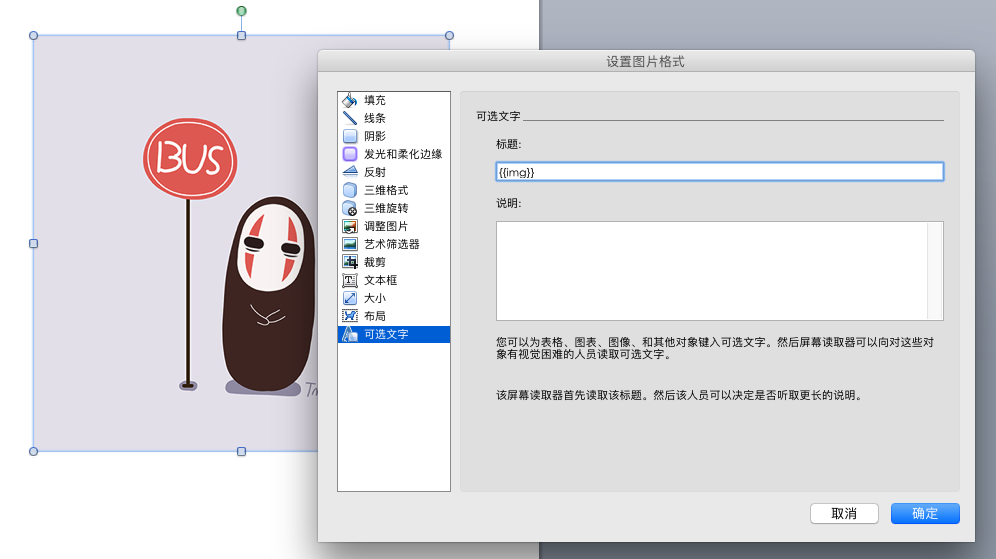
The reference image tag only replaces the image without changing the image size and layout. The data model is consistent with the image tag
Note
Image tags in alt text do not need @