

Custom Component Field
Use website module pages to customize display controls
Description
| Item | Content |
|---|---|
| Category | Control Class |
| Sortable | No |
| Filterable | No |
| Supported Filter Types | None |
| Sorting Method | None |
Database Storage Format
Not stored in database
Usage Scenarios
- Personalized display methods. Such as displaying
circular progress bars,transfer boxes,charts,video playback,maps, etc. in fields. - Fields with special interaction logic. Such as
image material library,data formulas, etc.
Rendering Method
This field mainly has two rendering methods: Using website module page rendering and Using component rendering. Using website module page rendering is based on iframe for rendering, which requires setting the component height. When the content height is not fixed, there may be a disconnect with other space operations. Since elements inside iframe cannot be displayed in the parent window, it is not recommended to use it when there are tooltips or dropdown lists inside.
Using component rendering is based on shadowDOM rendering and directly injected into the form context, which is more user-friendly in terms of interaction and is more recommended for rendering.
Using Component Rendering
In the actual project development process, we found that in some scenarios, the form field types provided by the system cannot cover complete application scenarios. At this time, we can develop components through the component editor and use custom component fields for rendering.
Effect Diagram
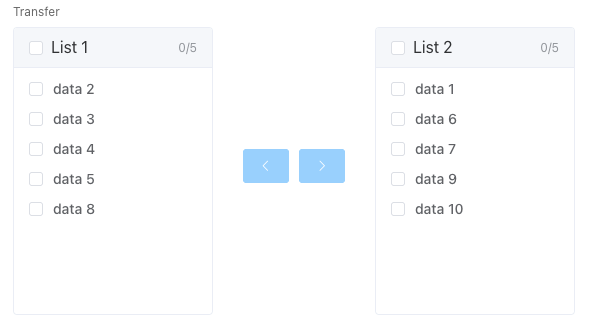
Transfer Box Component Definition
Create a component in the component designer, and paste the following definition into the corresponding section to complete the component definition
Component Library Dependencies
This component requires the ElementUI component library
<div style="width:100%;height:100%;position:relative">
  <el-transfer :data="data" :value="value" v-on:change="change"></el-transfer>
  <div style="margin-top:20px">
    <el-button v-on:click="showLoading"> // [!code highlight] Set Form Loading </el-button>
  </div>
</div>export default {
// Component parameter definition
props: {
data: {
type: Array,
default: () => [],
},
value: {
type: Array,
default: () => [],
},
},
methods: {
showLoading() {
// Form shows loading
this.$emit("show-loading");
setTimeout(() => {
// Form hides loading
this.$emit("hide-loading");
}, 3000);
},
change(val) {
// Set the value of the form field
this.$emit("set-field-value", { field: "transferValue", value: JSON.stringify(val) });
},
},
};Form Configuration Steps
After the component is defined, configure a data table with the following fields:
| Identifier | Name | Type | Description |
|---|---|---|---|
| transfer | Custom Component Transfer Box | Custom Component | |
| transferValue | Transfer Box Data | Rich Text | Used to store data from custom components, editor type is Text Editor |
Custom Component Configuration: 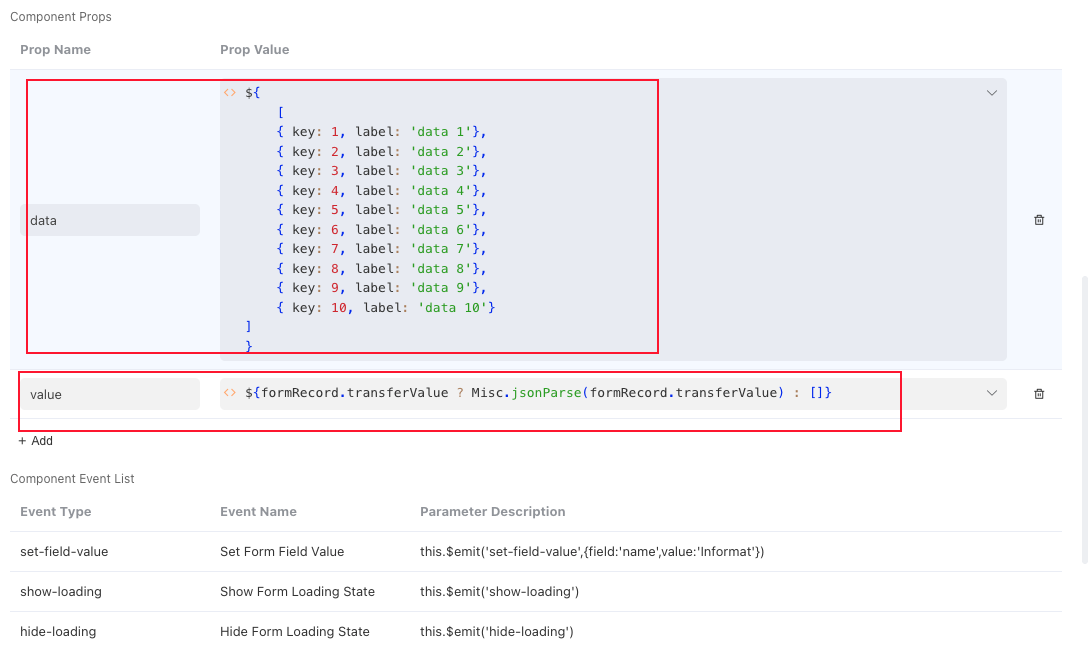
Open the form page through create or edit page to experience it
Using Website Module Page Rendering
For page data interaction, please refer to Website Service

Component Form Validation
When creating a form page, when users submit the form, they expect to validate the form within the custom component field.
Using Website Module Page Rendering
Need to introduce Website Service in the website page and add a window.$customFieldFormValidate callback method in the page.
Using Component Rendering
Need to add a $customFieldFormValidate callback method in the blueprint or script within the component
Component Form Refresh
Using Page Rendering
Add eventService.onEvent listening event in the script of the page, refer to Events
//Listen to events from parent page
eventService.onEvent("rpc-reload", (e) => {
  console.log(e);
});Using Component Rendering
Add $customFieldFormReload callback method in the script of the component
// Return validation failure by throwing an exception
export default {
  methods: {
    /**
     * Component form refresh
     * @param {string} data.type    Refresh type
     * @param {Object} data.field   Field information
     * @param {Object} data.record  Record information
     */
    $customFieldFormReload: function (data) {},
  },
};