Field Settings
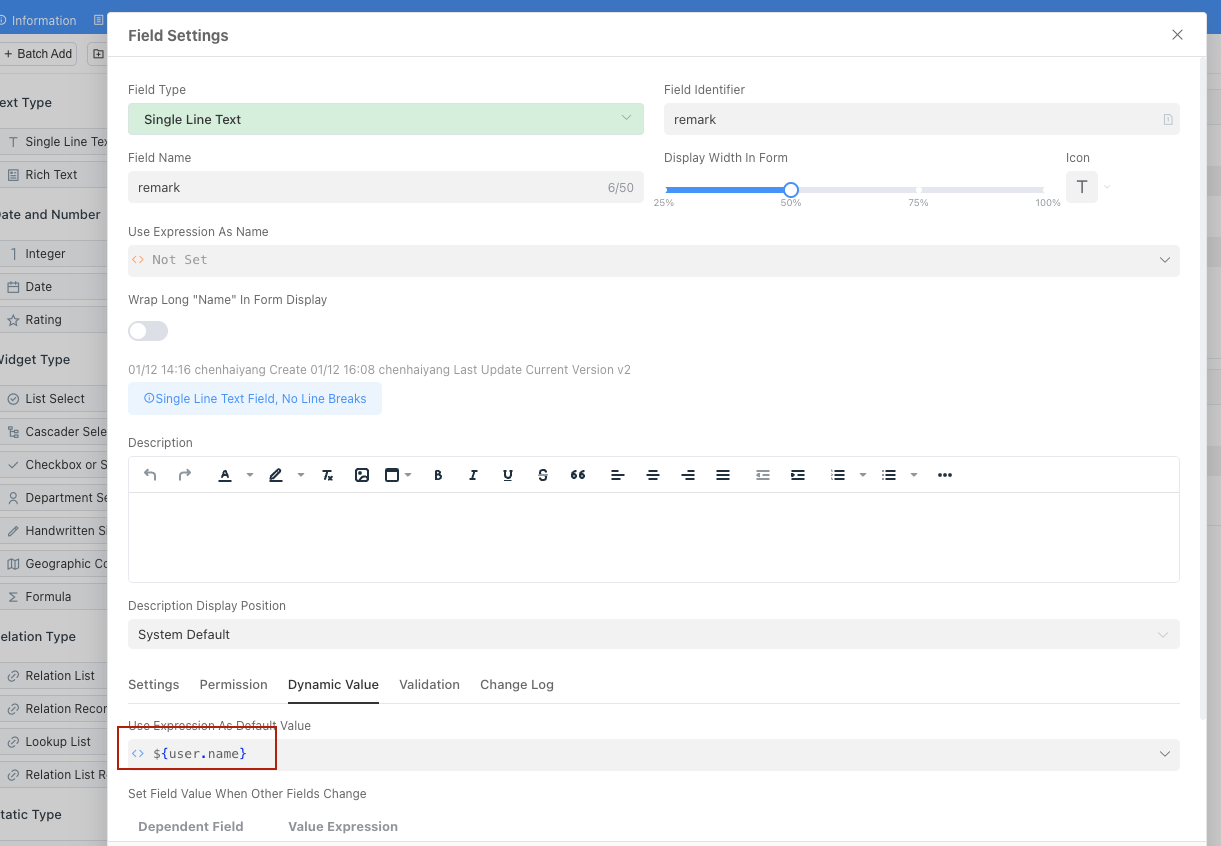
General Settings
| Configuration Item | Description |
|---|---|
| Name | The name of the field in the form |
| Field Identifier | The unique identifier of the field, unique within this table |
| Display Width in Form | The form supports up to 4 fields per line, with field width options: 25%, 50%, 75%, 100% |
| Use Expression as Name | Use an expression to calculate the field display name |
| Description | The description of the field, which is displayed below the form by default |
| Description Display Position | The display position of the field description, supporting System Default, Floating Tip, Hidden |
Permission Settings
| Configuration Item | Description |
|---|---|
| Read-only in Form | Fields are editable by default. After setting to read-only, the edit status will be dynamically set according to the editable expression |
| Editable When Expression is Satisfied | After enabling read-only, the field will be judged whether it is editable according to this expression |
| Field Prompt When Read-only in Form | No prompt by default. After setting, a prompt will be generated according to the expression when read-only, and a prompt icon will be displayed on the left side of the form field |
| Hide This Field in Form | After enabling, the field will be judged whether it is visible according to the Visible in Form When Expression is Satisfied expression |
| Visible in Form When Expression is Satisfied | After enabling hide, the visible status will be set according to the visible expression |
Notes
You can use Current Application, Current User, and Current Form Data variables in expressions
Dynamic Value
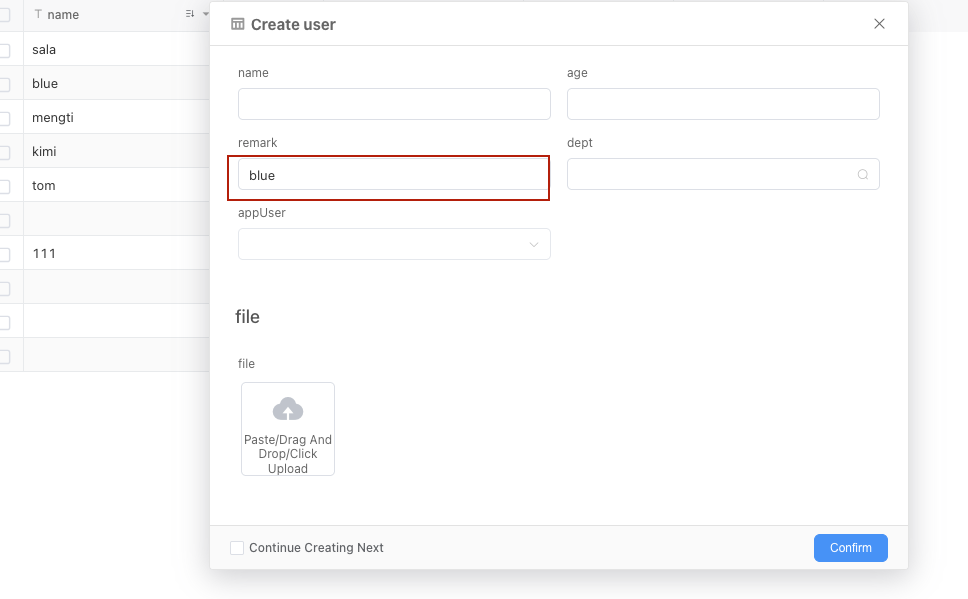
Use Expression as Default Value
If you need to dynamically set the default value for fields in the form when creating, you can use the Dynamic Default Value Expression setting.
Example Usage
For example, when submitting a leave application, the applicant's department needs to be set to the department of the current submitter, and expressions can be used to query the current user's department.
Set Field Value When Other Form Fields Change
Field linkage is to set the value of this field when other fields in the form change.
Example Usage
For example, after the user selects a product on the order page, the Product Price field needs to be automatically set to the Price of the Product table.
Notes
Note that the type returned by the Value Expression must be consistent with the storage type of the field. Inconsistent data types will cause errors.
Dependent Fieldrefers to which field triggers the rule when it changes.Value Expressionrefers to the value set for this field after the rule is triggered.
Validation
Set as Required When Expression is Satisfied
Override the required control of the field through an expression. If not filled in, the required control set by the field is used by default. The expression returns a boolean type.
Field Validation Rules
Check whether the field meets the business rules when the form is submitted. The field validation rules consist of two parts.
ExpressionThe expression returns a boolean type. If it returns false, it means the condition is not met, the user is not allowed to submit, and a prompt message is displayedPrompt Message When Condition Not MetThe prompt message when the expression returns false.
Form validation will only be triggered in the following scenarios:
- Web form filling
- Workflow form submission
- Questionnaire submission
Example Usage
For example, when submitting an order, it is necessary to determine that the purchase quantity amount must be greater than 10, then the expression needs to be set to
${record.amount>10}Notes
When multiple rules are set, all rules need to be satisfied to pass the validation
Change Record
The change record mainly controls whether to record a change log when the field content in the data table record changes.
Notes
After enabling the Field Change Log Function of the data table to which the field belongs, when modifying data table records through Forms and Workflows, if the modified field has enabled Record Change Log When Modified, the value before modification and the value after modification will be recorded in the change record table. The format of the change record table is shown in Change Record Table
| Configuration Item | Description |
|---|---|
| Record Change Log When Modified | Not enabled by default. After enabling, when the field content changes, the system will automatically record the change log |
| Allow the Following Roles to View Change Records of This Field | By default, all users can view. After configuration, only the configured roles can view |
Notes
Field Required
If the field is hidden or read-only, it will not participate in the required validation when submitting data.
Dynamic Validation
Dynamic validation is checked by the server, and it will only be validated after the user submits the data.