Relation Record
Relation Record field represents references to data in another table. Relation record represents one-to-one relationships between models.
Description
| Item | Content |
|---|---|
| Category | Association Relationships |
| Sortable | Yes |
| Filterable | Yes |
| Supported Filter Types | Equal To, Not Equal To, Empty, Not Empty, In List, Not In List |
Settings
| Setting Item | Description |
|---|---|
| Allow empty | Controls whether the field is required. |
| Placeholder when empty | Hint text displayed in the input box when no value is entered. |
| Related table | Select the data-table module that this field will link to. |
| Display name field of related record | The field whose value is shown as the name of the linked record. |
| Storage field of related record | The field whose value is stored as the unique identifier of the linked record (defaults to the id field). |
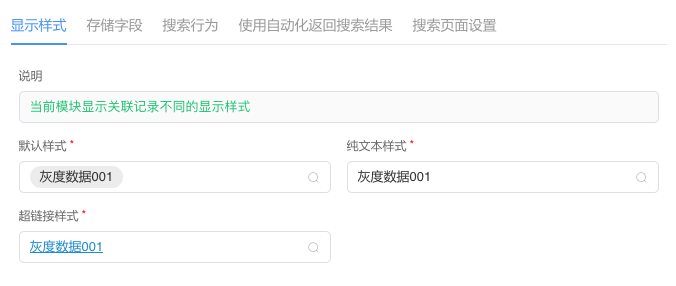
| Display style | Chooses how the field is rendered: Default or Plain text. |
| Search behavior | Chooses how the search box opens: Search in table dialog or Search in dropdown. |
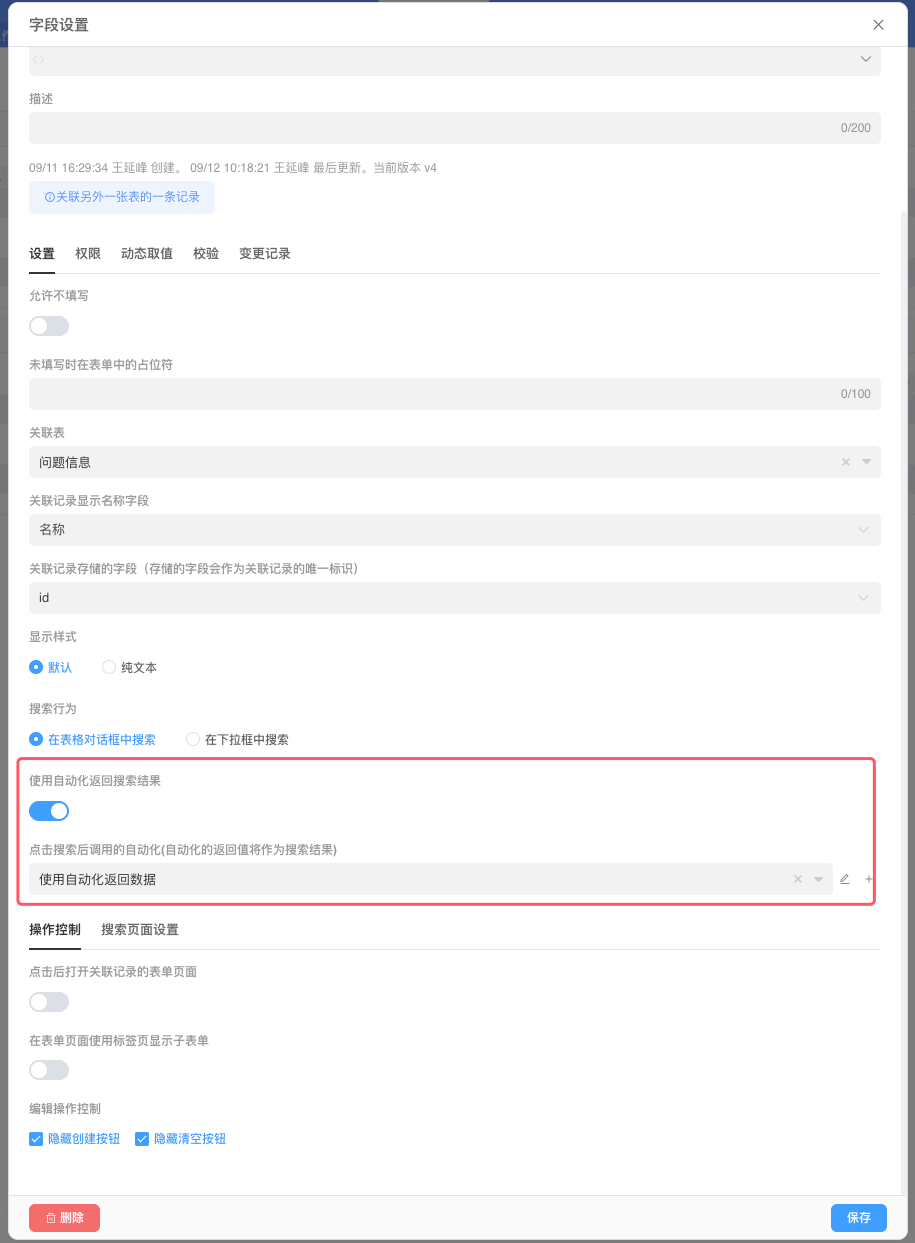
| Use automation to return search results | When enabled, an automation can supply the list of selectable records. |
| Automation to call on search | The automation invoked when the user clicks search (available only if the above option is enabled). |
| Operation Control | Description |
|---|---|
| Open linked record form on click | Determines whether clicking the field opens the linked record’s form page. |
| Show linked form as tab in parent form | Displays the linked record’s form page inside the current record using a tab layout. |
| Edit controls | Controls whether users can create a new linked record directly and/or clear an existing selection:Hide create button, Hide clear button. |
| Search Page Settings | Description |
|---|---|
| Search dialog width | Width of the search pop-up, 300–1 500 px. |
| Table style | Toggle table appearance: row numbers, border, striped, hide header. |
| Sub-object field | Select a sub-object field from the linked table to render the table as a tree. |
| Selectable only when condition met | Expression that disables rows which do not satisfy the condition. |
| Fields to display | Choose which fields appear in the search table. |
| Data filter | Expression that filters the records listed in the search dialog. |
| Searchable fields | Pick fields to be used for searching (field-specific or fuzzy search). |
| Default sorting | Define the default sort column and order. |
| Cell format | Create rules to format cells in the search table; multiple rules allowed. |
Storage Format in Database
| Stored Field Type | SQL Type | Description |
|---|---|---|
| String | varchar(64) | Variable-length string, up to 64 characters |
| Integer | int8 | 8-byte integer (bigint) |
action when related table record is deleted
When a record in the related table is deleted, the behavior of the related-record field depends on the settings in the reference table.
Cannot be deleted while referencedIf the reference table has this option set, then deleting a record in the related table that is referenced by a related-record field will not be allowed.When deleting, simultaneously set the related record in referencing data to null or remove the referenced entry from the association listIf the reference table has this option set, then when a record in the related table is deleted, the related-record field in the reference table will be set tonull.
show name
When querying record data in automations or scripts, a related-record field always returns both the stored identifier and the configured display-name field.
{
  "id": "recordId",
  "field1": "table b record ID",
  "field1_name": "table b record name"
}TIP
When updating form records via automation, always sync the display-name value of the related-record field so that the linked record shows the correct name.
display style
storage fields
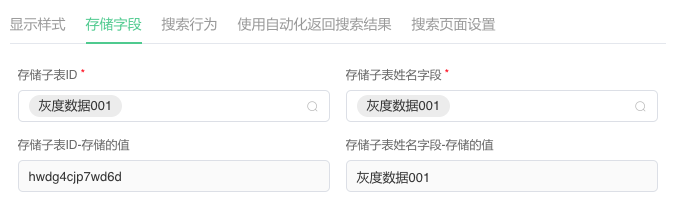
In a related-record field you can pick a specific sub-form entry and store the value of any field within that entry. As shown below, we are storing both the Record ID and the Record Name from the selected sub-form row.
TIP
By default, only the record ID is stored.


search behavior
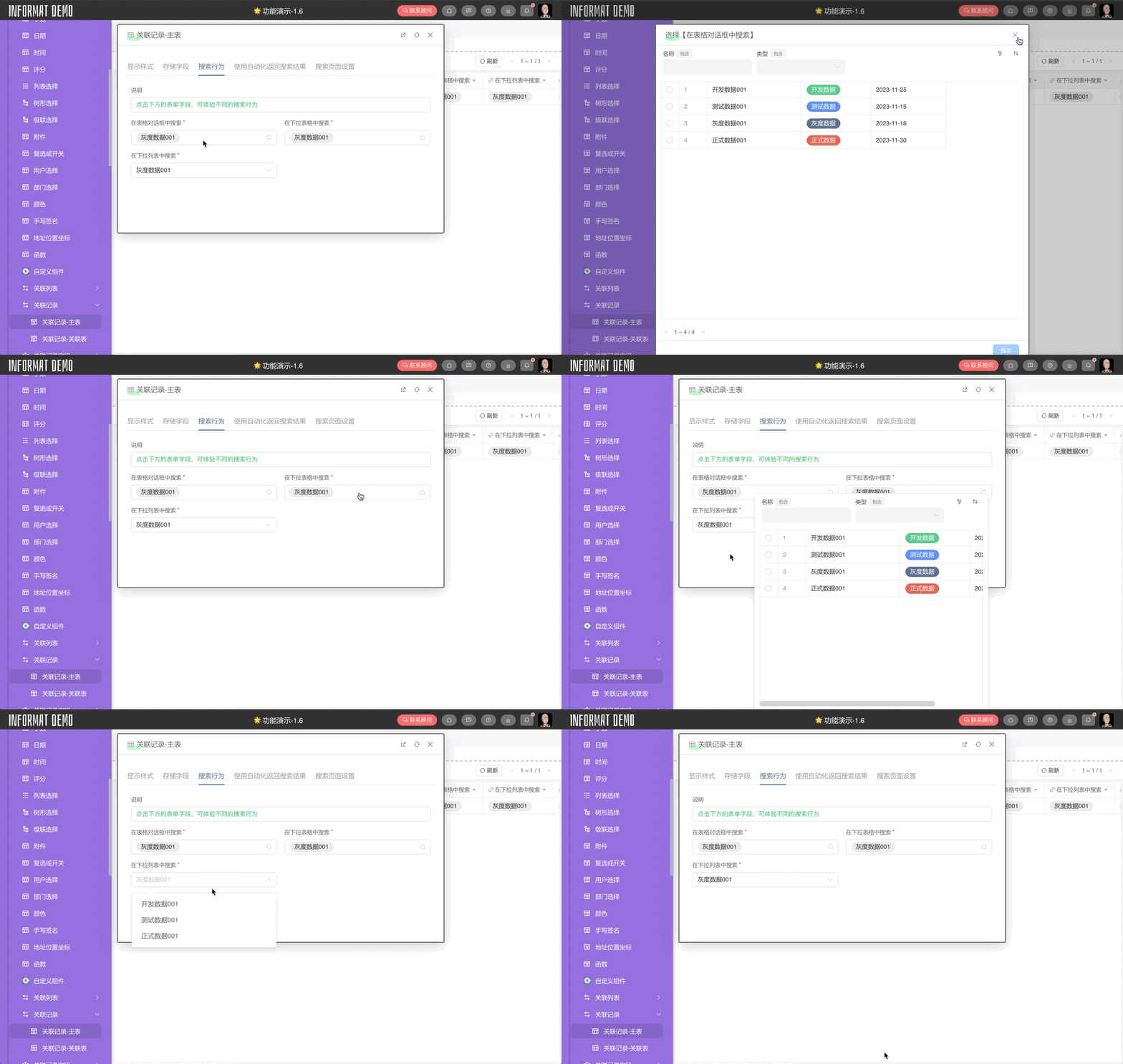
Use automation to return search results
Call an automation to return a list of optional data records
Use cases
- Based on the current form data, users can select from a list of optional data records
- Based on the application context (user role, permissions, etc.), control the list of optional data records that users can select from
Usage instructions
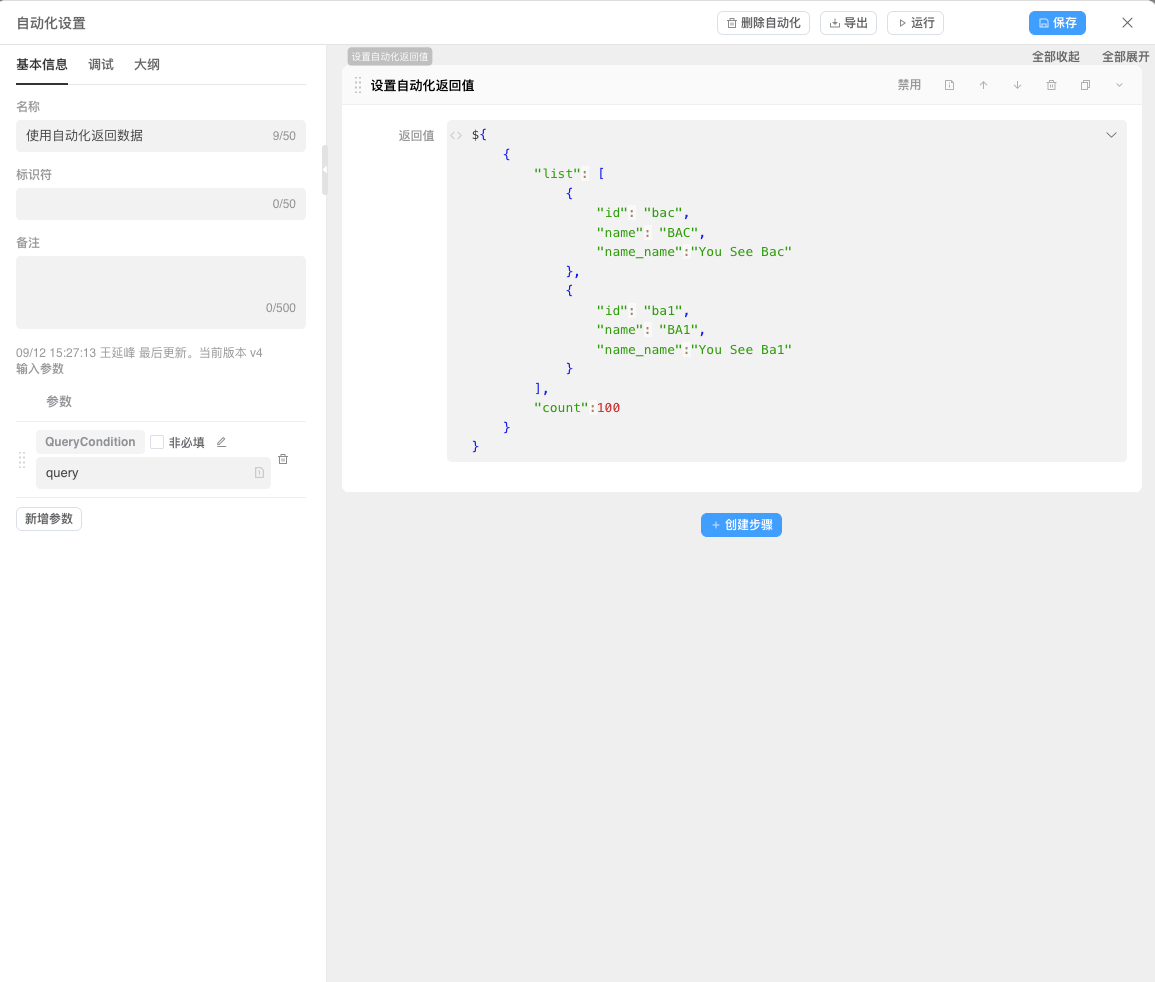
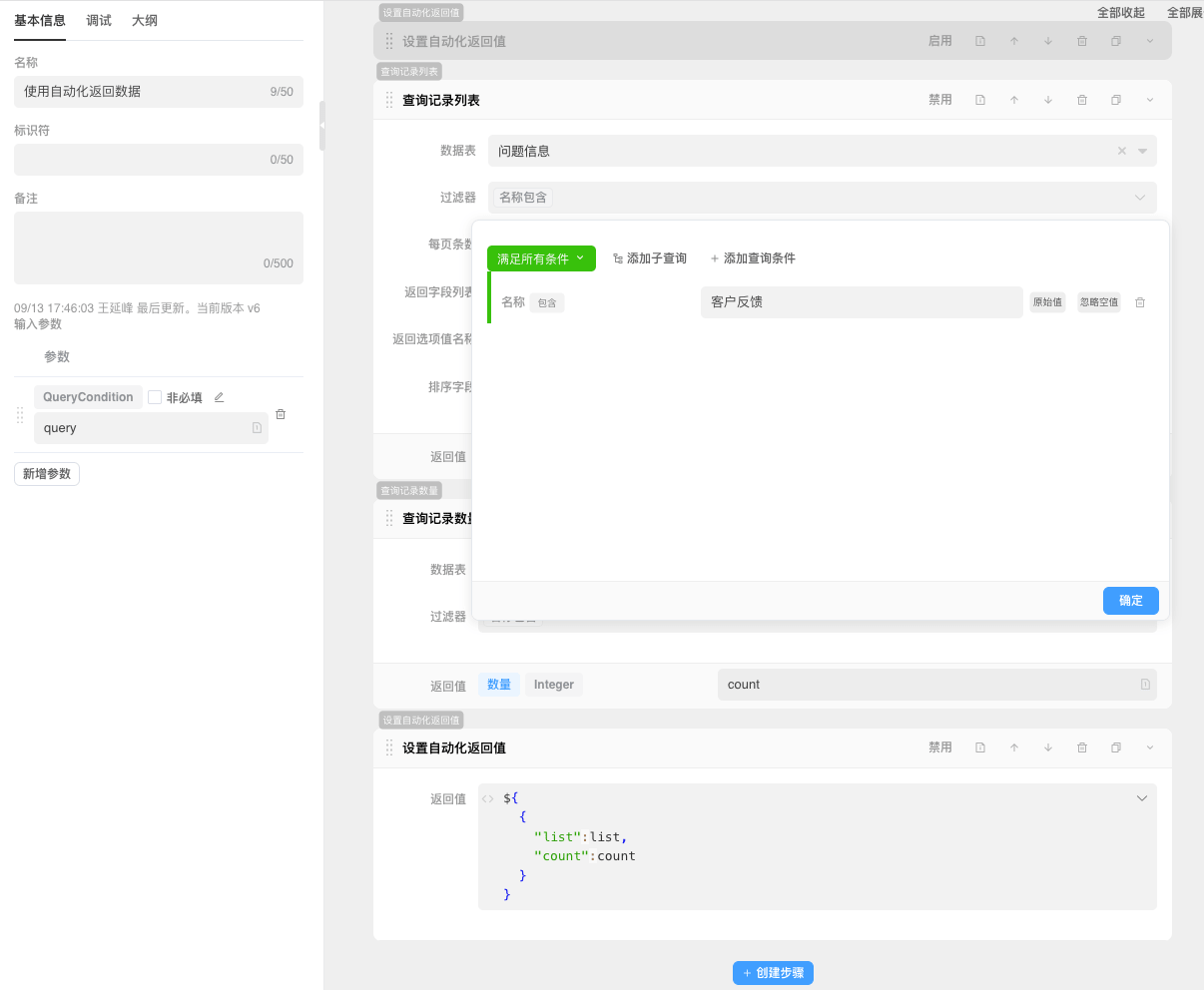
- The return value structure of the automation needs to contain
listandcounttwo attributes - The
listattribute of the automation return value is of type Array<Record>, representing the list of optional data records - The
countattribute of the automation return value is of typeInteger, representing the number of records that satisfy the condition - If the automation return value does not contain the
countattribute, the length of thelistattribute will be used as the default value - When the user clicks the search button, the automation will be called with a default parameter of type
QueryCondition
Example
Add the following data models
Question table question, fields as follows
| Identifier | Field | Type |
|---|---|---|
| name | Question Name | Single-line Text |
| descs | Question Description | Multi-line Text |
Question Detail table questionDetail, fields as follows
| Identifier | Field | Type |
|---|---|---|
| name | Name | Single-line Text |
| descs | Description | Multi-line Text |
| questionRel | Question | Related Record |
In the Question Split Table field, set Use Automation to Return Search Results
Field Settings
Automation
Use Mock Data
Return Data from Database Table
Interface Display
Question Table Data
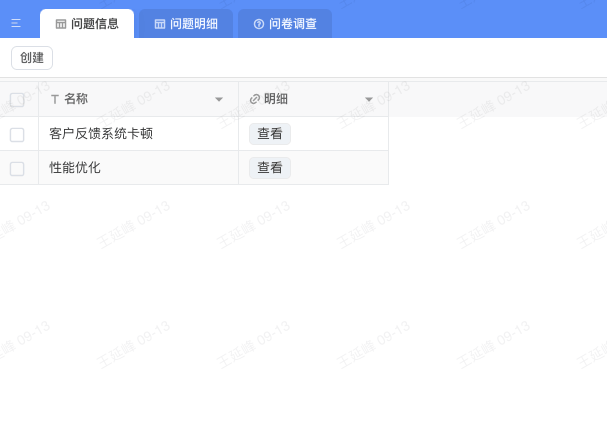
Question Detail Table Data
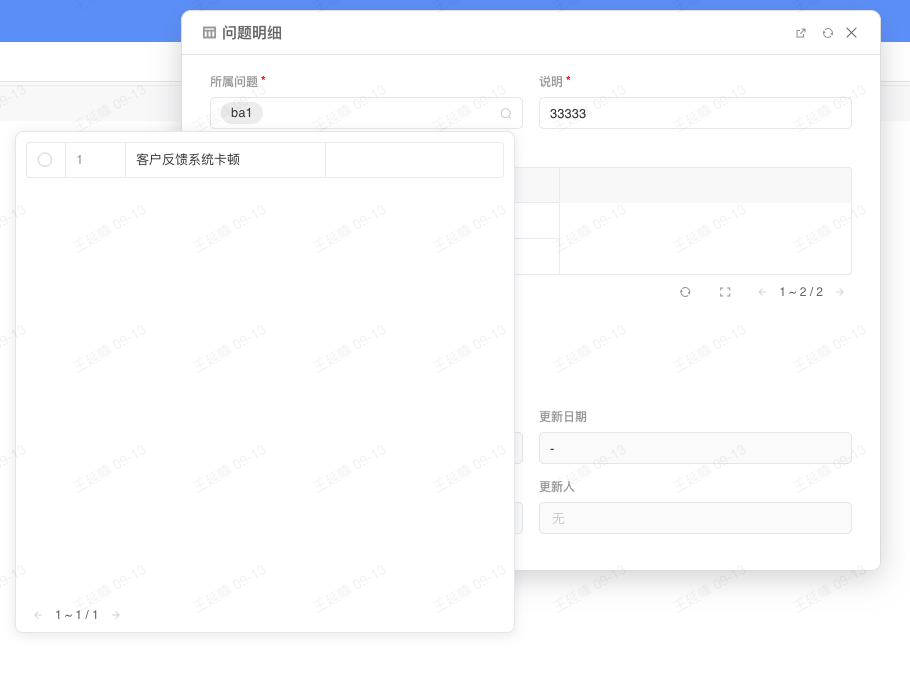
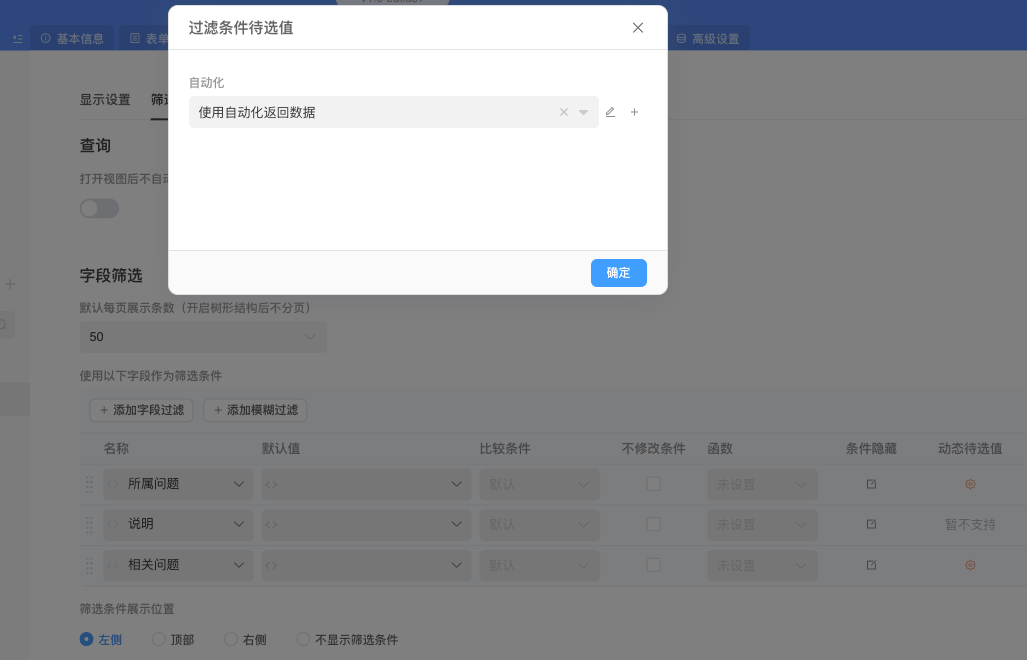
For Related Record and Related List fields, you can also enable "Automation Pending Values" in the view filter conditions.
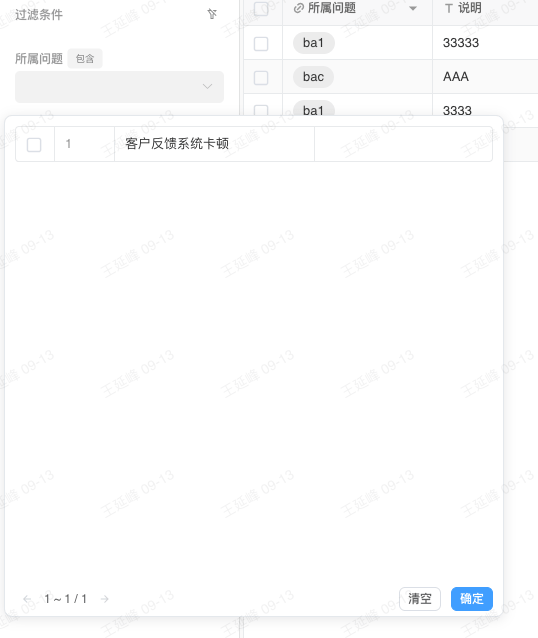
Filter Condition Pending Values
Interface Display
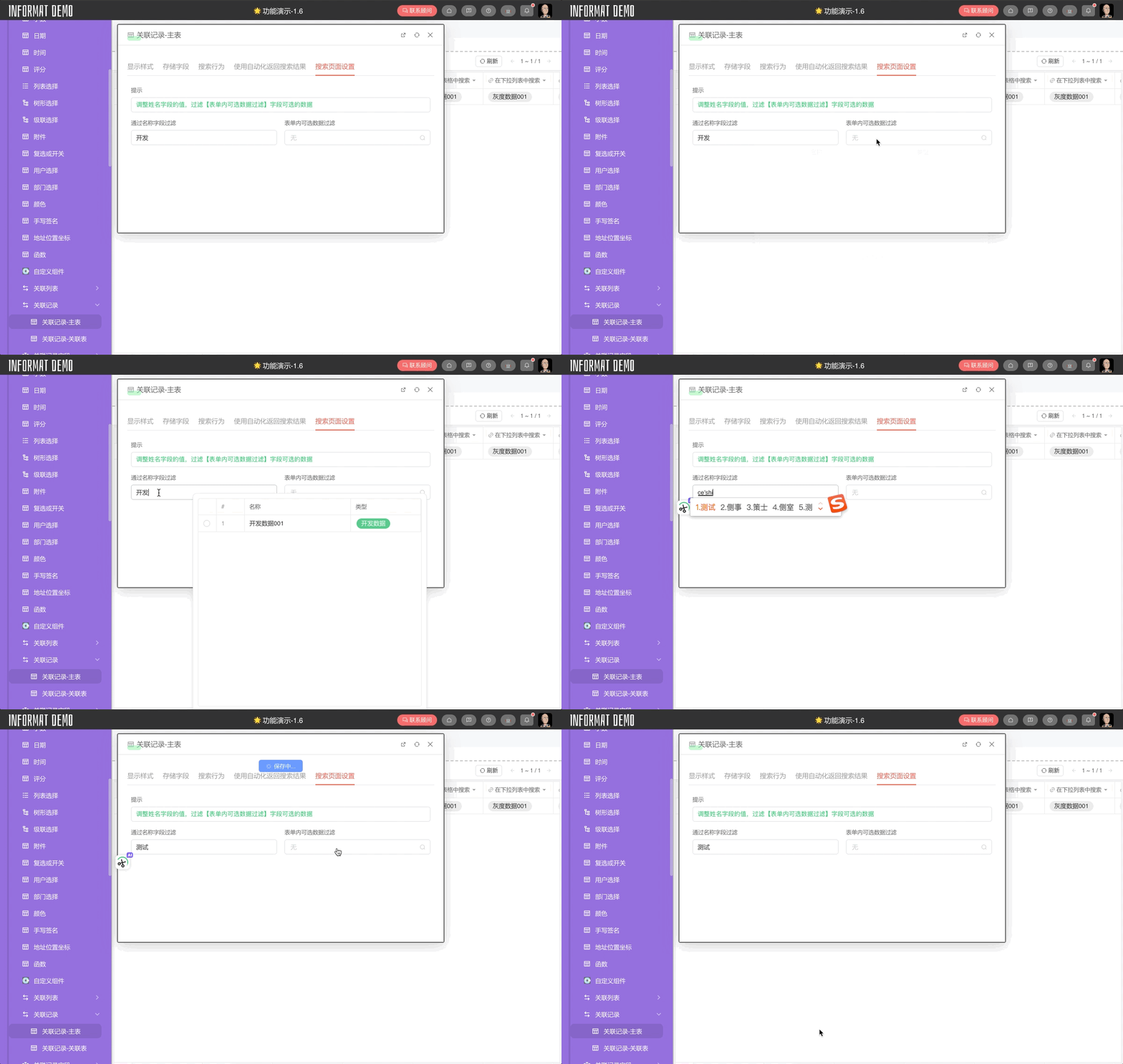
Form Data Linkage to Subtable Data Search
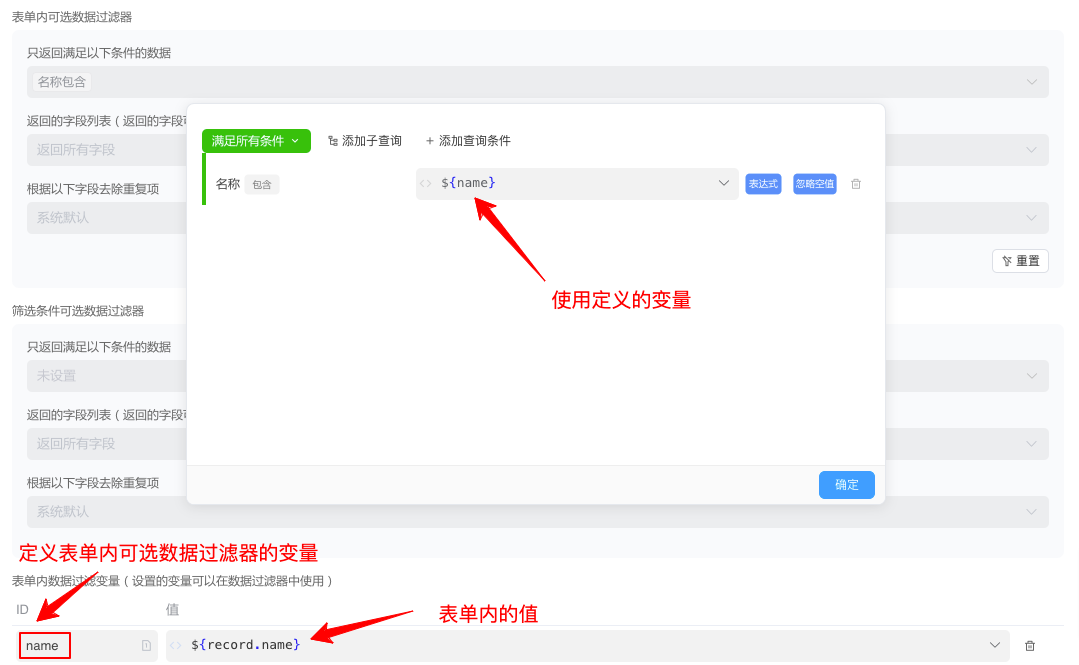
In some scenarios, we want the list of selectable related records to change dynamically as the user fills in the form. This can be achieved through the Search Page Settings, which link the form to the selectable list of related records. Below we will demonstrate how adjusting the value of the “Name” field filters the selectable data of the field [Form Internal Data Filter].