AI Smart Designer
For Designers · UI Design — Generate and edit custom web interfaces using natural language
Why AI Smart Designer
The Informat platform comes with a rich set of built-in standard views: tables, Gantt charts, Kanban boards, calendars, cards, and more, covering most common business scenarios.
However, in real-world projects, there are always custom requirements that standard views cannot address:
- Custom data display pages
- Forms with special interaction logic
- Branded portal interfaces
- Mobile-exclusive pages
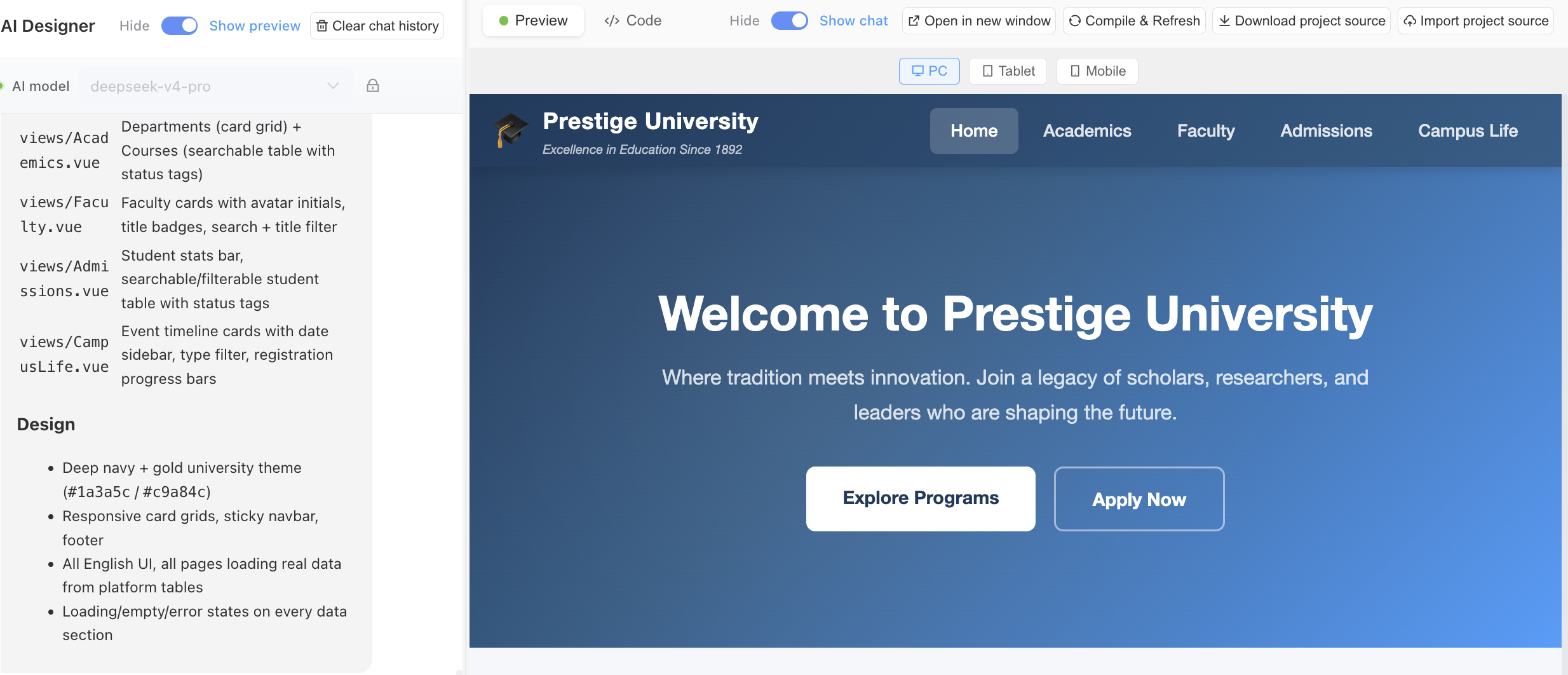
AI Smart Designer fills this gap — describe the interface you want in natural language, and AI automatically generates the frontend code to quickly deliver custom solutions.
Core Capabilities
Natural Language UI Generation
No need to write code manually — describe your requirements in natural language to generate complete frontend interfaces:
Generate a project overview page with statistics cards at the top,
a task list on the left below, and a progress chart on the rightAI automatically generates runnable component code with instant preview and adjustment support.
Conversational Editing
Continue modifying with natural language after generation:
Change the statistics cards to a blue theme and add filtering to the task listAI makes incremental changes based on existing code, preserving the original logic.
Technology Stack Support
- Vue 3 / JavaScript / TypeScript: Fully supported
- React: Coming soon
Code Export
Generated code can be exported as a standalone project for further development and deployment.
PC and Mobile
Supports generating both PC and mobile pages — one set of requirements adapts to multiple platforms.
How to Use
Step 1: Create an AI Smart Designer Module
In the app designer, create a new module and select the "AI Smart Designer" type.
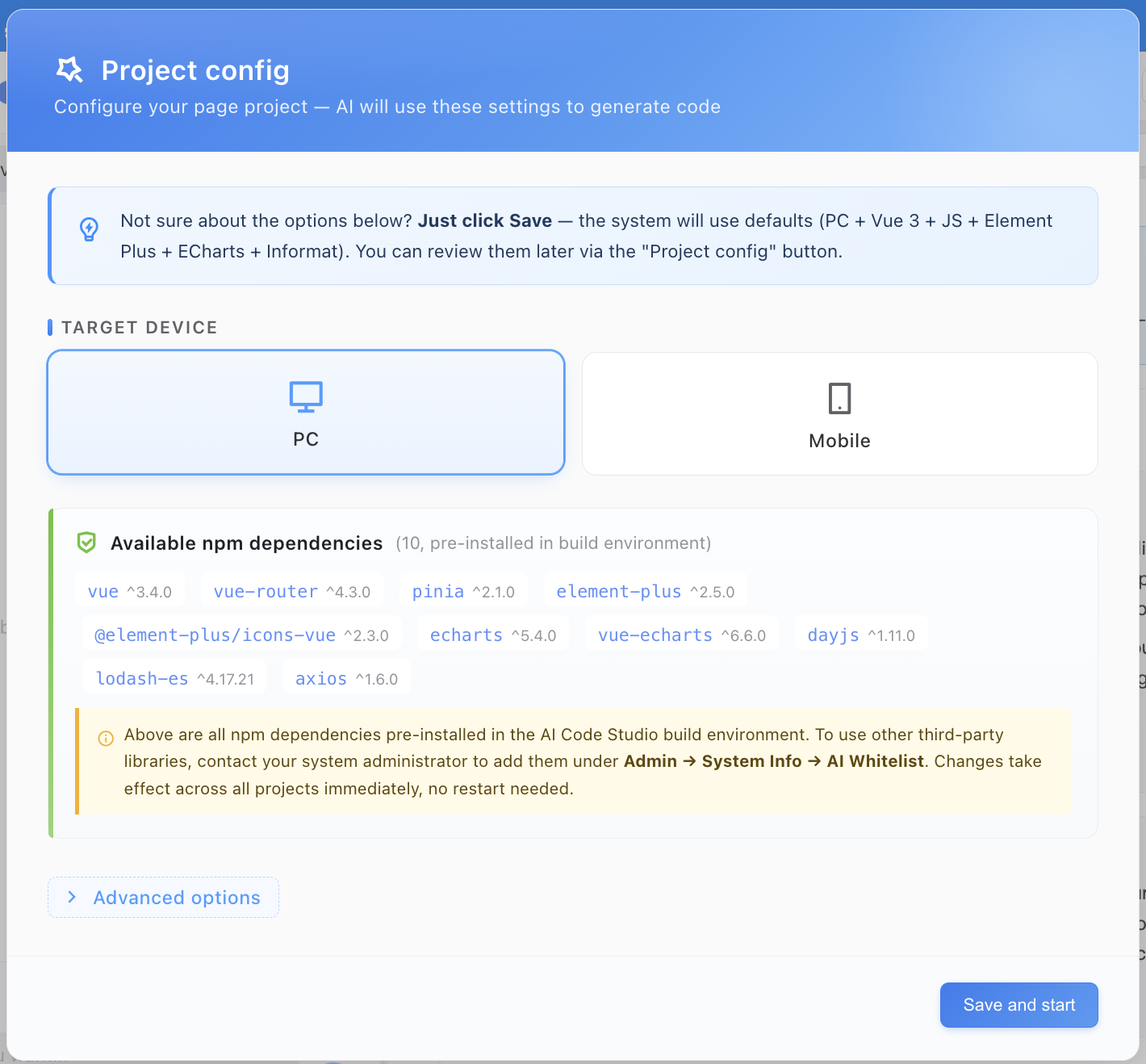
Step 2: Enter Page Requirements
Describe the custom page you want in natural language, or upload a requirements document.
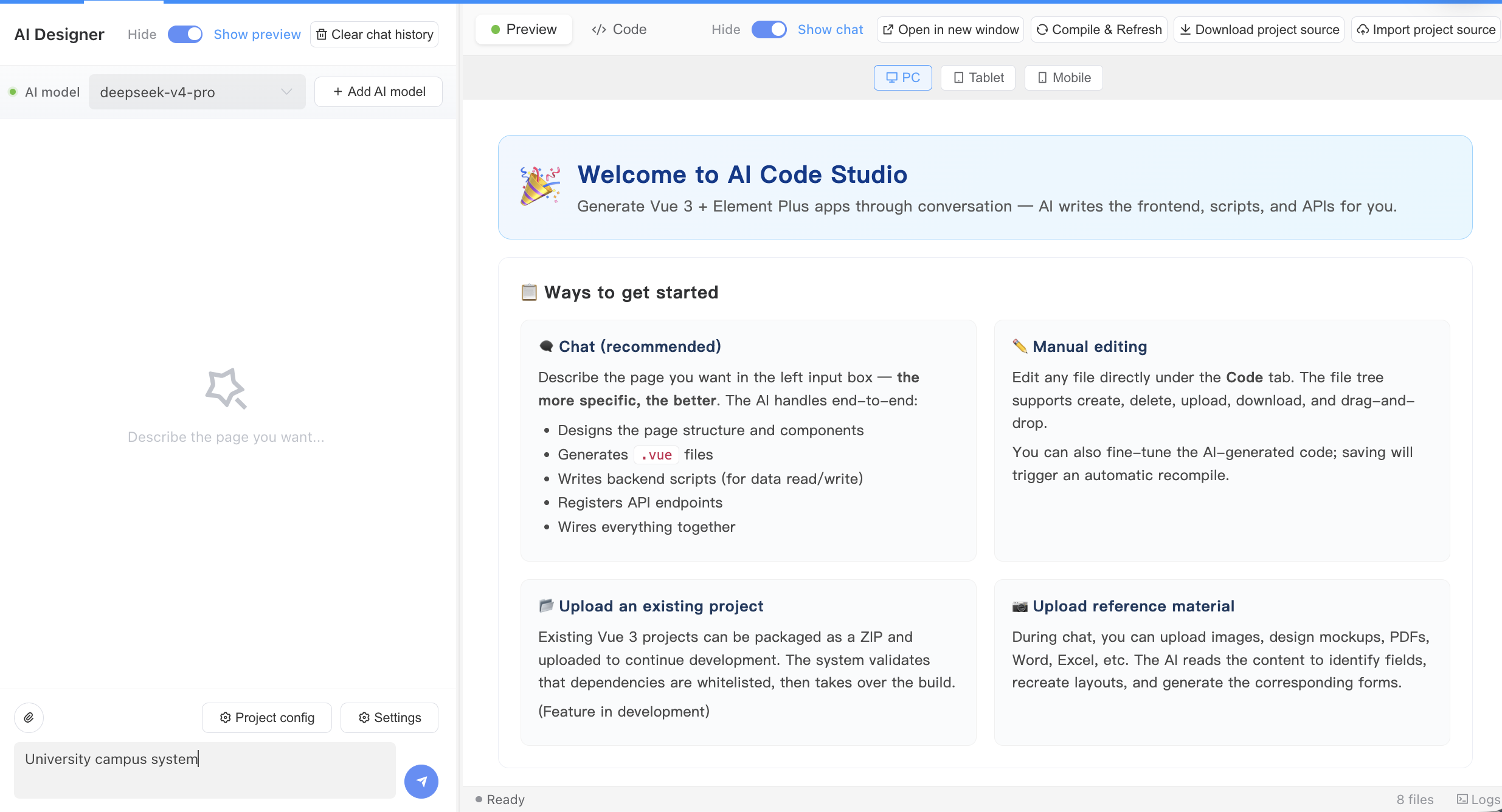
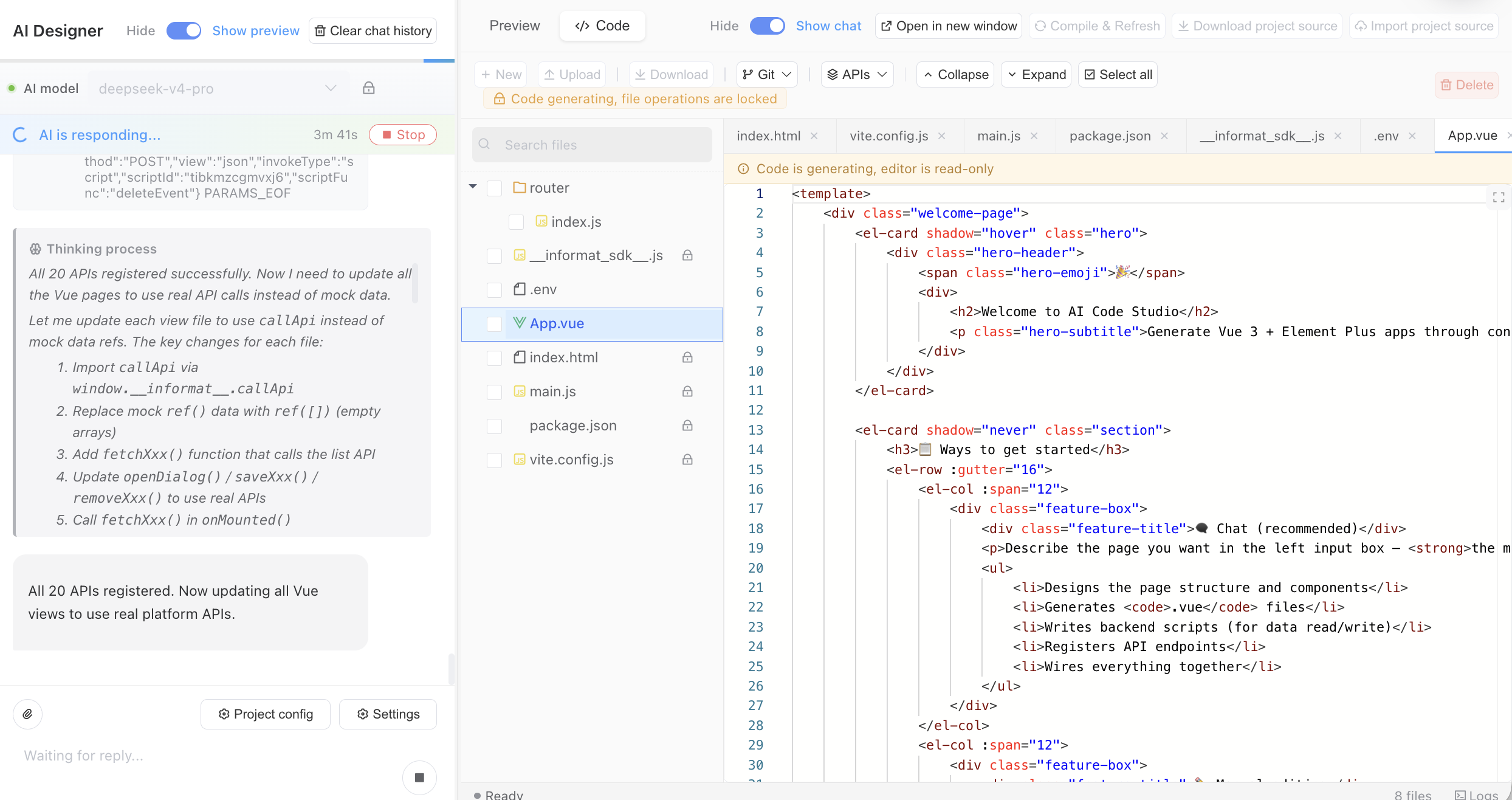
Step 3: Preview and Adjust
Preview results in real time during AI generation, and continue adjusting details through conversation after generation.
Tip
The more specific your description, the better the generated page matches your requirements. Include details such as layout structure, color scheme, and interaction behavior.
Step 4: Preview the Page
After generation is complete, view the actual results in the preview window with instant interactive experience.