

Scenario 2: Automatically Send Emails via AI - Sending Expired Fixed Assets Notifications
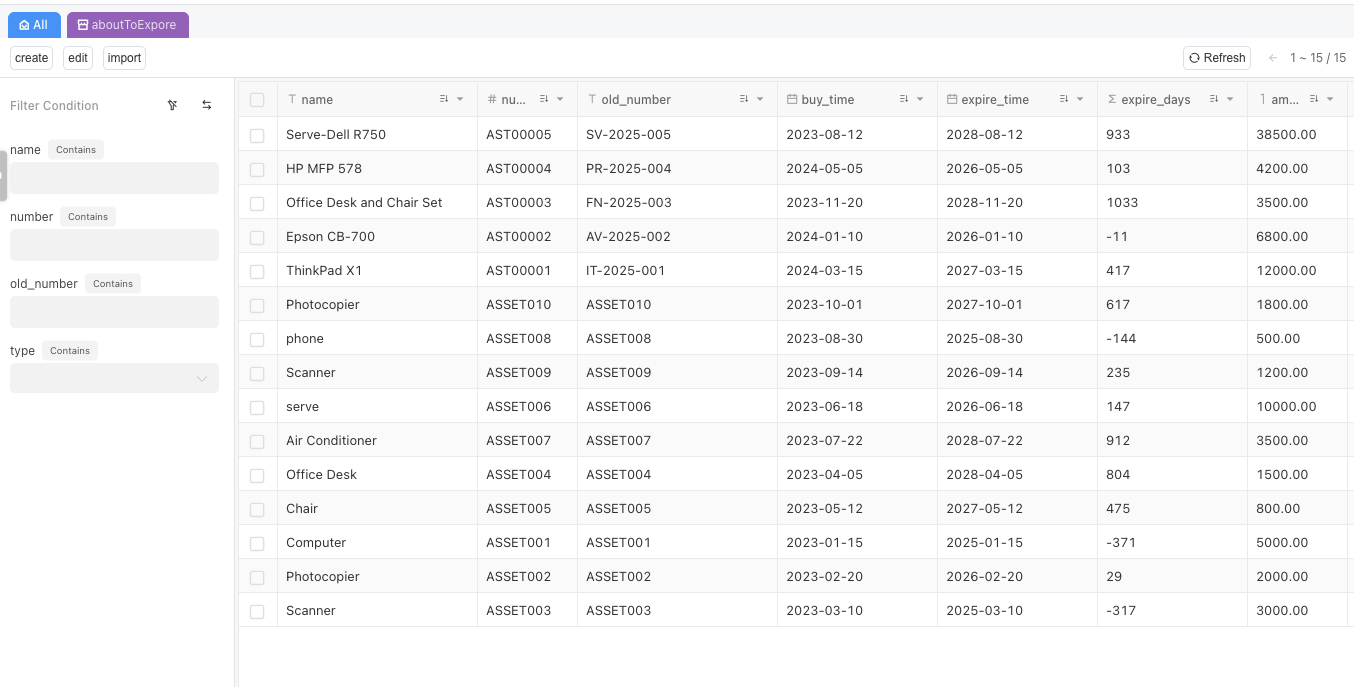
First, configure a basic data table for fixed assets, including key information such as basic fixed asset details, expiration time, days until expiration/status, and populate it with data as shown in the example below.
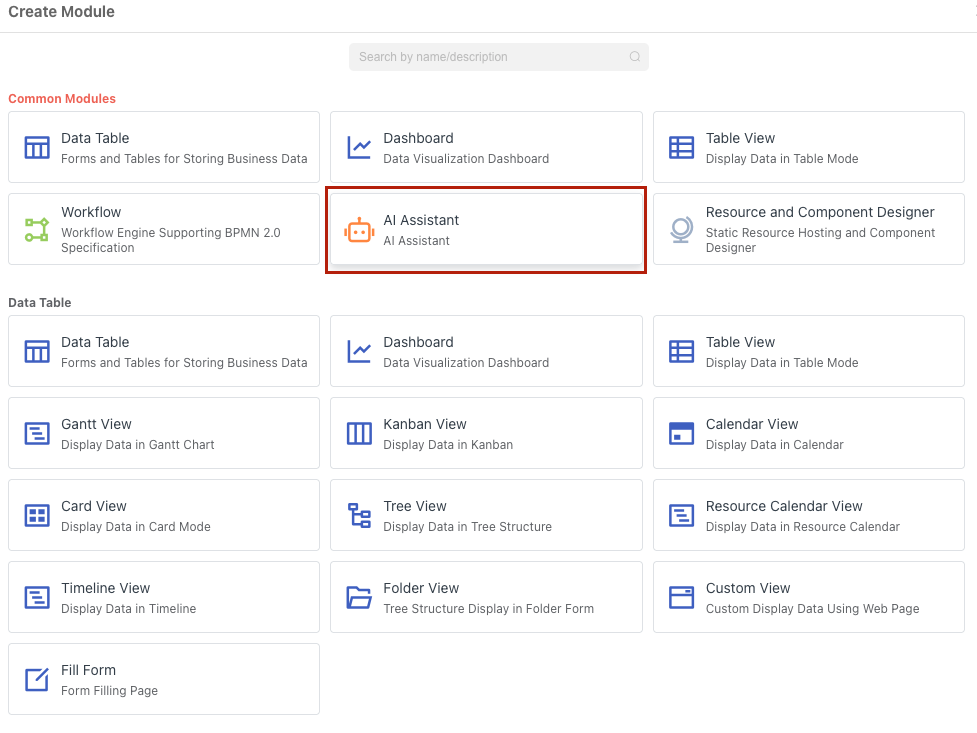
Open the application designer, create a new module, select the "AI Assistant" section, and name it something like "Expired Fixed Assets Notification".
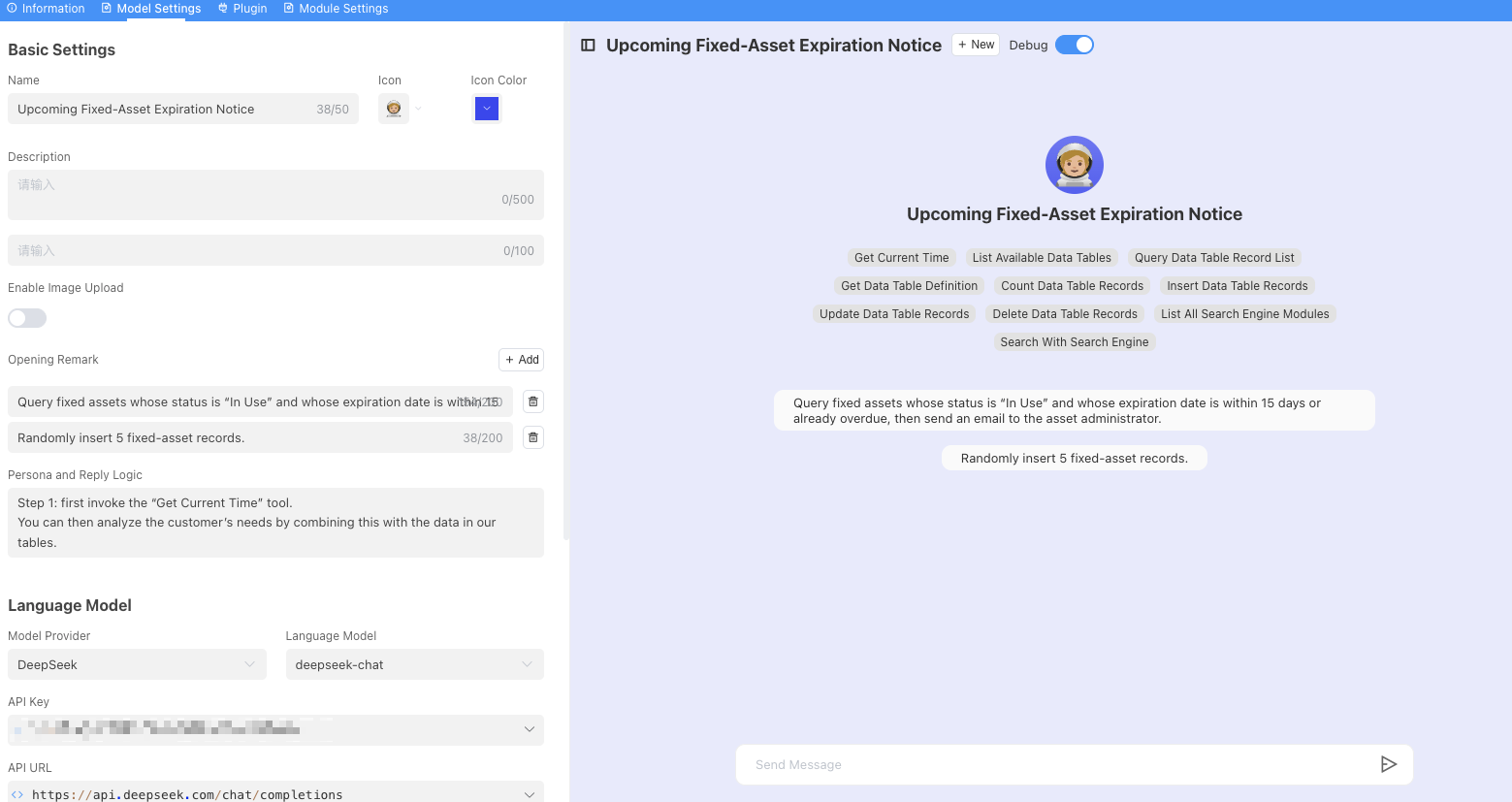
In the [Model Design], configure the required AI parameters (such as model name, API Key, API address, etc.), which can be obtained from the official website of the corresponding AI platform.
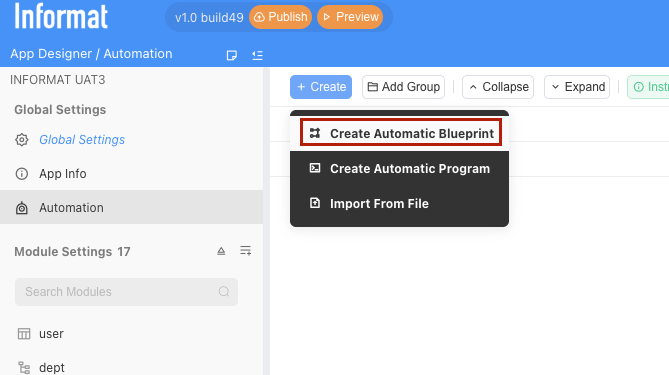
Open the application designer, navigate to Automation → Create → Create Automation Blueprint to enter the automation design page.
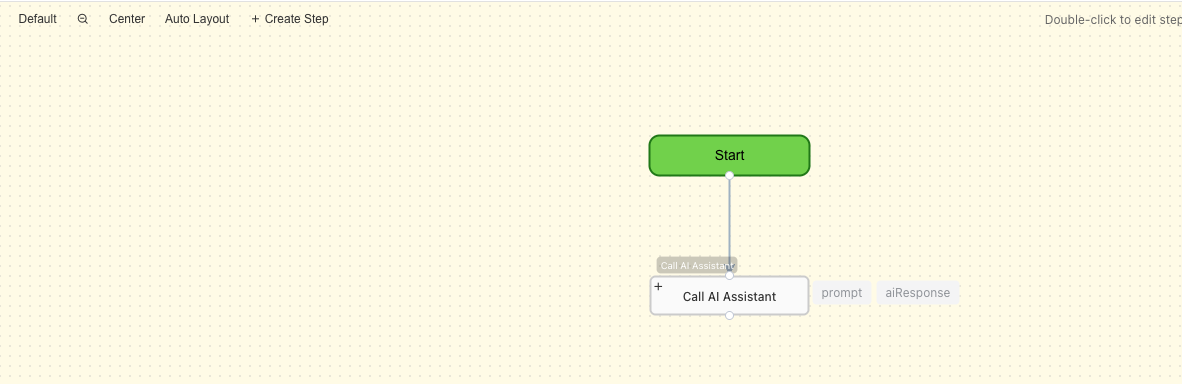
After opening the automation interface, right-click on a blank area in the design section, select "Create" - "Call AI Assistant".
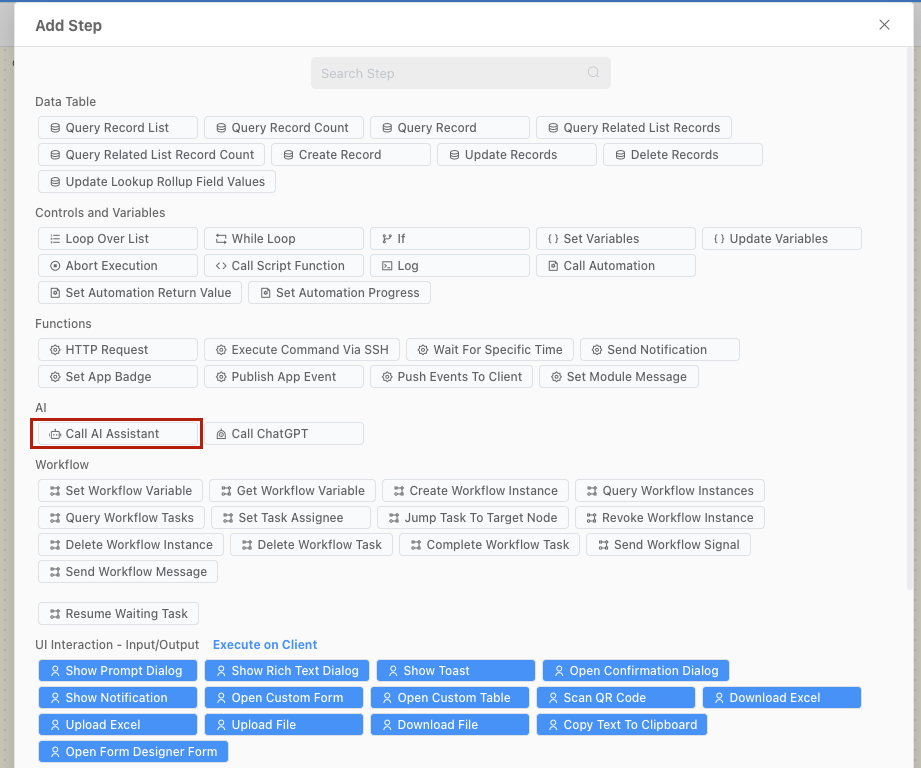
Double-click on the "Call AI Assistant" step.
In the [Step Settings], select the previously configured AI tool [Expired Fixed Assets Notification].
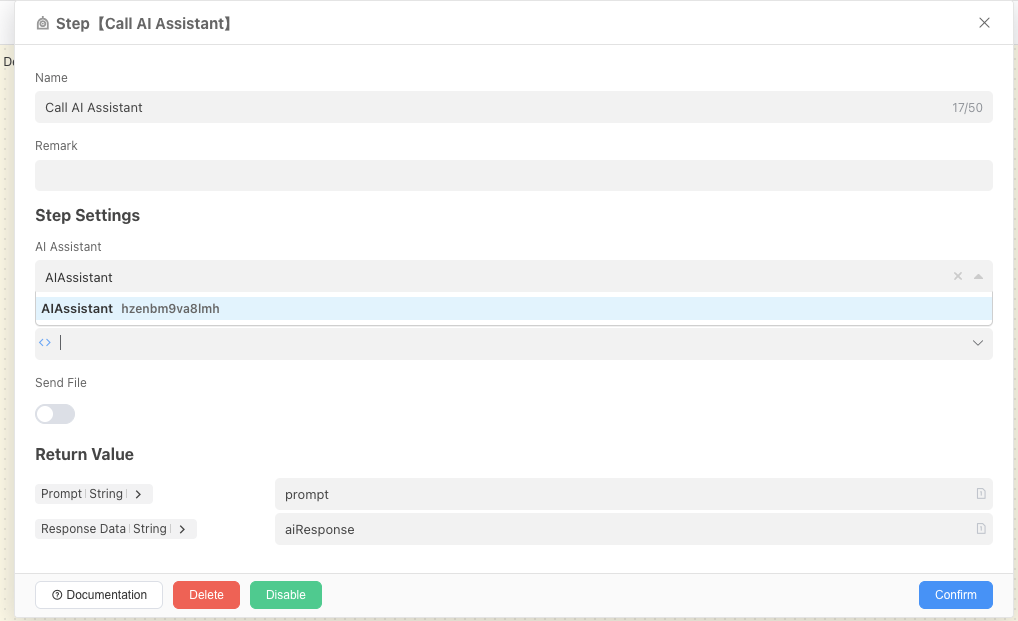
Set the prompt, which is the request content sent to the AI. For example: [Please send the expired fixed assets in HTML format to email 1 and email 2].
After confirming, connect the [Start] block to the [Call AI Assistant] block with a connection line pointing to [Call AI Assistant].
Click the [Save] button in the upper right corner and run it.
Effect Demonstration
- The email content is received in the specified recipient's mailbox, with the effect as shown below: