

Application Role Management
Overview
The Application Role Management module is used to create and manage different roles and permissions within applications.
Role Management Concepts
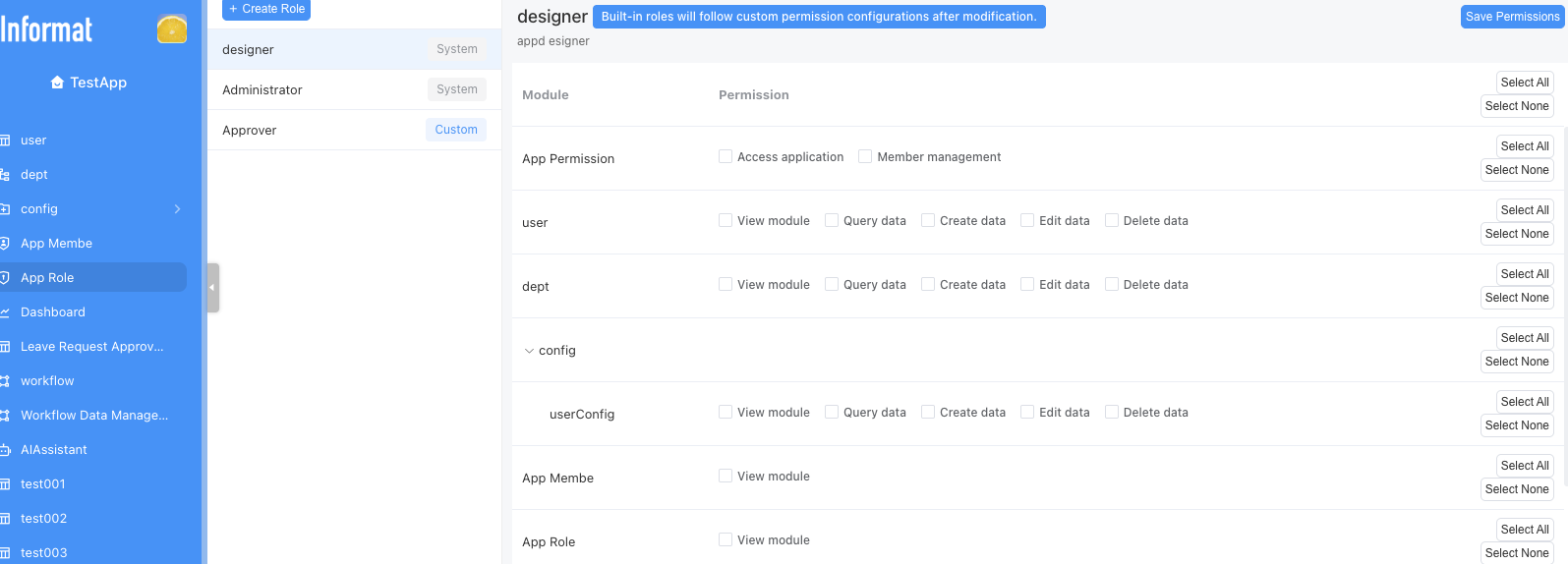
This module allows you to create and configure different roles and assign them various create, read, update, and delete permissions in other modules. These roles can be used in the Application Member Management Module to assign different application permissions to different members. The goal of the Application Role Management module provided by the Informat platform is to help application administrators improve application usability and manageability without compromising security and data access control.
Users can have multiple roles, and users with multiple roles will have permissions that are the union of all their role permissions. 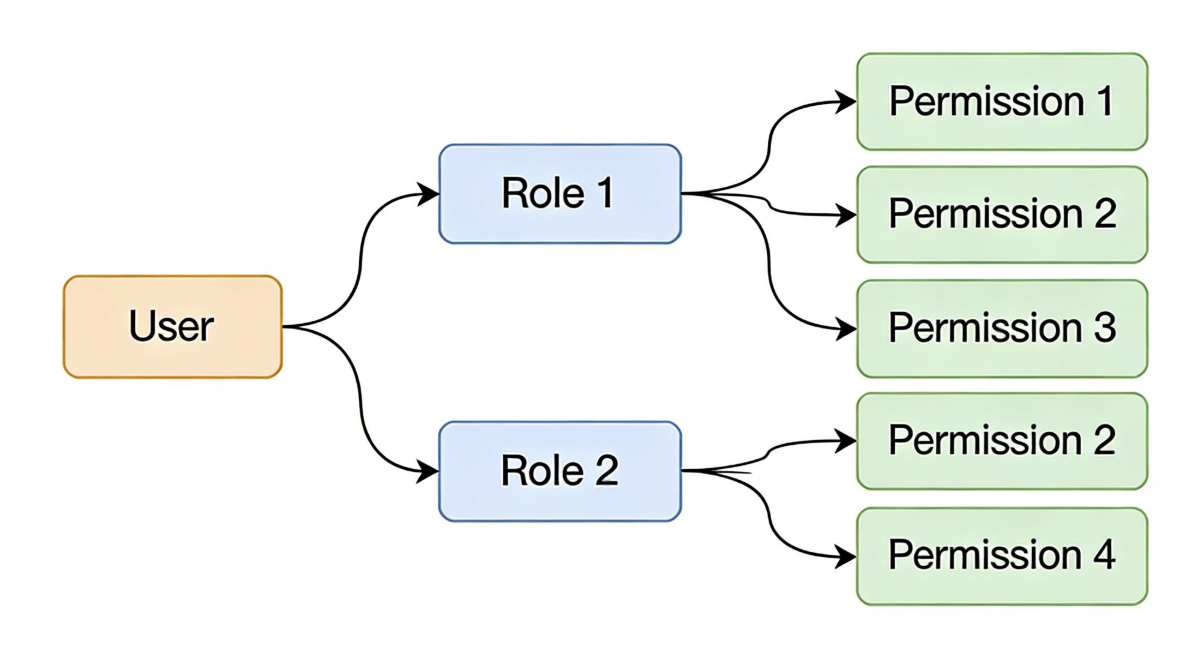
Custom Roles
The roles created by this module are custom roles, which are different from the roles created under Global Settings in the Designer. Roles created in Application Design will have a system tag, while roles created in our Application Role module will have a custom tag. System roles created in the Application Designer Global Settings will be exported when the application is exported, but custom roles created in the Application Role module will not be exported with the application. The Application Role Management module allows application members to custom-configure application-related role permissions during application runtime without accessing the Designer and without republishing the application version.
INFO
Custom roles are stored as application data and will not be exported with the installation package
Here are the main functions of the Application Role Management module:
Role Creation
Allows application administrators (or other roles you define) to create different application roles.
Permission Assignment
Allows application administrators (or other roles you define) to assign created roles with create, read, update, and delete permissions for modules within the application.
Role Management
Allows application administrators (or other roles you define) to edit, delete created roles, and reassign permissions for each role.
INFO
- Module viewing permission means the navigation menu bar will display the module menu
- In data table permissions,
Query Data,Create Data,Edit Data, andDelete Dataare data permissions that do not affect the display or disabled state of control buttons
Custom Permissions
To enable richer and more granular permission management, the Informat platform supports defining custom permissions at the application level or for specific modules during application design. After configuration, you can use the Context.hasAppPerm and Context.hasModulePerm() methods in expressions to check whether the current user has the custom permission, thereby achieving access control.
Example
Add a custom permission named "Create Project" in the Role Permission – Members module; only members who have this permission will see the Create Project button in this module.
Configuration steps:
- Add the "Create Project" permission in the [Role Permission – Members] module under Permission Management.
- Add a Create button in the form toolbar of the [Role Permission – Members] module.
- Use
Context.hasModulePerm()on this button to set conditional hiding.
Add a custom permission named "Create Project" in the [Role Permission – Members] module:
- In the Application Designer, open Global Settings, navigate to the Role Permissions section, and click the "Permission Management" button.
- In the pop-up dialog, locate the [Role Permissions – Members] module and click the "Add Permission" button below it.
- Enter the information for the permission you want to add, then click Save. The identifier will be used later when calling methods, so be sure to name it according to the naming conventions.
Add a Create button to the form toolbar of the [Role Permission – Members] module:
Open the [Role Permissions - Members] module in the Application Designer, navigate to the View Settings section, open the Toolbar tab, and add a button control named Create Project with the following configuration:
Add a Create button to the form toolbar of the [Role Permission – Members] module:
Open the [Role Permissions - Members] module in the Application Designer, navigate to the View Settings section, open the Toolbar tab, and add a button control named Create Project with the following configuration:
Add a Create button to the form toolbar of the [Role Permission – Members] module:
In the Create Project button control, add the following expression in the Hide when expression is met configuration item:
${!Context.hasModulePerm('rolesUser','createProject')}Effect Display
The Manager role has the permission to create projects. 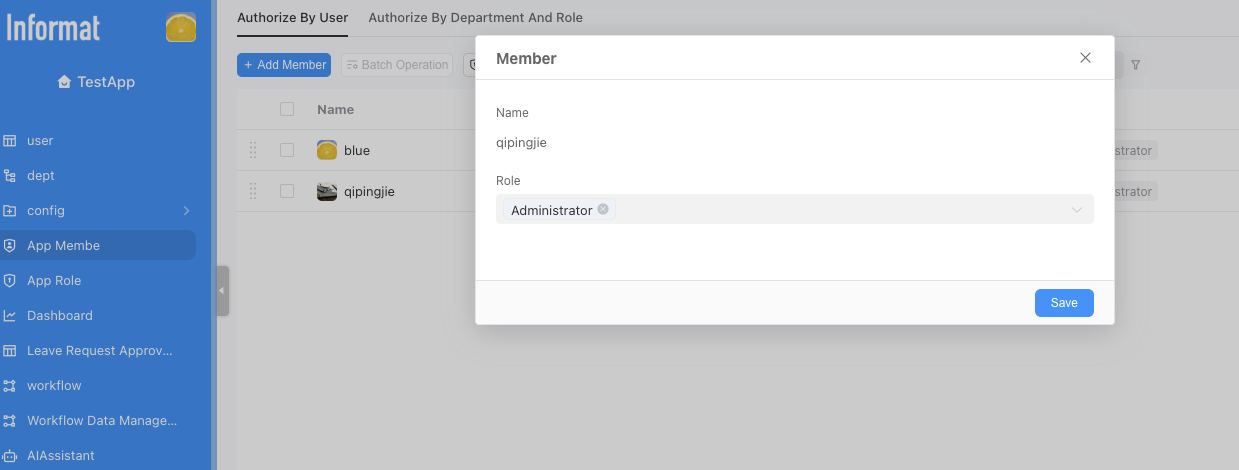
Members role does not have permission to create projects