List Select
Description
| Item | Content |
|---|---|
| Category | Controls |
| Sortable | Yes |
| Filterable | Yes |
| Supported Filter Types | Single Selection: Contains, Does Not Contain, Equal, Not Equal, Empty, Not Empty, In List, Not In List |
Settings
| Setting | Description |
|---|---|
| Allow Empty | Set whether the field is required |
| Multiple Selection | After enabling, the list selection will support multiple selection. Switching the Multiple Selection switch will change the storage type of the field |
| Placeholder in Form When Empty | Text displayed in the input box when no information is entered in the field |
| Display Method | Set the input display method for options Options: Dropdown Selection, Horizontal Tiling, Vertical Tiling, Steps |
| Display All Options in Table | Whether to display all options when displayed in the table view |
| Display Style | Set the display style after option selection Options: Rounded Solid Color, Rounded Border, Text Only, Right Angle Solid Color, Right Angle Border, Rounded Solid Color Translucent, Right Angle Solid Color Translucent |
| Hide Option Value Remarks | Whether to hide the remark content in the options when displaying |
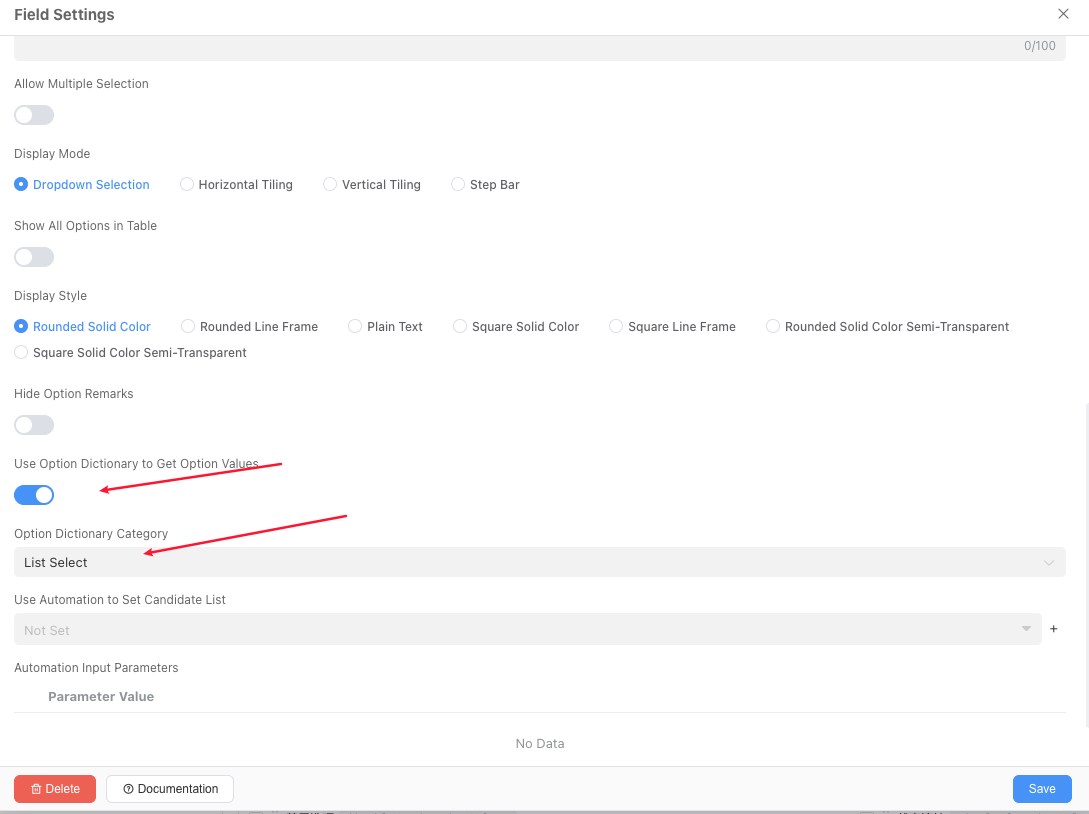
| Use Option Dictionary to Get Option Values | Whether to use the data dictionary in application settings as options |
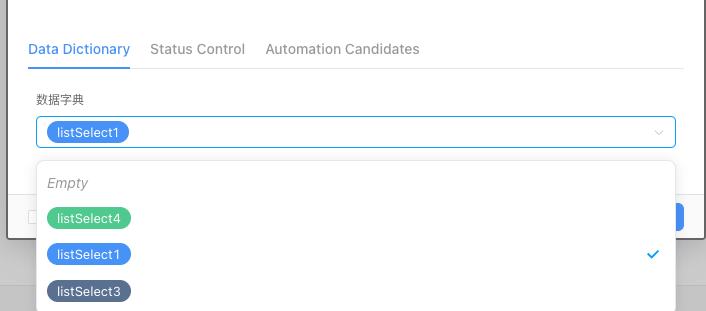
| Option Dictionary Category | When using the data dictionary in application settings as options, the data dictionary category used by the list selection data |
| Option Values | Set the option values for the field Supported operations: Add, Batch Add, Copy from Other Fields, Delete Options |
| Flow Settings | Set the flow direction between different options. Only takes effect when configured as Single Selection and on Form Detail Page |
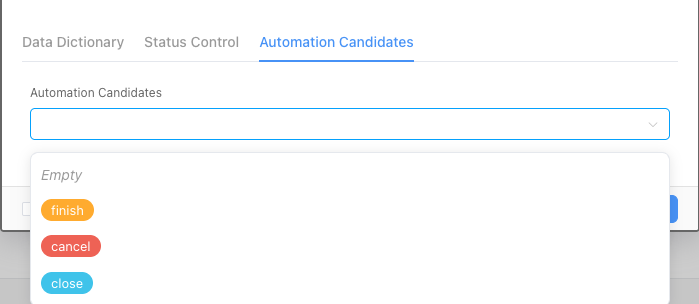
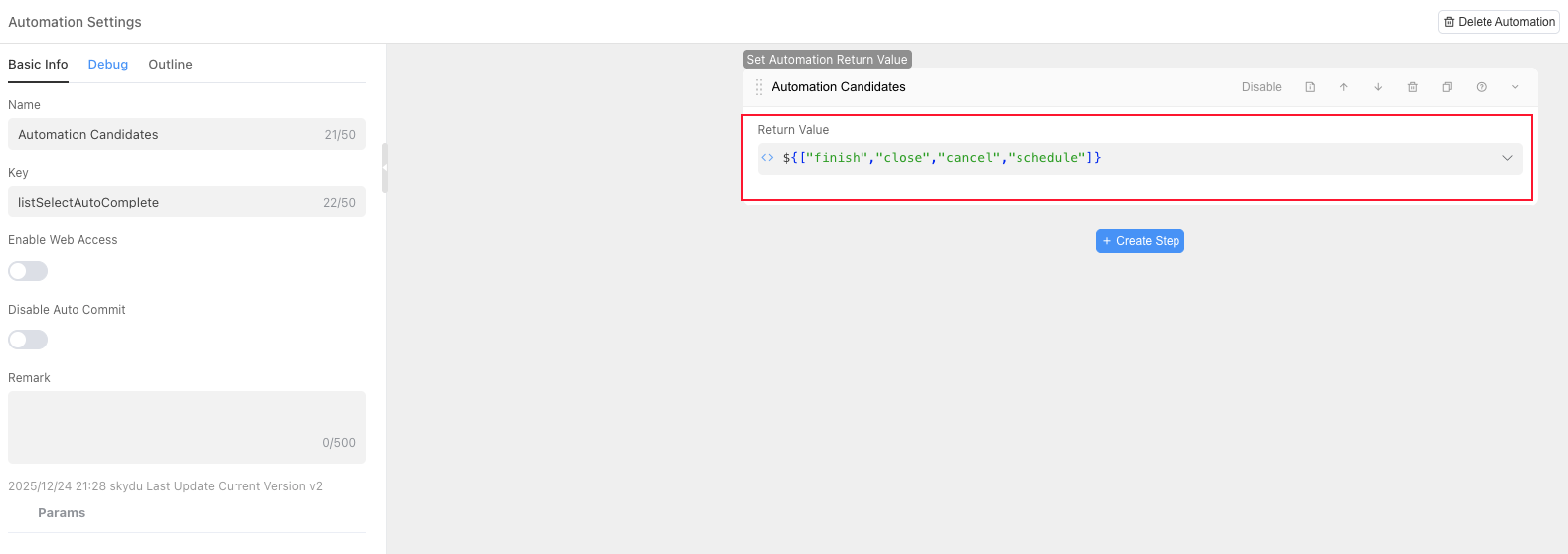
| Use Automation to Set Candidate List | Support using automation to filter the set option values |
| Automation Input Parameters | Parameters passed to automation based on context when calling automation candidate values |
Flow Settings
In some usage scenarios, it is necessary to determine the subsequent selectable range based on the currently selected data in the list; this setting can be quickly completed
Notes
Single selection and multiple selection have different storage types. Enabling/disabling multiple selection may cause data loss, so please operate with caution. Conversion rules refer to
When adding option values, a random code is automatically generated as the option's ID. The option ID must be modified according to the usage scenario to facilitate subsequent calls
Flow settings only take effect when configured as
Single Selectionand onForm Detail PageWhen using
Option ValueswithData Dictionary, the field'sFlow Settingscannot be usedUse automation to set candidate list
- The automation return value only supports the ID list of option values
Array<String> - The ID list returned by automation must be within the
Identifierrange of option values or data dictionary - When the ID list returned by automation is
null, all option values will be displayed
- The automation return value only supports the ID list of option values
Database Storage Format
| Selection Type | Field Type | Description |
|---|---|---|
| Single Selection | varchar(200) | Variable-length string, up to 200 characters |
| Multiple Selection | text[] | Array |
Usage Examples
Basic Usage
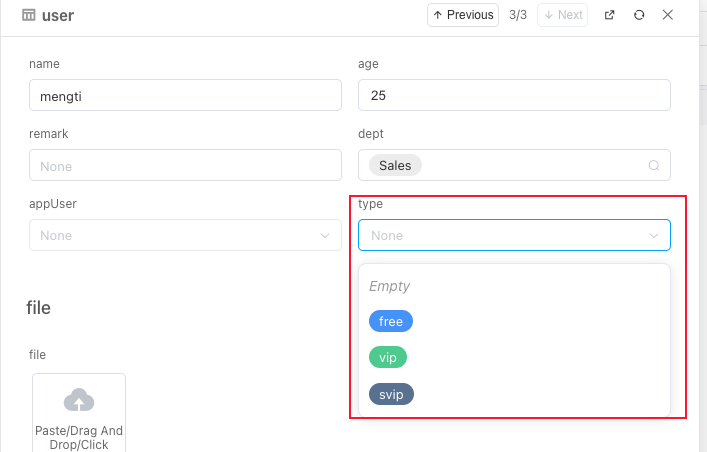
Use Option Dictionary to Get Option Values
Option value field configuration refer to