

Rich Text
Overview
In Informat's rich text (HTML), you can use JUEL-like expressions to render variables, and you can set loops (for) and conditional display (if). Tags in rich text can also be styled individually. With these features, you can configure complex content with various styles. Rich text is used in the following scenarios:
- Static text fields in data tables
- Card view rendering
- Print templates
- Automated steps to open rich text dialogs
Inserting Expressions in Rich Text
Use the ${} syntax to insert expressions in rich text. Here's an example:
Template
Today is ${date}, the weather is ${weather}Data
{
    date:'2022-12-22',
    weather:'sunny'
}Rendered Result
Today is 2022-12-22, the weather is sunnyLoops
For each tag, you can use the data binding function to bind loop variables. Loop variables must be of array type. When binding variables, you can also set the variable name for each element in the loop body. Here's an example of a loop:
Template, assuming data is bound to the entire tag, with the bound variable as list and loop variable name as weekday
Today is weekday ${weekday}Data
{
  list: [1, 2, 3, 4, 5];
}Rendered Result
Today is weekday 1
Today is weekday 2
Today is weekday 3
Today is weekday 4
Today is weekday 5Conditional Display
For each tag, you can use the data binding function to bind conditional display variables. The element will only be displayed when the value of the conditional display variable equals true.
Styles
For each tag, you can use the data binding function to bind display styles. The style content follows css specifications. Here's an example of a style:
background: #ff0000;
color: #fff;
font-size: 14px;Images
On the img tag, you can set the src attribute through the data binding function. By dynamically setting the src attribute using expressions, you can achieve dynamic rendering of images, such as displaying images from attachment fields in data tables.
Barcodes and QR Codes
By calling the Misc.barcodeURL and Misc.qrcodeURL methods, you can get the BASE64 encoded values of barcode and QR code images. Setting this encoding to the src attribute of the img tag enables the display of barcodes and QR codes.
Usage Examples
The following examples show how to use rich text in dashboard cards (Rich Text Card) to achieve dynamic data binding
Inserting Expressions for Dynamic Value Setting
Click the main menu Data Binding
Write the required expression in the pop-up window
For example: ${Misc.formatDate(Data.sysdate(),'yyyy-MM-DD HH:mm:ss')}
Data Binding
Card data sources can come from Automation or Expression Calculation. This example demonstrates using Expression Calculation.
Define expression calculation data:
${
  {
    "user": "Li Ming",
    "age": 20,
    "image": "https://ai.ainformat.com//img/avatar/pic18.png",
    "list": [
      { "id": "1", "school": "xxxx Primary School", "date": "2002-06-28" },
      { "id": "2", "school": "xxxx Middle School", "date": "2008-06-28" },
      { "id": "3", "school": "xxxx University", "date": "2011-06-28" },
      { "id": "4", "school": "xxxx Doctorate", "date": "2015-06-28" }
    ]
  }
}Adding a Table in Rich Text
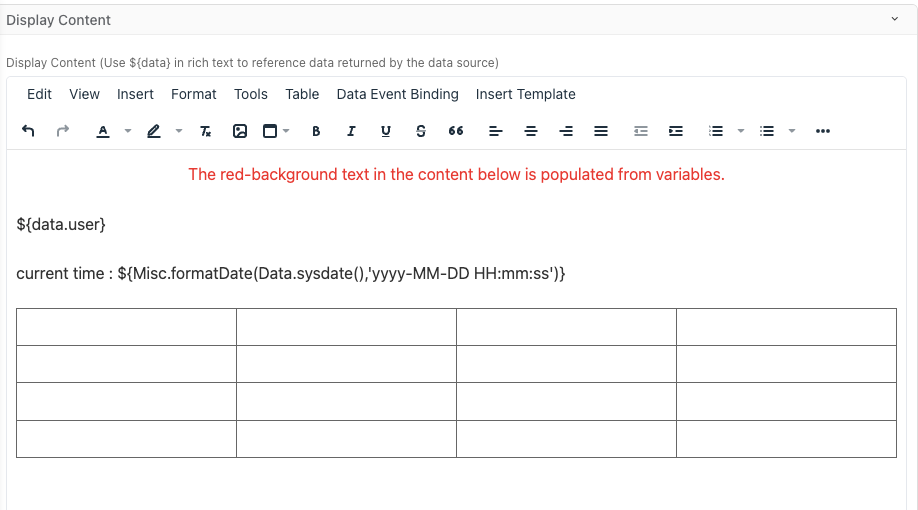
Click Bind Data under Main Menu > Data Binding
Loop List
In the pop-up window, find the table's tr tag in the Outline Directory. After selection, the left side will automatically highlight the current line based on the selection. Click the Properties tab on the right
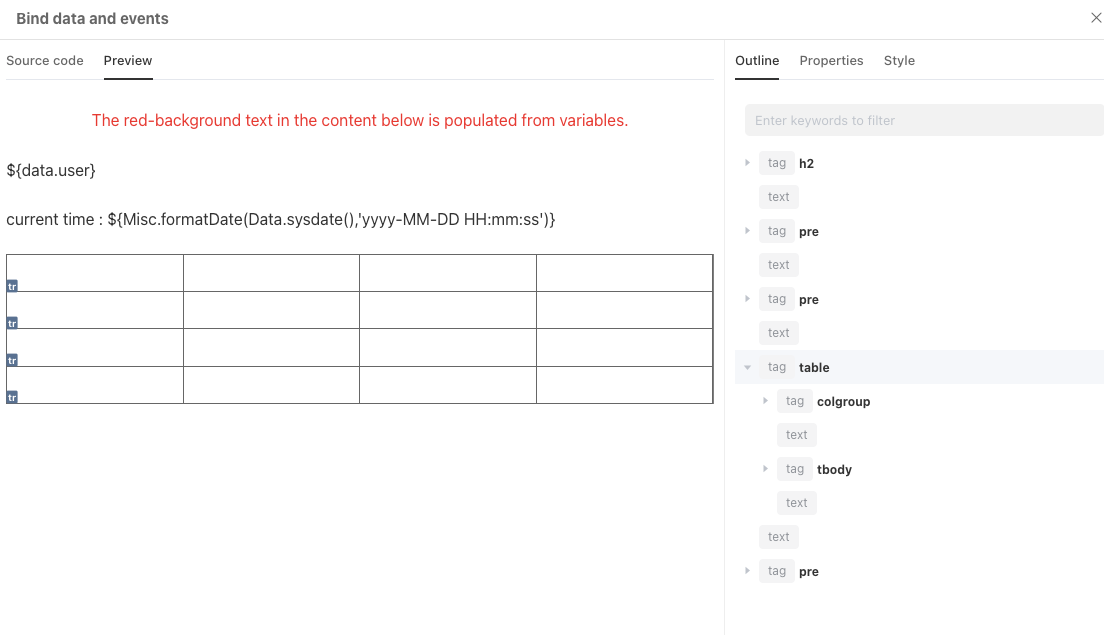
Complete the value of the table row's Loop Property as shown below
Set table column data as shown below
By using the Loop Property, rich text can dynamically display data-based rows during rendering.
Dynamic Styles
Open Data Binding, find the table's tr tag, and set Style. The style here refers to the content under the HTML style attribute, refer to style
For example, setting stripe styles:
${
  item.id % 2 == 1 ? 'background-color:#efefef;' : 'font-weight:bolder;color:#3064f5;'
}