3.6 Publishing the Application
After creating the first table, you might be eager to see the current presentation effect. Let's click the Informat icon in the upper left corner (or directly enter the homepage URL) to return to the workbench homepage.
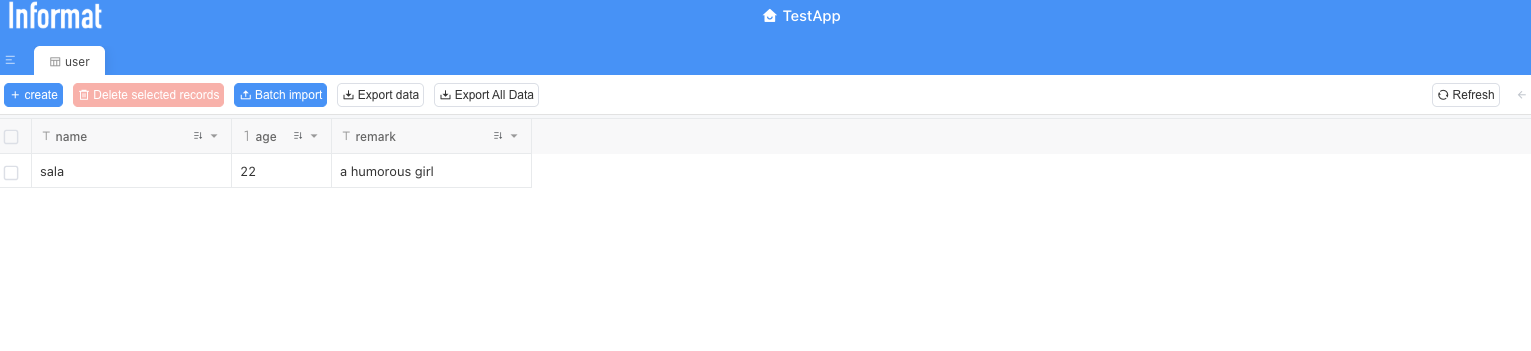
Find the icon of the Employee Information Management System we just created in the application list, click to enter the application, and you will see a completely blank page as follows.

Wait, where did the [Department Table] we just created go?
Don't panic, it's not lost. This phenomenon exactly touches on an important concept in Informat application building: the separation mechanism of backend design and frontend publishing.
Core Concept: Kitchen vs. Dining Room (Design End vs. User End)
You can imagine the "Application Design" interface we've been operating as the "kitchen" of a restaurant. Here, as the "chef", you are carefully preparing ingredients (designing data tables), researching recipes (creating processes), and planning plating (designing dashboards). All the modifications and attempts you make in the kitchen will not be immediately seen by the diners in the restaurant.
And that blank page you just entered by clicking the application icon from the workbench is the "dining room" of the restaurant. This is where end users (employees) "dine". Only when you, as the chef, think a dish is perfectly prepared, then press the service bell to let the waiter serve it out, can the diners see and enjoy it in the dining room.
"Application Publishing" is the action of you ringing the "service bell".
It is a process of formally "bringing out" all the completed design results from the "kitchen" to the "dining room" so that end users can see and use them.
Why design it this way?
This separation mechanism is a best practice in enterprise application development, and it brings several huge benefits:
Safety and stability: Ensure that the application being used by front-end users is stable and reliable. You can make various modifications, tests, or even mistakes in the background without affecting the normal work of front-end users.
Version control: Only when you click "Publish" does a new version of the application officially take effect. This gives you a clear version iteration node.
Understanding this, we know what to do next. Let's go back to the "kitchen" and officially "serve" the first dish we carefully prepared - [Department Table]!
Hands-on Practice: Complete Your First Application Publishing
Return to the Application Design Interface Re-enter the application design interface from the workbench.
Find the Publish Button In the upper left of the application design interface, there is an orange "Publish" button. This is exactly the "service bell" connecting the backend and the frontend.
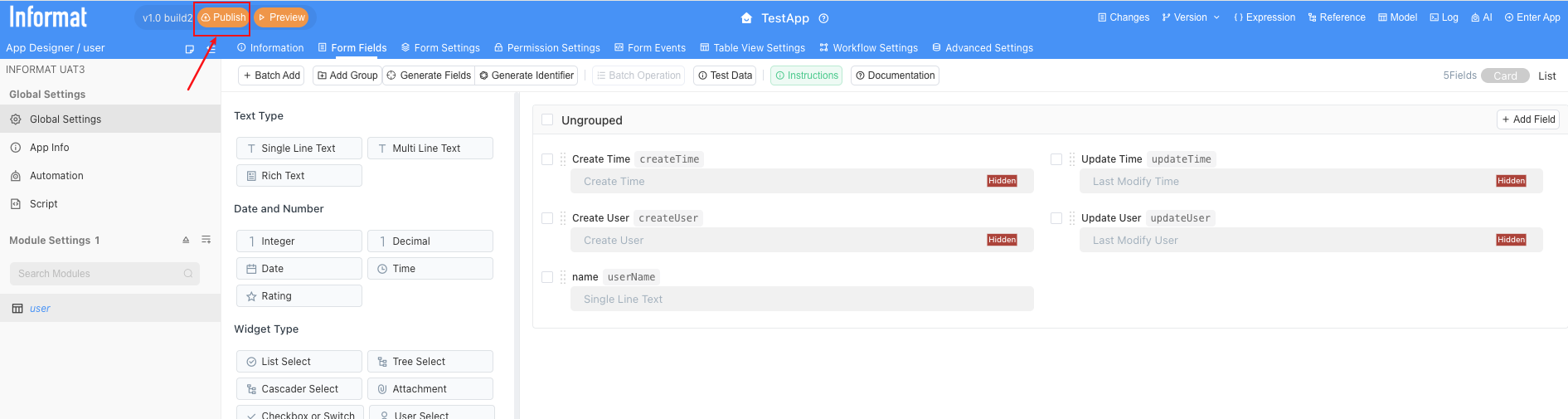
Confirm Publishing Click the "Publish" button.
Verify Results Again Now, we have rung the "service bell". Let's return to the workbench homepage again, and like a real user, click the application icon of "Employee Information Management System" again. This time, what you see will no longer be that blank page! In the menu bar above the application, you will be pleasantly surprised to find that "Department Table" has appeared as a clickable menu item.

You can click the create button to try adding a few data records.
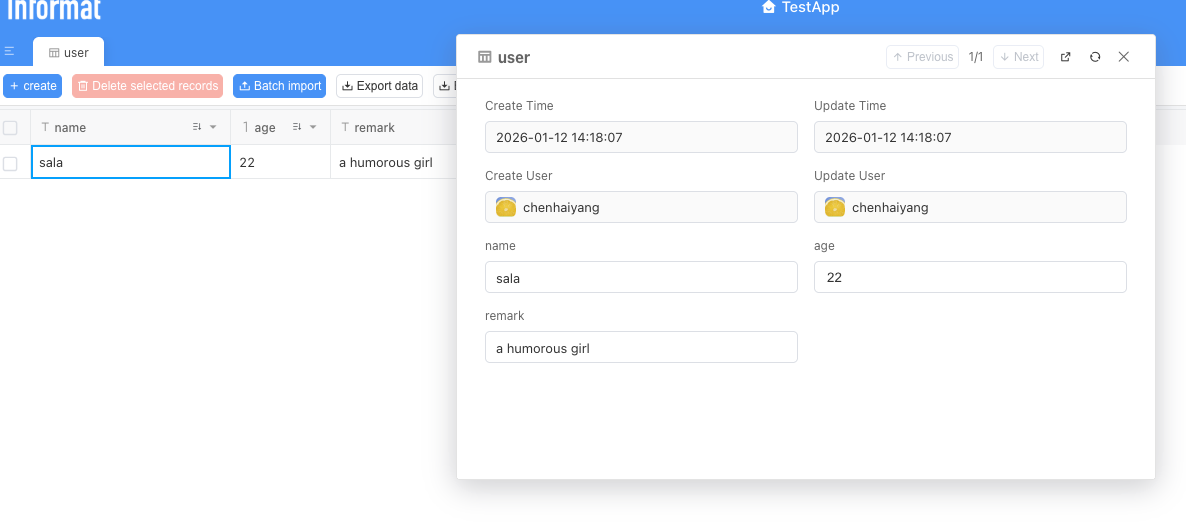
You may find that only a few checkboxes have been added to the page, and no data has been actually presented. Why is that? This involves another important design concept of Informat: the separation of data and views.