

3.5 Hands-on: Adding Fields
Before actually adding fields, let's pause and think like a product manager: what core information do we need to record to clearly describe a "department"?
- First, a department must have a name, right? Like "R&D Department". This is the most basic identity identifier.
- Second, each department usually has a responsible person, i.e., the department supervisor. We need to clearly know who is managing this department.
- Finally, we might also care about the year the department was established, which helps us with management and archiving.
The plan is clear! The information we need is: department name, department supervisor, and establishment year.
Now, please apply the knowledge we just learned to complete the creation of fields.
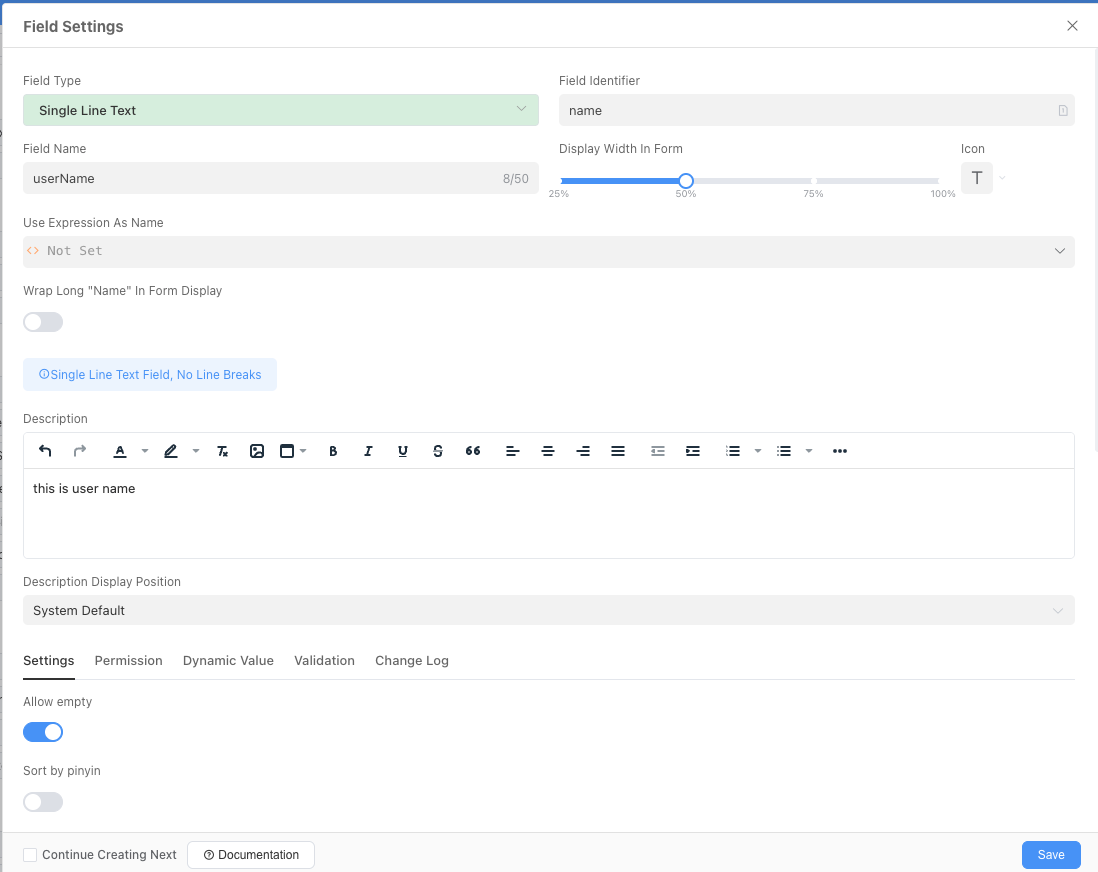
Department Name
- Operations:
- Click the "Add Field" button, select Single-line Text as the field type.
- Fill in
Department NameforField Name. - For the field identifier, you can fill in the corresponding English translation: name
- Key setting: Find the
Allow Not Fillingswitch and turn it off! Because every department must have a name, this is a required item. - In the description, you can enter "Please fill in the official name of the department!", and select hover prompt for the display position.
- Keep the remaining fields as default and click
Save.
- Operations:
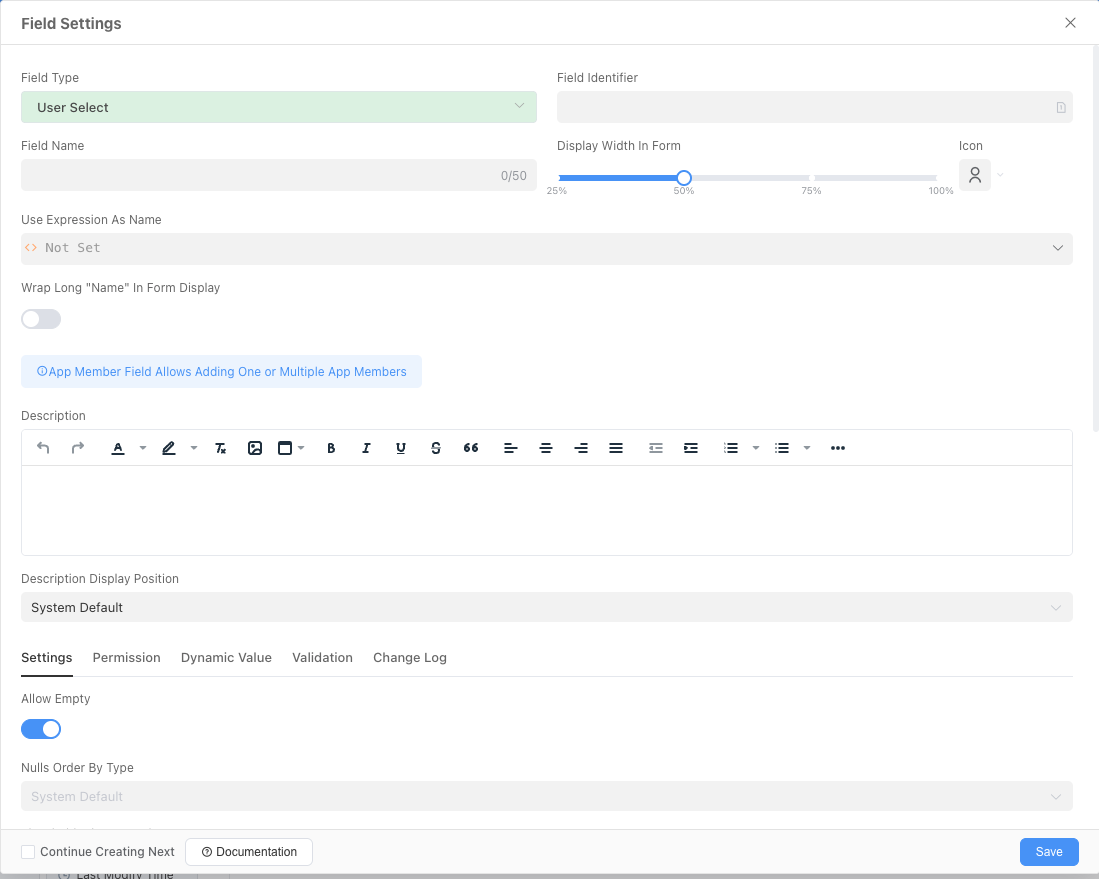
Department Supervisor
- Operations:
- Click the "Add Field" button at the bottom of the page, select "User Selection" field type from the pop-up panel.
- Set
Department Supervisoras theField Name. - The field identifier can be: departmentHead
- Key setting: Similarly, turn off the
Allow Not Fillingswitch to ensure each department has a designated responsible person. - Keep the "Allow Multiple Selection" option turned off.
- Click
Save.
- Operations:
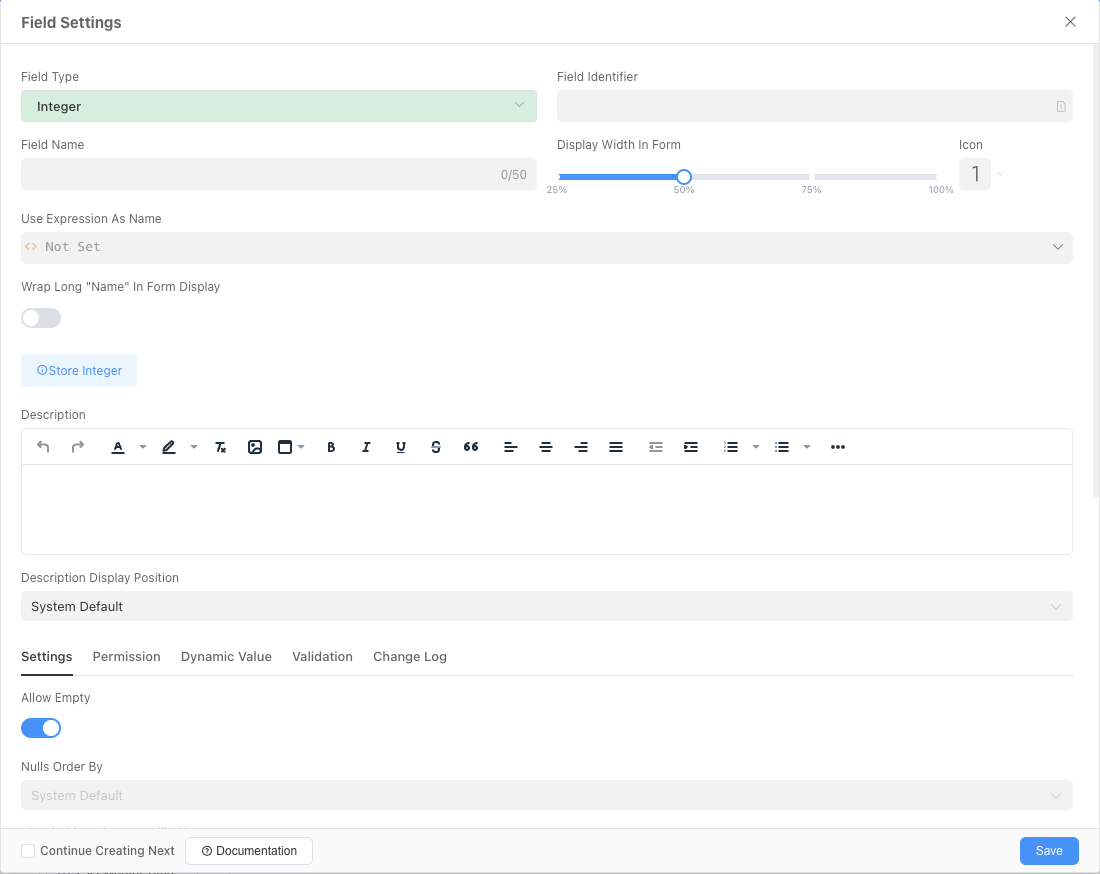
Establishment Year
- Operations:
- Click "Add Field" again, select "Integer" type.
- Set
Establishment Yearas theField Name. - You can fill in 2025 or any other default value you want for the default value.
- Click
Save.
- Operations:
Our first data table [Department Table] has been designed. Through this practice, you have not only learned how to add fields, but more importantly, you have been able to understand and use Informat's most core field setting panel.